This page describes how to start / end a scheduled meeting in Acall Meeting (outside mode), as well as the auto-cancellation of a meeting if it is not started.
 Note

If you are using Acall Meeting (inside mode), please refer to "Start / End Scheduled Meeting on Acall Meeting (Inside Mode)".
Start a scheduled meeting
If the meeting room is reserved, the reservation will appear in Acall Meeting.

Swipe the [ENTER] switch to the right to start the scheduled meeting.

When a meeting is started, the screen changes to the status color of [In Use].
See "Device Settings - Status Color" for more information on the status color.

End meeting
Swipe the [EXIT] switch at the bottom of the screen to the left.

※ Only when using Outlook Calendar Link function.
If you ENTER within 1 minute after EXIT, the system will internally adjust for 1 minute and the message "We are preparing the meeting" will be displayed.
After 1 minute, the system will automatically start the meeting.
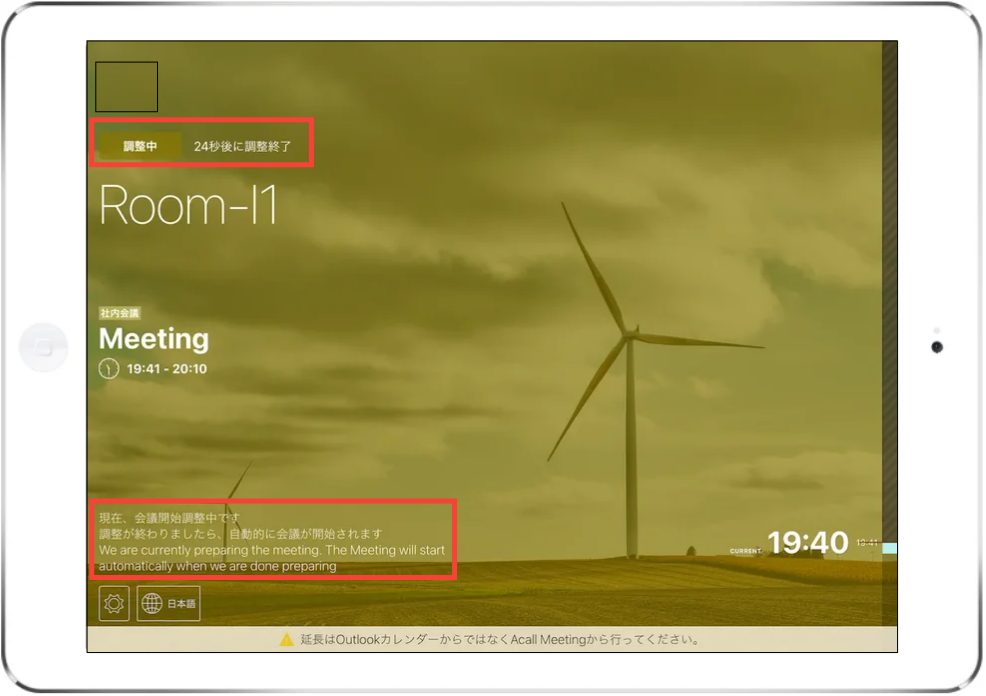
When you can start a meeting
You can start a meeting 15 minutes before the scheduled start time.
More than 16 minutes before the scheduled start time, the message "You can start the meeting 15 minutes before" will be displayed, and the ENTER button cannot be swiped.

If you want to start the meeting before 15 minutes, start the meeting with "Start Meeting without Reservation on Acall Meeting (Inside Mode)".
Automatic cancellation
If the scheduled meeting is not started after the scheduled start time, the message "Appointment has not started. Will be canceled automatically after x minutes" will be displayed, and the schedule will be automatically canceled if it is not started after that.
This feature allows for more efficient use of meeting room resources.
Auto-cancellation time can be set in App Settings > Acall Meeting.
For more details, please refer to "Set Automatic Cancellation Time for Meeting Room Reservations".

Reservations that are automatically cancelled will be displayed as "Canceled" on Acall Portal > Guest Check-In screen.
Before auto-cancelled

After auto-cancelled

Reservation > Workspace screen will not display the auto-cancelled reservations.
Before auto-cancelled

After auto-cancelled

Cancel confirmation message
If any of the following conditions apply, confirmation message will appear asking if you want to cancel the appointment.
- If you EXIT within 1 minute after ENTER
- If you ENTER and EXIT before the scheduled start time

Select "Yes" to cancel the reservation and "No" to back to the original screen.
Please refer to the following help article for information on how the reservations looks when it is canceled while it is linked to external calendar (Outlook / Google ).
・Acall Meeting Specifications for Outlook Calendar Linking
・Acall Meeting Specifications for Google Calendar Linking
Automatic extension
If there is no next reservation, the meeting time is automatically extended until you swipe EXIT to end the meeting.
Even if auto-extend is turned on, Acall will send a notification 5 minutes before the end time of the meeting.
If you do not want auto-extension, administrators/multi-tenant administrators can turn OFF on a per-device basis.
・Device Settings for Acall Meeting Outside Mode
Worker Code authentication
If administrators/multi-tenant administrators have set worker code authentication as required, you will be asked to enter the worker code when starting/ending a meeting on Acall Meeting. If you enter the code provided for each worker by administrators/multi-tenant administrators, you will be able to use the meeting room. Your code can be found in the "Account Settings" screen or on the Acall Mobile check-in screen.
Reference

・Make Worker Code Authentication Mandatory for Acall Meeting

QR Code (Acall Mobile)
Worker code authentication supports QR code authentication as well as alphanumeric code input.
QR code authentication needs to use the QR code displayed on the Acall Mobile Check-in screen.
Reference

・Check in to the Meeting Room with Worker Code (Acall Mobile)
