- Help Center > Meeting Room Check-in / Acall Meeting > General User > Acall Mobile > Check in to the Meeting Room with Worker Code (Acall Mobile)
Help Center
General UserAdministratorTenant Administrator
Check in to the Meeting Room with Worker Code (Acall Mobile)
- Category :
Answer
With Acall Mobile, you can quickly check in with a worker code when using a meeting room.
Note
To check in with a worker code, you need to set the worker code authentication as a requirement in Acall Meeting.
For more details, please refer to "Make Worker Code Authentication Mandatory for Acall Meeting".
Use Acall Meeting app
Tap "For External Use" or "For Internal Use" button on Acall Meeting.
After specifying the time of use, swipe the bottom button to the right (ENTER), and "Hold QR code of Acall Mobile" will be displayed.
Check-in with Acall Mobile
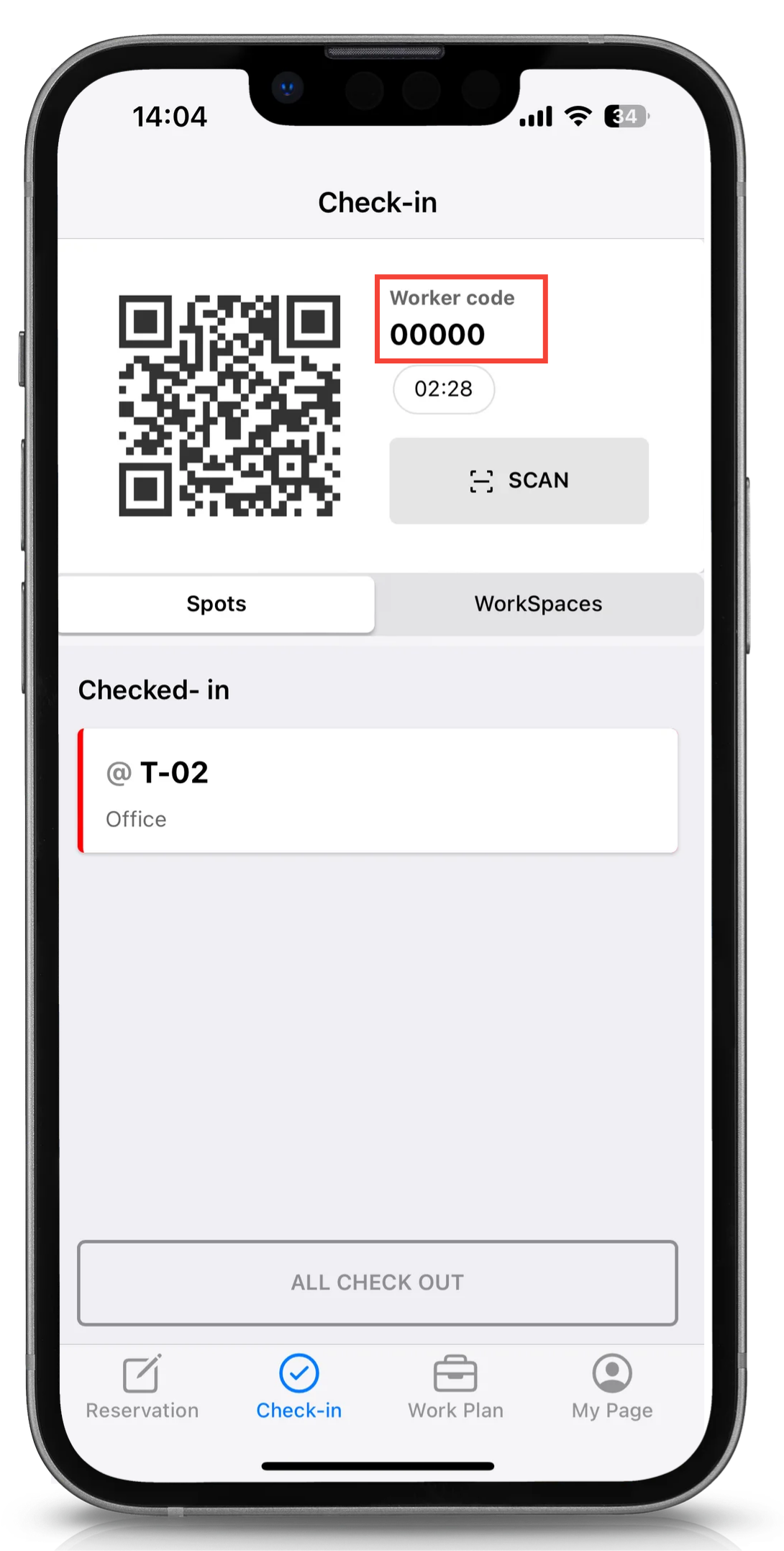
Launch the Acall Mobile app on your smartphone, and scan the QR code on the check-in screen with Acall Meeting (iPad) to complete the check-in.

If you set an alphanumeric code instead of a QR code in the worker code settings, check-in can be done using the alphanumeric code.
The alphanumeric code can be found on the check-in screen in Acall Mobile. It is displayed to the right of the QR code.