
- Help Center > Meeting Room Check-in / Acall Meeting > Administrator > Acall Meeting App Settings (Outside Mode) > Device Settings for Acall Meeting Outside Mode
Help Center
Device Settings for Acall Meeting Outside Mode
Answer
When using Acall Meeting with Outside Mode, you can freely customize the logo and background image displayed on the application screen.
This page describes the device settings for Acall Meeting Outside Mode.
Open device settings
Tap the Settings button (gear icon) in the lower left corner of Acall Meeting and enter the passcode (device config key).
 Note
If you do not know the device configuration key, please refer to "Setting the Device Configuration Key".

In the device settings screen, you can set the logo, background image, etc.
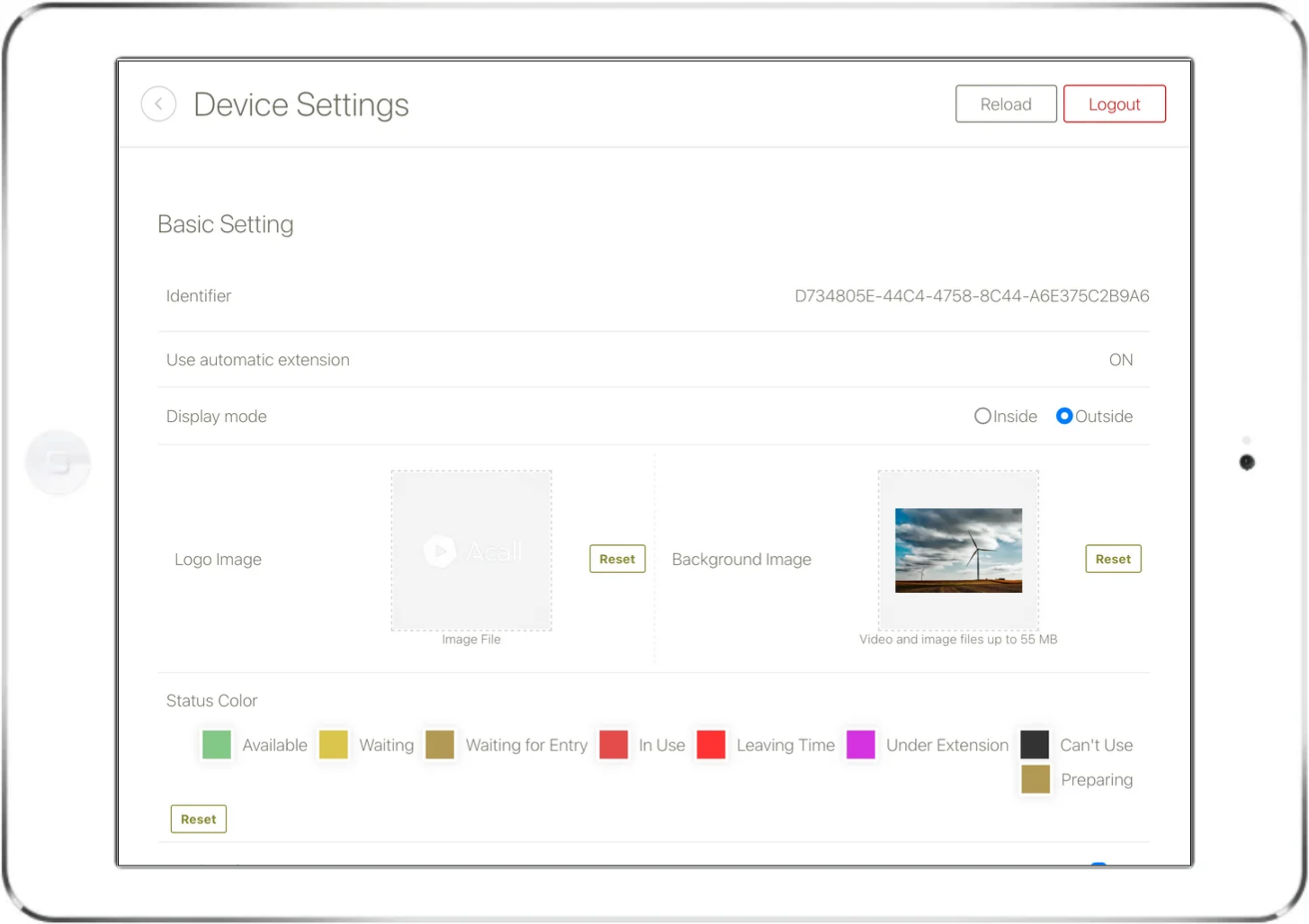
Device settings
Basic setting
You can set logo and background image.
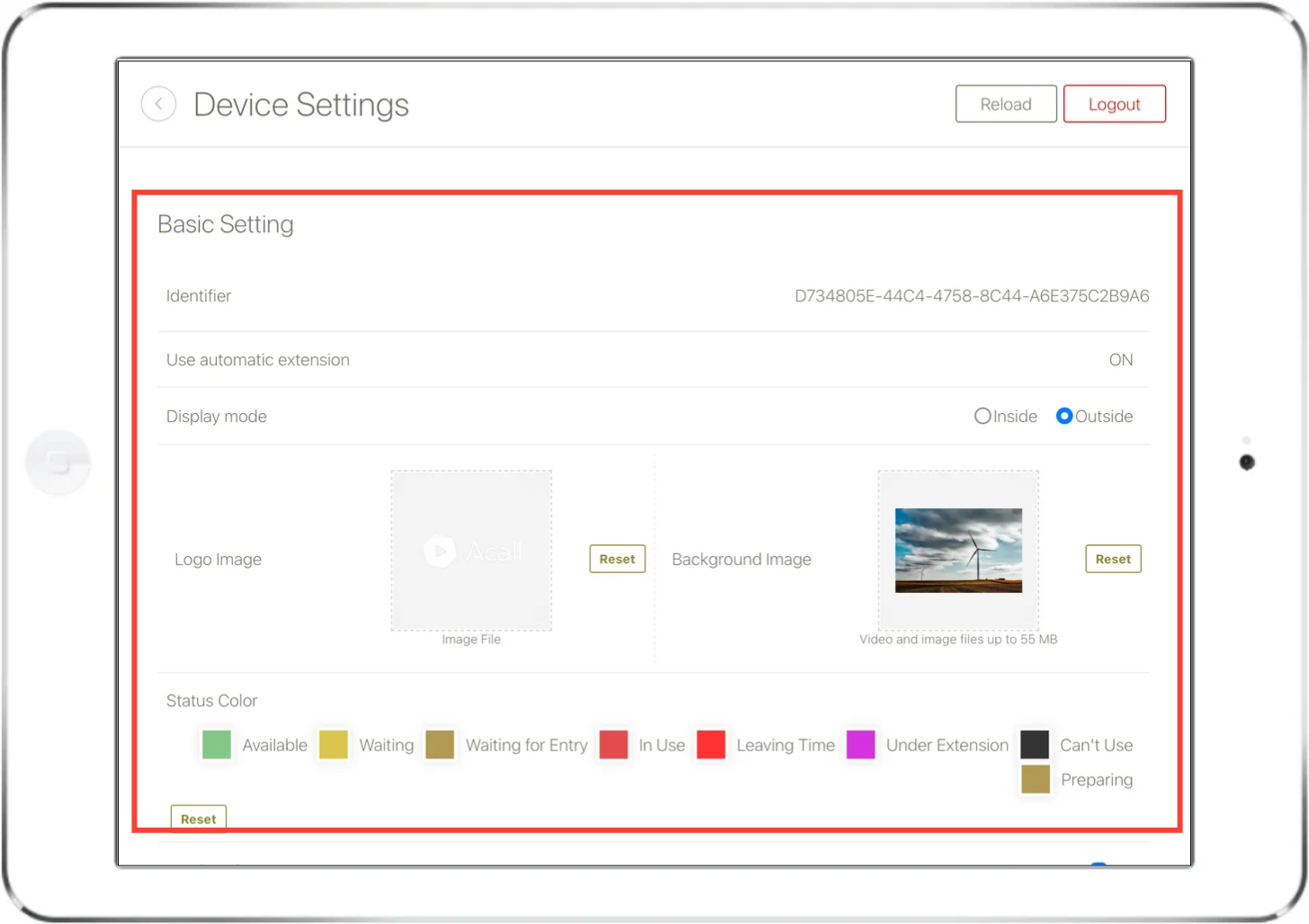
| Setting Items | Descriptions | ||||||||||||||||||
| Device installation Location | Switch Outside Mode / Inside Mode | ||||||||||||||||||
| Logo Image |
You can change the logo image displayed in the upper left corner of the application screen.
|
||||||||||||||||||
| Background Image | You can change the background image that appears on the entire app screen. | ||||||||||||||||||
| Status Color |
The background color displayed on the entire app screen can be changed for each status.
|
||||||||||||||||||
| Display of meeting room name |
You can show/hide the name of the meeting room displayed in the upper left corner of the application screen. |


Sound settings
The type and volume of sound effects can be set for each app operation, such as tapping the screen.

Import sound file
You can add any sound effect that can be used in "Sound Settings".
Please prepare an audio file and import.


