- Help Center > Reception Check-in / Acall Reception > General User > Acall Features > My Page
My Page
- Category :
Answer
Contents
This page explains how to use My Page on Acall Portal.
What is My Page?
My Page is the management page for each worker account on Acall Portal.
You can mainly do the following;
- View / edit your account information
- Set your Work Plan
- View / edit your schedule
- Check visitor notifications

Access to My Page
After logging in to Acall Portal, click My Page in the side menu.
Or, click your account icon in the upper right corner of the screen > My Page.

Note
If you have admin permission, "My Page" will not appear in the side menu. Please open from the account icon.
View / edit your account information
Click [ Edit (pencil mark)] to open edit screen.

Your can view and edit your account information.

If you want to change your icon, you can do so by clicking on the image and selecting the edit option.
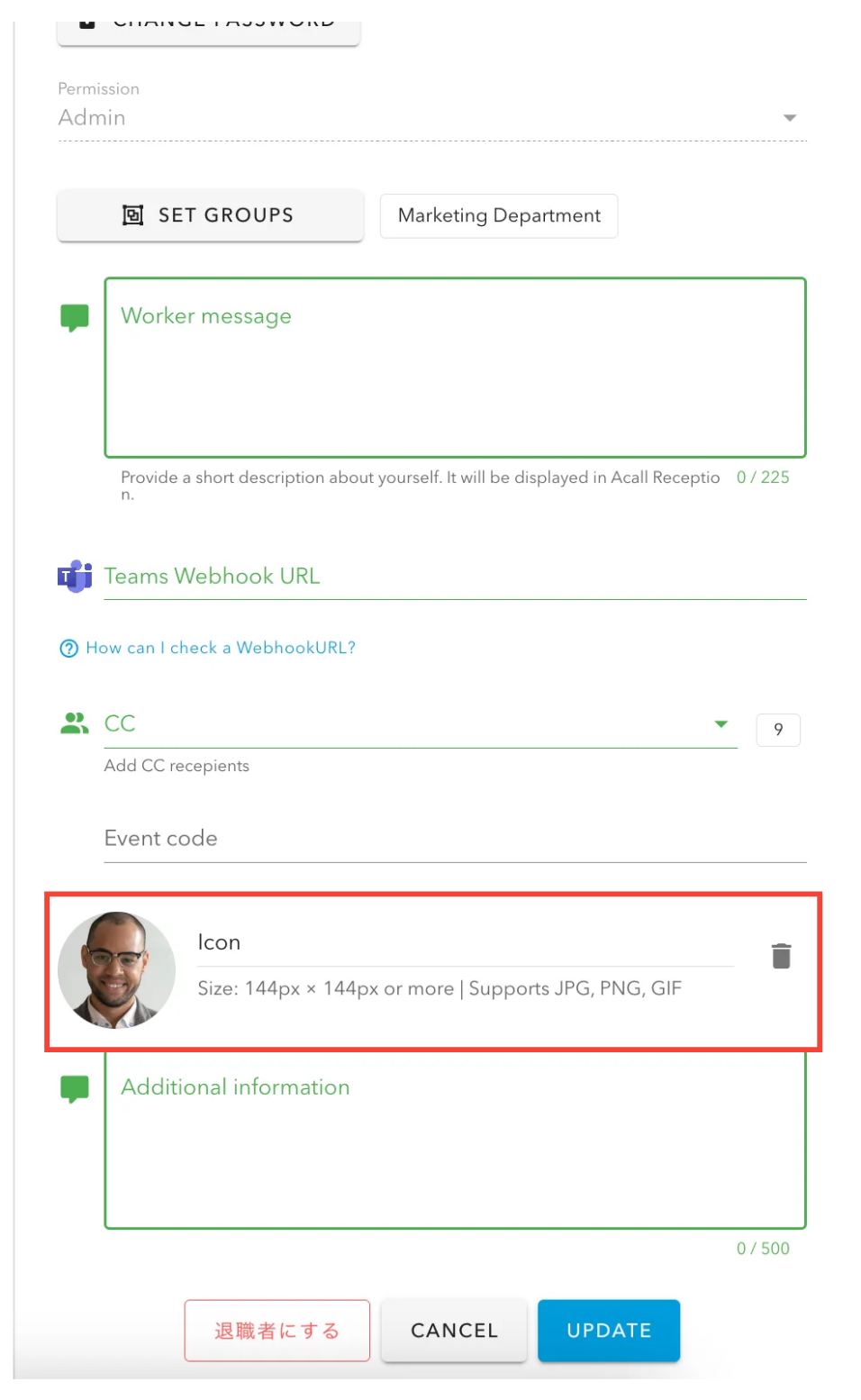
Please refer to "Register / Edit Workers" for the detail of each item.
NOTE
・Some items, such as worker code, permission, and groups, cannot be edited. Only administrators can edit them.
・Administrators can add and edit workers from the menu [ Organization ] > [ Workers ].
Register / Edit / Delete Workers
Set up Spot Reservation Notification
You can set up ON/OFF for notifications when you use a spot, such as before the start of the reservation.

| Number | Item | Description |
| ① | Email Notifications |
Set whether or not you want to receive Email notifications. Emails will be sent to your email address shown in the Account field below.
|
| ② | Start Notification | You will receive an Email notification 5 minutes before the start time of your spot reservation. |
| ③ | Un-checked-in Notification |
You will receive email notification of spots that have not been checked in after the reservation start time.
If a reserved spot has an auto-cancellation time set, the reservation will be canceled when the auto-cancellation time passes without check-in. |
| ④ | Auto-cancel Notification |
You will receive an email notification that your reserved spot has been automatically cancelled. |

Note
Auto-cancellation setting varies for each spot.
Check [Reservation] > [Spot] > [MAP] for the reserved spot's auto-cancel setting.

Set your Work Plan
You can set up your work plan for each day of the week.

Please refer to "Work Plan" for an overview of Work Plan and "Setting Up Workplans in Acall Portal" for how to set up.
Check your schedule
Internal / external appointments for which you are the person in charge are displayed.

Note
Past appointments are not displayed.
You can update the information by clicking on the three dots.

Edit appointment
Click [Edit ] for the appointment you want to edit.
Note
Follow the instructions in "Edit appointments (internal/external)" in the article, "What You Can Do on Guest Check-in Screen."
Check notifications
You can check the notification such as below;
- Pre-meeting notification
- Notification for auto cancelled meeting
- Visitor Notification (With/without appointment)
- Visitor Notification (Reminder)
- Exit Process reminder
- Authentication notification(Face Auth)
- Gate Opening
- Gate Opening Failure
- Gate Opening with QR code
- Acall Reception Connection
- Acall Reception Connection Error
- Acall Meeting Connection
- Acall Meeting Connection Error
- Acall Gate Connection
- Acall Gate Connection Error
- Event Invitation
