
- Help Center > Spot Check-in / Acall Desktop > General User > Work Plan > Set Your Work Plan on Acall Portal
Help Center
Set Your Work Plan on Acall Portal
- Category :
Answer
Contents
You can set your work schedule (work hours) as a "Work Plan" in Acall.
By setting up a work plan, the initial start and end times will be displayed on the spot (seat) reservation screen based on the work plan.
This page explains how to set up the basic work plan for each day of the week and the work plan for each date on Acall Portal.
 Note
Please refer to the detail of Work Plan.
・Work Plan
Set Work Plan
Work Plan for each day of the week
You can set your work plan for each day of the week in My Page.
After logging into Acall Portal, click [My Page] in the side menu.
Or, click on Account Icon > [My Page] in the upper right corner of the screen.

Set up your work plan for each day of the week from "Basic Work Plan Settings" on My Page.

| No | Description |
| 1 |
Select a day of the week
Click on a day of the week and set the work plan. |
| 2 |
Work plan
Set up work plan. How to set up work plans for each day of the week and each date are the same. Please refer to "Set up your work plan" below.
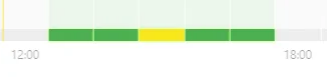
※ The yellow part indicate the current time.
|
| 3 |
Scheduled Working Hours
Work plan is displayed in the "start time - end time" format. |
Work Plan for each date
You can set your work plan for each date on Work Plan page.
Click on Account Icon > [work plan] in the upper right corner of the screen.

Set up a work plan for each day.

| No | Description |
| 1 |
Select a date
Select a date and set up a work plan. |
| 2 |
Work plan
Set up work plan. How to set up work plans for each day of the week and each date are the same. Please refer to "Set up your work plan" below.
※ The yellow part indicate the current time.
|
| 3 |
Scheduled Working Hours
Work plan is displayed in the "start time - end time" format. |
Work plan for each day of the week / each date
If you have set up work plan for each day of the week, the setting will be reflected on work plan for each date screen as default.
Select a date to change the work plan settings.
If you set work plan for each date and change the work plan for each day of the week, work plan for each date will not be overwritten and retained.
Example:
1. Set work plan for Wednesday as 9:00 - 18:00
2. Set work plan for 27 Sep (Wed) as 13:00 - 18:00
3. Change work plan for Wednesday to 10:00 - 18:00
→ Work plan for 27 Sep (Wed) will remain as 13:00 - 18:00
Set up your Work Plan
Add / remove time
Click on a time and add it as working time. It turns to green.
To remove time, click again the time turned green.

The data is automatically saved in real time.
15 minute intervals
By clicking the up and down arrows, you can select the time in 15-minute intervals.

Drag & drop
You can add and remove times by drag and drop.

Clear the setting
Click the broom icon in the upper right corner to clear all the time you have set.

Only the settings for the currently displayed day/date will be cleared. The settings for other days and dates will not be changed.
Holiday setting
You can set holiday on Acall Desktop.
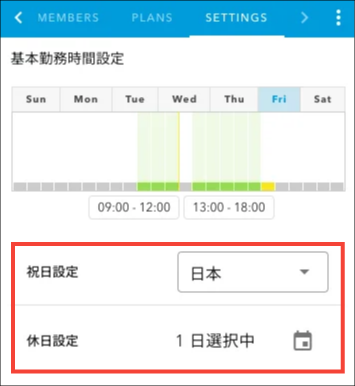
Holidays are also reflected in Acall Portal and Acall Mobile, with work hours set to 0 in the work plan for each date.

If you would like to use or trial Acall Desktop, please contact us using our inquiry form.

