- Help Center > Meeting Room Check-in / Acall Meeting > Administrator > Set Up > Register / Edit Workspace
Register / Edit Workspace
- Category :
Answer
This page explains how to register and edit workspaces on Acall.
Customers using the calendar integration feature cannot register workspaces on Acall.
You need to import meeting rooms from Outlook / Google. Please refer to the following.
Import Meeting Rooms and Equipment from Outlook
Import Meeting Rooms and Equipment from Google
What is a workspace?
Meeting rooms and equipments which is reserved and used for internal or visitor meetings are called "workspaces" on Acall Portal and Acall applications.
To use a workspace, the administrator needs to register a workspace on Acall according to the following procedure.
Register workspace
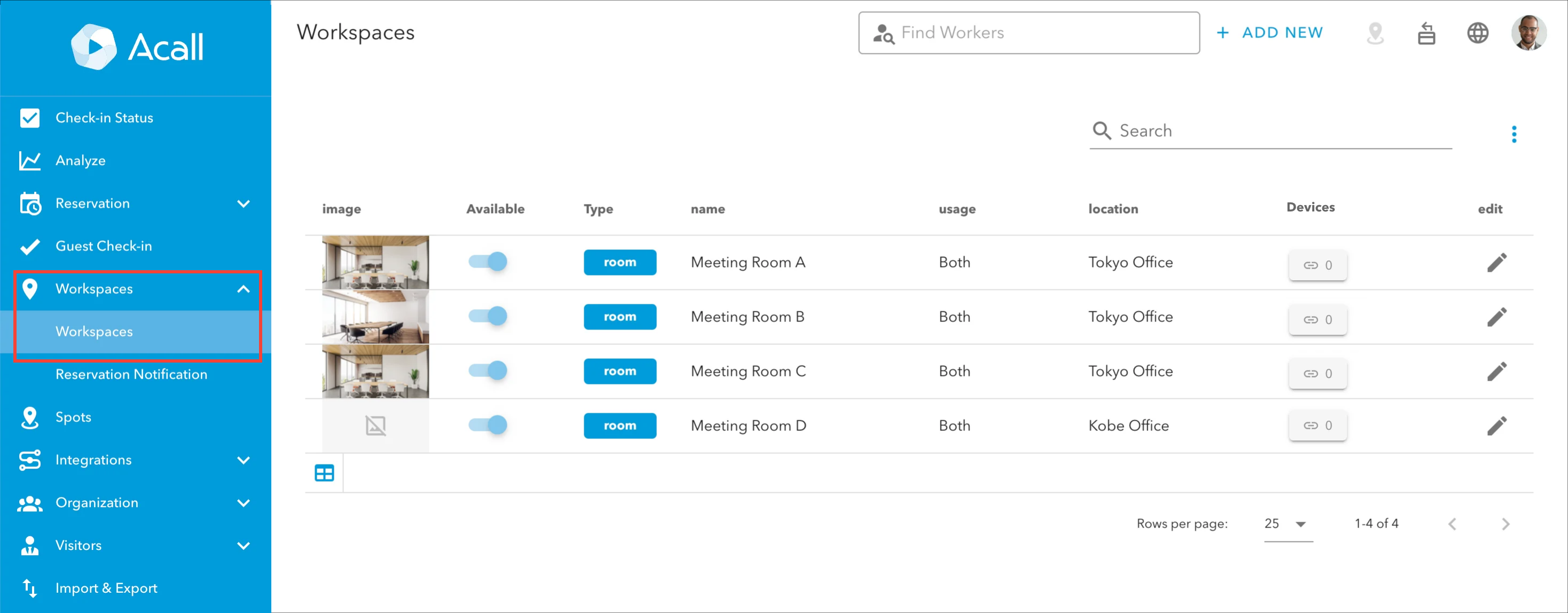
Click [Workspaces] > [Workspaces] on the side menu of Acall Portal.
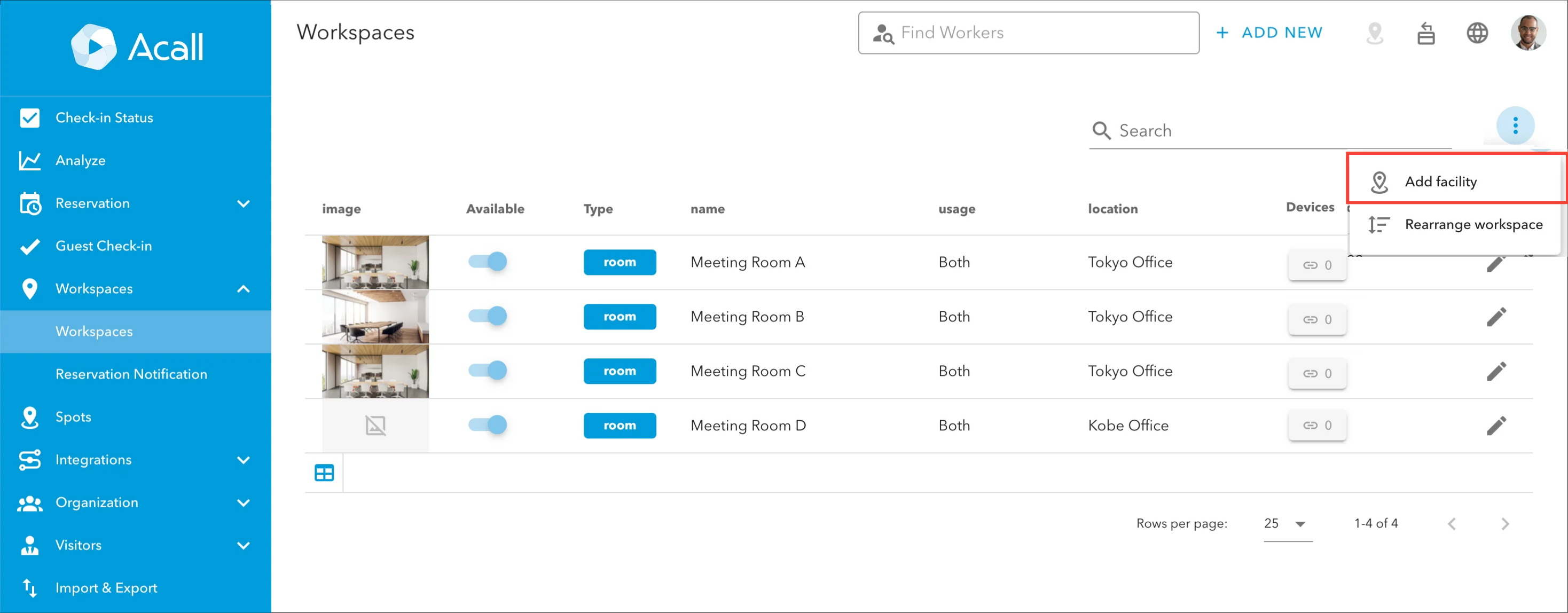
Click on the three dots and [Add facility].
Fill in the necessary information and click [CREATE].
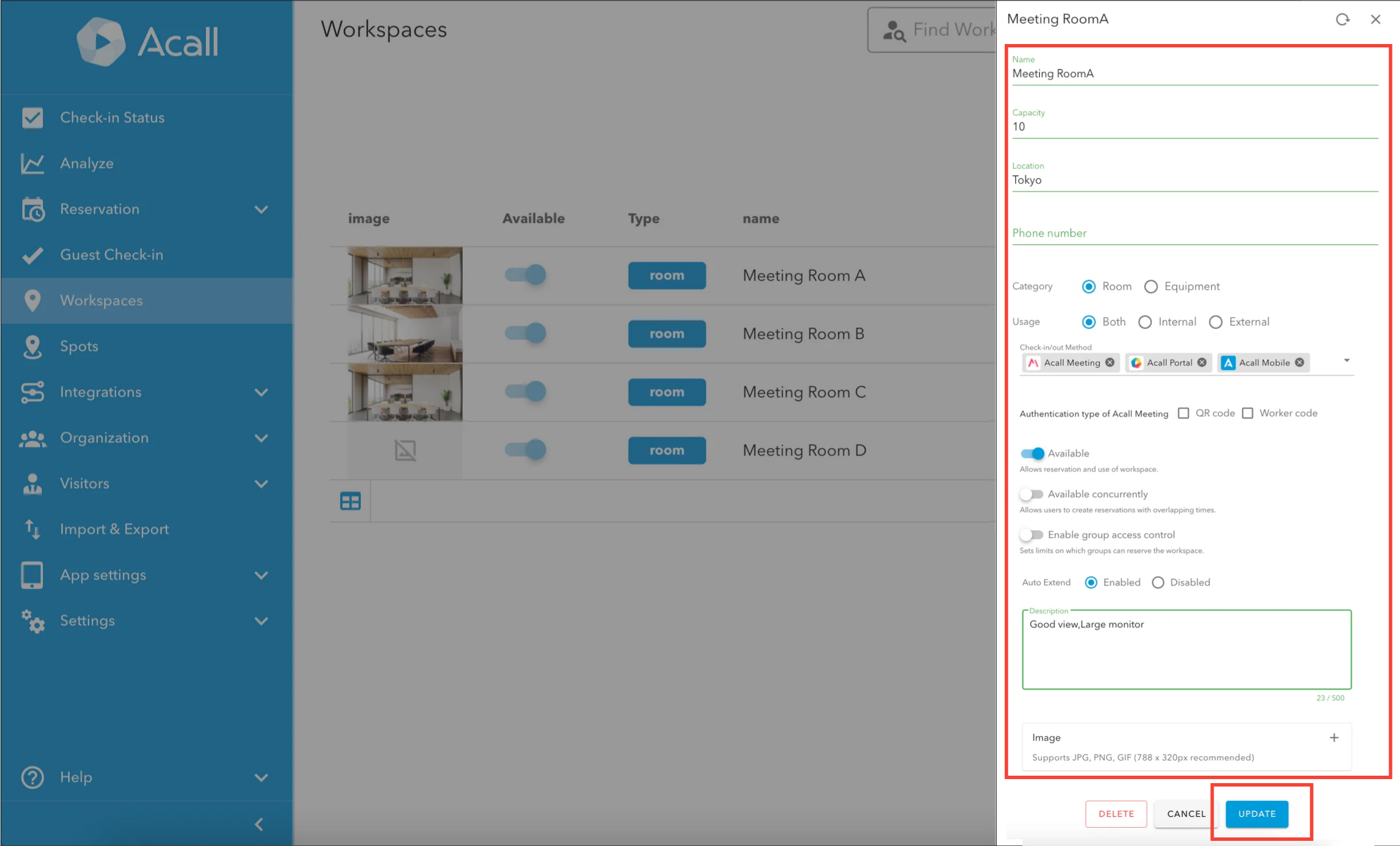
Workspace Information
ATTENTION
・Fields marked with an asterisk (*) are required.
・Duplicate name registrations are not allowed.
|
Items |
Contents |
|
Name (*) |
Name of the workspace |
|
Capacity |
Capacity of the workspace |
|
Location |
Location of the workspace |
|
Phone number |
Phone number linked to the workspace |
|
Category |
Types of the workspace |
|
Usage |
Workspace usage |
|
Check-in/out method |
Workspace start/end Method
 You can start and end meetings using Acall Meeting.  You can start and end meetings on Acall Portal.
 You can start and end meetings on Acall Mobile. These check-in/out methods can be used in combination.
If even one method is set, the auto cancel function will be enabled. |
|
Authentication type |
Authentication type Authentication type for Acall Meeting |
|
Available |
ON / OFF for a workspace reservation |
|
Available concurrently |
ON / OFF for a concurrent workspace reservation |
|
Enable group access control |
ON / OFF for the limitation on which groups can view and reserve the workspace. If you want to enable the group access, set the groups that can view and reserve workspaces. |
|
Auto Extend |
You can set whether or not to automatically extend the use of the meeting room at the end of the reservation time. If the meeting room selected as "Enabled" is connected to Acall Meeting, meetings will be automatically extended.
※ This setting is displayed when the meeting room is connected to Acall Meeting app for iPad version 1.8.0 or later, or when you are not connected to Acall Meeting app.
|
|
Description |
Description of the workspace |
|
Image |
Workspace cover image Recommended image size is approximately 788 x 320. |
NOTE
・Registration in a batch with CSV importing is not available.
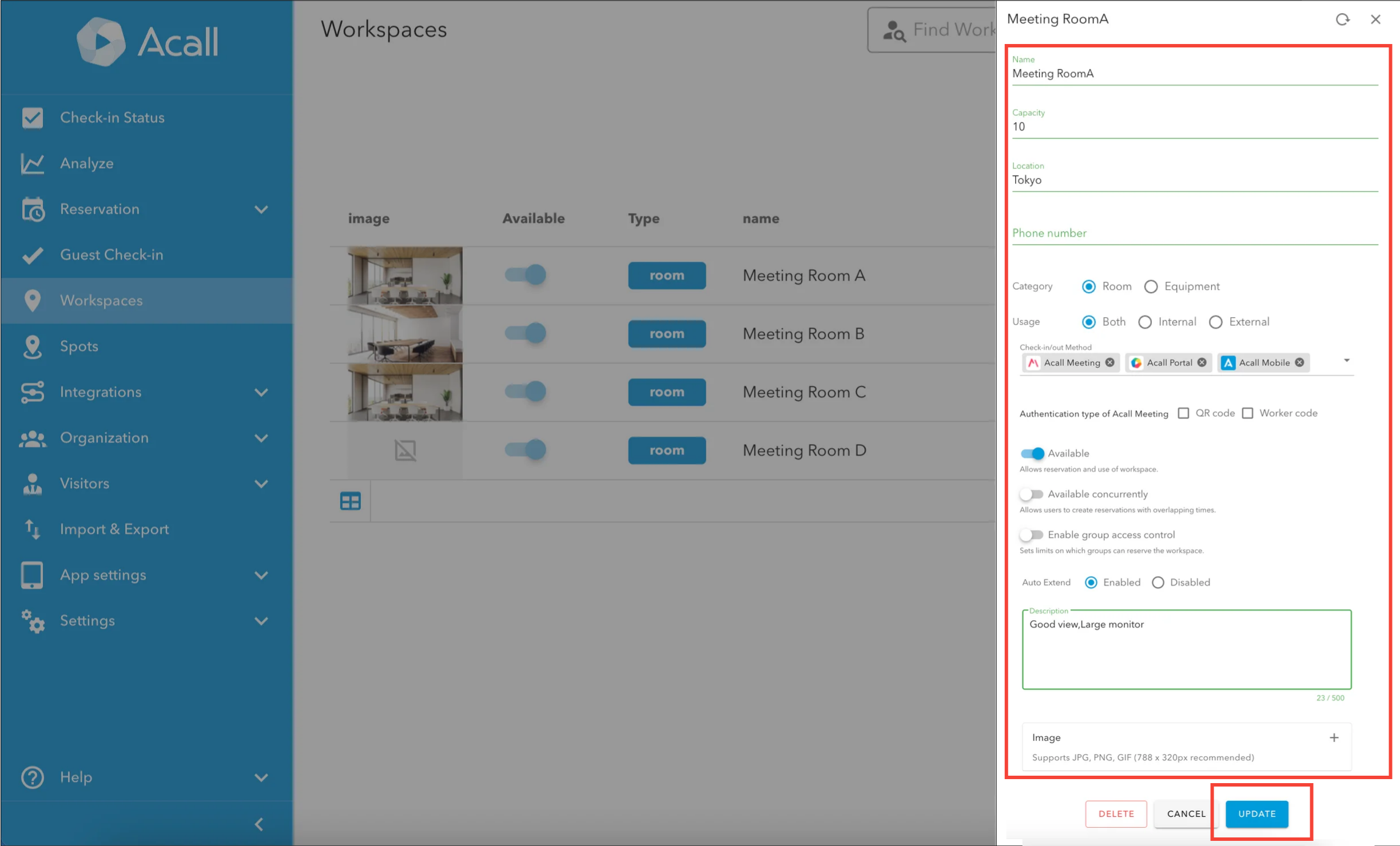
Edit workspace
Click [Workspaces] > [Workspaces] on the side menu of Acall Portal.
Click [edit] (pencil mark) for the workspace you want to edit.
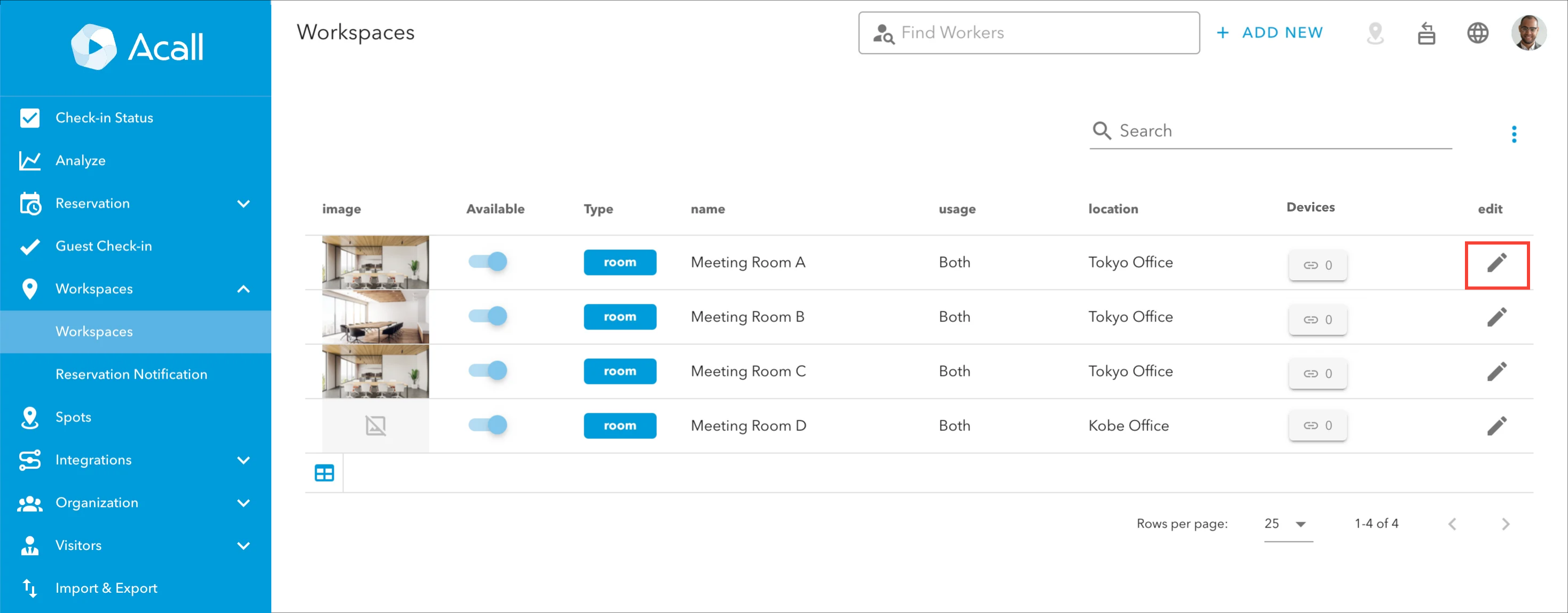
Edit information and click [UPDATE].
NOTE
・Updating in a batch with CSV importing is not available.
Delete workspace
Click [Workspaces] > [Workspaces] on the side menu of Acall Portal.
Click [edit] (pencil mark) for the workspace you want to delete.
Click [DELETE].
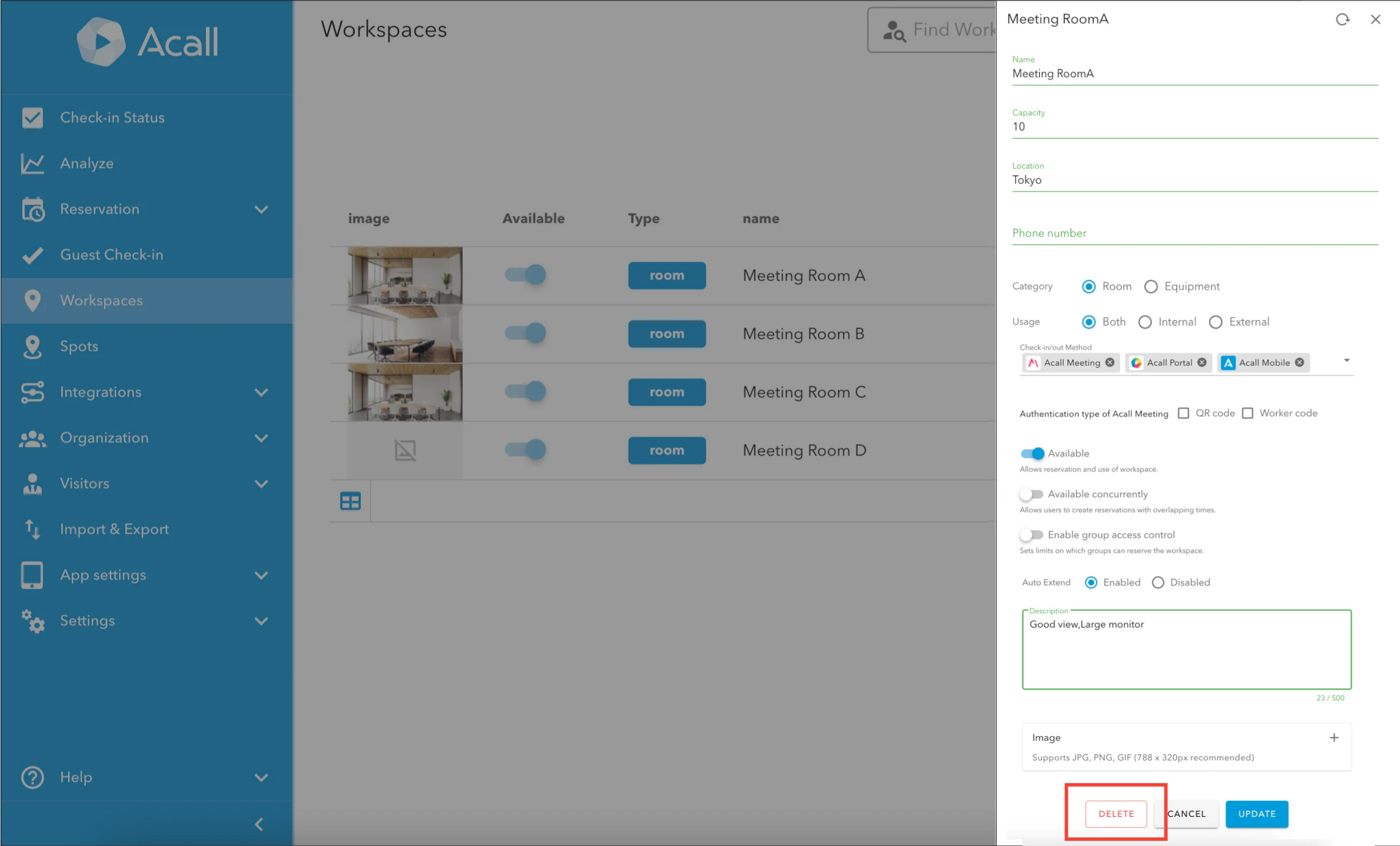
Click [OK] on the pop-up window.

NOTE
・Deleted workspaces cannot be restored and undone.