
- Help Center > Spot Check-in / Acall Desktop > Administrator > Useful Tips > Useful Tips for Administrator (Spot Check-in)
Help Center
Useful Tips for Administrator (Spot Check-in)
- Category :
Answer
This page introduces the help pages for administrators to set up the [Spot] which is one of the functions in Acall.
 NOTE
Depending on your plan or setting, some functions may not be available.
Please contact us here for more details.
System requirements and versions
Please check the OS and versions we support.
Spot setting
Create a spot
You can create workspaces, including a meeting room or seat or an external meeting room for remote work, or your home as a spot for reservation and check in.

Create a floor map
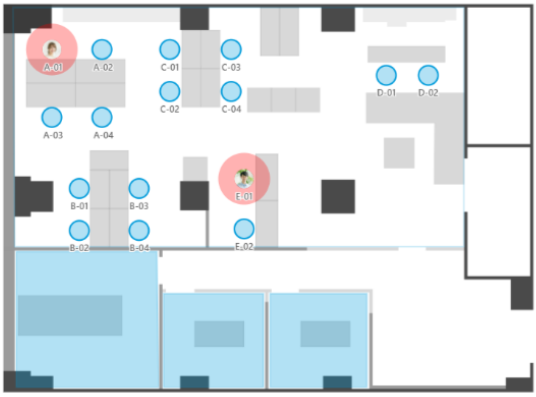
Create a floor map to check the reservation status and make reservations on it.
Spot reservation settings
You can set permission [permission of reservation/checkin] and [permission of reservation view only ] for each spots.
When a spot is created from the first level, no permissions are set by default and only administrators can use the spot.
Please set sport permissions for general workers when they start to use the system.

Spot Reservation Setting
You can reserve a spot on multiple devices and apps.
Please confirm the reservation method you wish to use before setting it up.
Reserve a spot on Acall Portal
You can reserve a spot on your PC.
Reserve a spot on Acall Mobile
You can reserve a spot from your mobile device.
You need to install the Acall Mobile app.
Reserve a spot on the iPad
You place the iPad in the office and become available for a reservation device where anyone make reservations.
Checkin settings on a Spot
You can check in a spot on multiple devices and apps.
Please set your preferable check-in method.
Check in on Acall Mobile
You can check in a spot on your mobile device.
You need to install the Acall Mobile app.
Check in on Acall Desktop
You can check in a spot on the desktop app called Acall Desktop.
You can share "where" you are working with your team members.
 NOTE
Acall Desktop subscription is required.
Check in with iPad
You can place the iPad in the office and use it as a check-in device where anyone make reservations.
Check the usage status of a spot
Export the check in log of a spot
Collect and analyze the usage data of floors and spots for a certain period.
Check the distribution rate and occupancy rate of a spot
Set to view the distribution rate and occupancy rate of a spot on the check-in screen of Acall Portal.

Visualize floor usage on the signage/reserve display
Place a signage/reservation display to visualize the usage data of floors or to make it available for anyone to reserve on the installed device.

Functions with Spot Integration
Integrate with external services via Public API
You can reserve a spot or change the reservation details on the external systems or services.

