
- Help Center > Spot Check-in / Acall Desktop > General User > Spot Permissions > Worker Search - Differences in Display Depending on Permission for Spots
Help Center
Worker Search - Differences in Display Depending on Permission for Spots
- Category :
Answer
Contents
This page describes the differences when you search workers while spot permissions are set in Acall.
Worker Search
Worker Search allows users to see whether other workers are checked in or not, and where other workers are checking in.
Users can search all workers. However, the information displayed, such as spots, depends on the user's permissions for spots.

|
Check-in status of the workers |
Permission for spots |
Display |
|
Workers who checked-in. |
View |
Spot information is displayed in a hierarchical structure under the worker's name. Worker's icon is displayed on the right side of the spot name. Worker's check-in status pop-up window will be displayed by clicking.
|
| Workers who checked-in | No view permission |
"Private Spot" is displayed under the worker's name. "check-in status" icon is not displayed.
|
| Workers who checked-in |
No permission for a part of the hierarchical structure |
Spot information is displayed under the worker name.
Example) In this example, "Office Area" with no view permission is not displayed, and "Tokyo Office/2F/B-01" is displayed. |
|
Workers who have not checked-in |
- |
Name of the spot is not displayed.
|
|
Both workers who checked-in/have not checked-in |
- |
Worker Information will be displayed by clicking the worker search results.
|




Worker Information
In the worker information screen, you can check the usage status of the floor map.
If you open the worker information screen with administrative permission (permission for all spots), the check-in status of all spots is displayed regardless of the permission settings.

When you open the same page with general permission, if various permission have been set for spots, the display will be different depending on the permission settings.

| No |
Permission for the spot |
Reservation |
Display |
| ① |
View/Use |
No reservation |
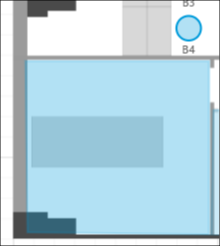
Spots are displayed in blue to indicate that it can be reserved.
|
| ② |
View/Use |
With reservation |
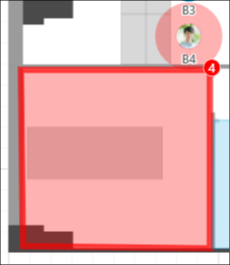
Spots are displayed in red to indicate that it's reserved. For seats, the icon of the worker who made the reservation is displayed.
For meeting rooms, a red frame indicates that the room is reserved. If more than two workers use the room, the number of workers will be displayed in the upper right corner.
|
| ③ | View | No reservation |
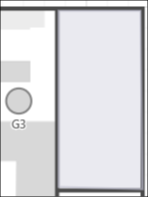
Spots with only view permission are displayed in gray.
|
| ④ | View | With reservation |
Spots with only view permission are displayed in gray. For reserved seat, the icon of the worker who reserved is displayed.
|
| ⑤ | No permission |
With/No reservation
|
Spots are not displayed on the floor map. |
| ⑥ | No permission for a part of the hierarchical structure |
With/No reservation |
Spots with view permission are displayed on the floor map. If you do not have permissions for a part of higher layer of the hierarchy, spots that you do not have permission will not be displayed.
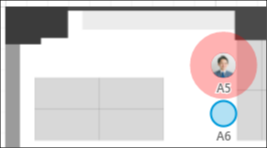
Example) This is an example of a case that you have view and use permissions for seats A5 and A6 in the Administration Department space, which do not have view permission. You do not know that there is "Administration Department" space, but can find that there is a worker who checked in to A5.
 |
Reserve a spot and check the reservation status
When you click on a spot that you have view, reserve/use permission, and available for reservation, the reservation screen for the spot will be displayed.
You can make a reservation with specified date, time, and user. (①)
In addition, workers who have use permission for the spot can be selected as a user.

"You can not use it" and the user information will be displayed for spots that the worker only has view permission or has reserve/use permission but already reserved. (②④)

"You can not use it" will be displayed for spots that the worker only has view permission and there is no reservation for the spot. (③)

Checkins
The icon of workers who checked in to the spot for which you do not have view permission will not be displayed.
When you click the icon, the message "Check-in private spot" will be displayed.


