
- Help Center > Spot Check-in / Acall Desktop > General User > Spot Reservation > Reserve Your Spot on Timeline on Acall Portal
Help Center
Reserve Your Spot on Timeline on Acall Portal
- Category :
Answer
Contents
On Acall, you can check the status and availability of spots and make reservation in two formats "MAP" and "TIMELINE".
This page explains how to check the status and availability of spots and make reservation from "TIMELINE".
 NOTE
You can also reserve spots on Acall Mobile application.
[Acall Mobile] Reserving a Seat/Meeting Room in Advance
Check the status and availability of spots
Click [Reservation] > [Spot] in the side menu on Acall, and click [TIMELINE] tab.

Spot reservation screen in timeline format will be displayed.

| No. | Item | Description |
| ① |
MAP tab |
Open spot reservation screen in map format. |
| ② |
TIMELINE tab |
Open spot reservation screen in timeline format. |
| ③ |
Calendar icon |
Select the date you want to check the availability. |
| ④ |
Available spot |
If you check this checkbox, following spots will not be displayed in timeline. |
| ⑤ |
Reload icon |
Click to load the latest reservation information. |
| ⑥ | Name |
Spots are displayed in a hierarchical structure.
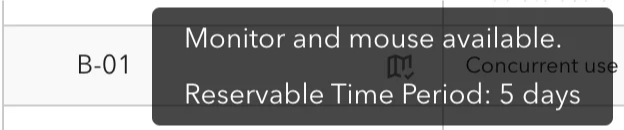
When you hover over description and reservable time period of the spot will pop up.
※Spots that you do not have view permission is not displayed. |
| ⑦ |
Floor map icon |
Click for opening the floor map. You can check the location of the spot. |
| ⑧ | Use Setting |
"Concurrent use"
If there are multiple reservations for one spot where is available for concurrent use, those reservations will be displayed in multiple lines
"Non-concurrent use"
"Immediate use only" |
| ⑨ |
Capacity |
The maximum number of people who can make a reservation and check-in for the same time slot.
「-」 |
| ⑩ |
Auto Cancel (minutes) |
The amount of time before the reservation for the spot is automatically cancelled if no one checked in after the start time of the reservation. 「-」 |
| ⑪ |
Timeline |
Status of the spot.
Spots and time slots that are not available, such as outside of business hours, are in gray. |
| ⑫ |
Spot reservations |
Reservations for which you do not have editing permissions are displayed with a lock icon.
If you click reservation, users using the spot will be displayed.
|





Reserve a spot
Drag and drop to select the time slot of the spot you want to reserve.

You can change reservation time in the next step (create screen).
If you want to make a particularly long reservation, you can set appropriate time in the next step.
Spots that are available for concurrent use will be displayed in multiple lines if there are multiple reservations.
If you want to make a reservation, select from the empty line.

If you want to reserve multiple spots at once, please go to [MAP] tab.
Reserve Your Spot on Floor Map on Acall Portal
Enter reservation details and click [CREATE] in the Create screen.

 ATTENTION
Fields marked with (*) are required.
| Item | Description |
| Title |
Title of the reservation.
This can be left blank. |
| Date (*) |
Date of the reservation
Reservations cannot be made across days or repeated. |
| Start time (*) | Start time of the reservation |
| End time (*) | End time of the reservation |
| User (*) | User of the spot |
| Description |
Description of the reservation
Please use this item when you use room with multiple people for meetings or when you want to share the purpose of the room. |
Your reservation is complete when you see "SUCCESS" message.

・You will see an error if you can not make a reservation for some reasons, such as duplicate reservations or the number of capacities is exceeded.
・If the reservation that you made is not displayed, click "Reload" icon.
The reservation information that you created will be synchronized in real time to the following applications and screens.
PC: Acall
- Viewing the Check-in Status of Workers
- View the Check-in Status of a Spot
- View the Reservation Status of a Spot for Workers
- Check-in on Acall
iPad: Signage / Reservation display
Smartphone: Acall Mobile
Edit reservation
Edit in edit screen
Click on the reservation you want to edit, and click [edit detail].

Edit the reservation and click [UPDATE].

Please note that you can not change the reserved spot in edit screen.
If you want to change onto another spot, please use the following drag and drop editing function.
Drag & drop edit
By drag and drop on the timeline, you can change the reserved spot onto another spot, and also date and time.
Move the cursor over the reservation, and then drag and drop.
Click [update] to confirm the change.

You can also change the start and end time of the reservation by drag and drop the cursor over the left or right side.

If multiple spots are reserved at once, only the following items can be edited.
- Title
- Reservation date and time (*Drag & drop changes not allowed)
- Description
You can edit other items in [MAP] tab.
Reserve Your Spot on Floor Map on Acall Portal - Edit your reservation

Delete reservation
Click on the reservation you want to edit, and click [delete].


