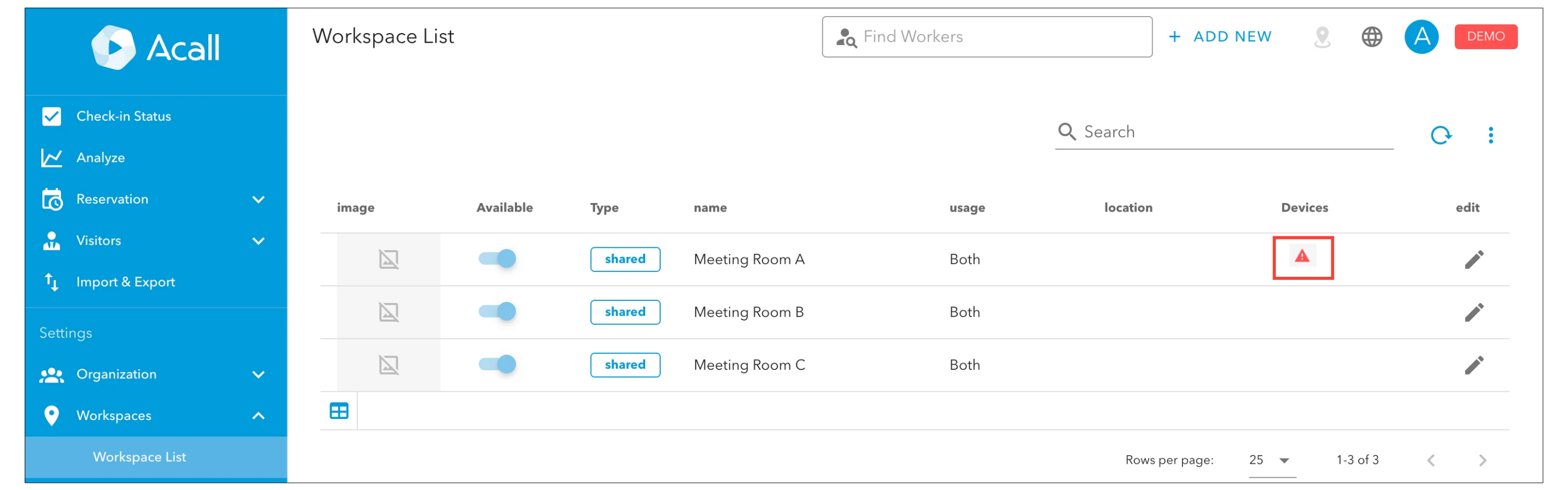
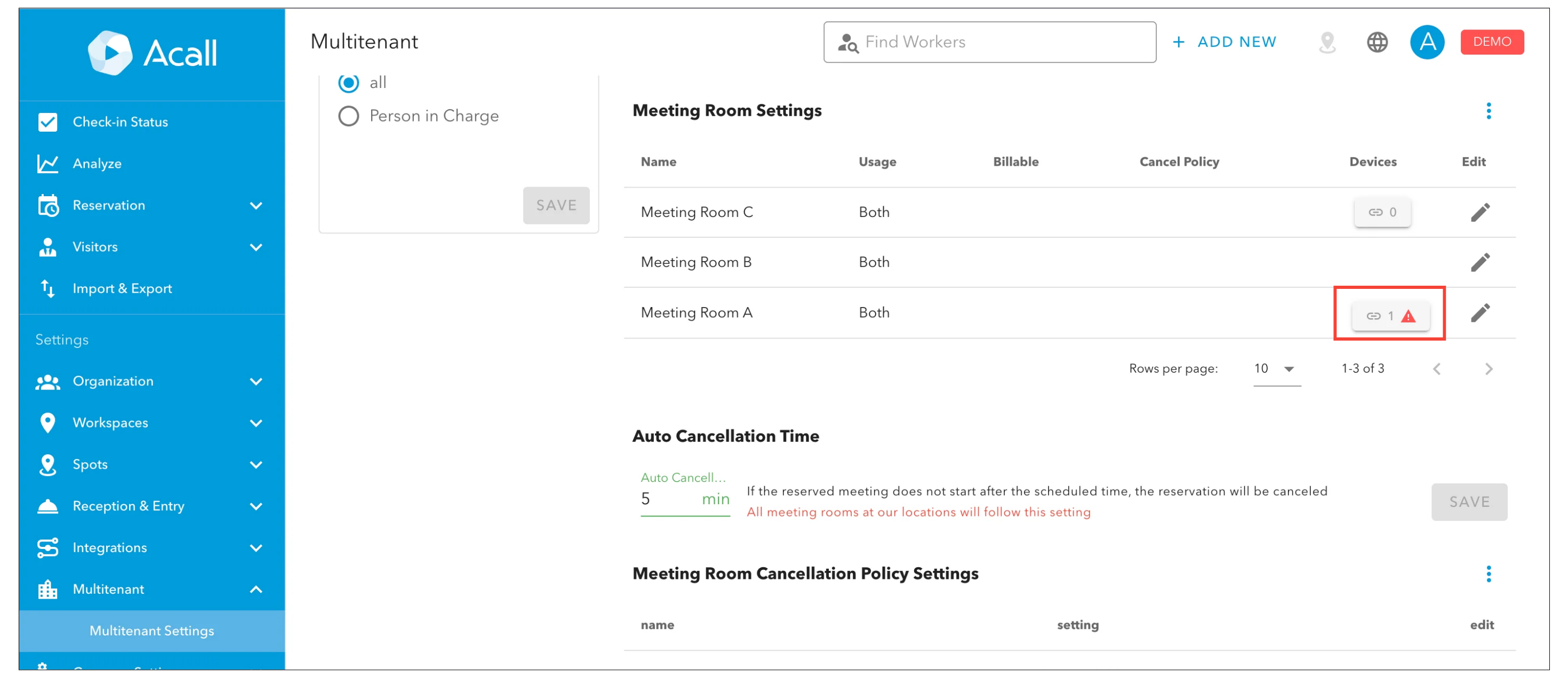
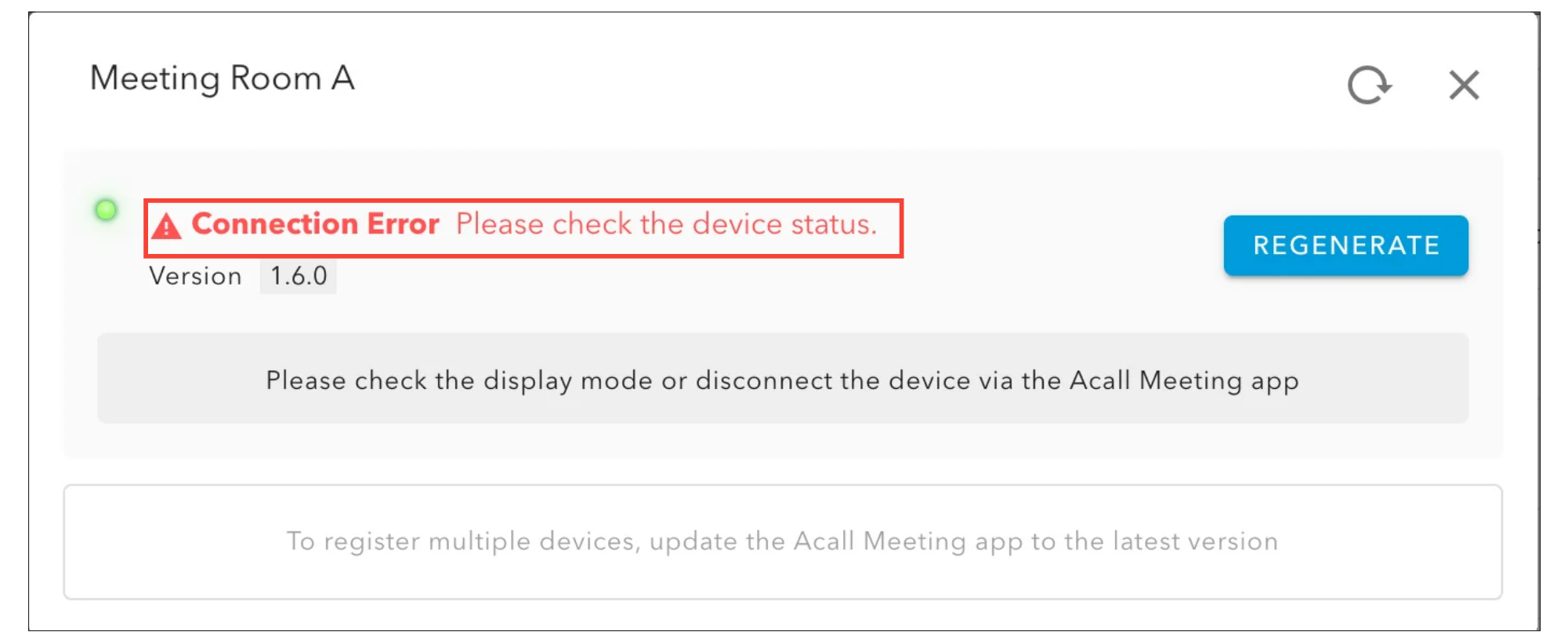
This page explains the Acall Meeting monitoring system in a multi-tenant environment.
With Acall Meeting's monitoring system, if communication between a shared meeting room's Acall Meeting (device) and the Acall server is interrupted due to network issues, device trouble, or any other reason, the tenant administrator can receive a disconnection notification.
Monitoring is disabled by default. Please change the settings to enable it.
Configure Monitoring System
Enable Monitoring System
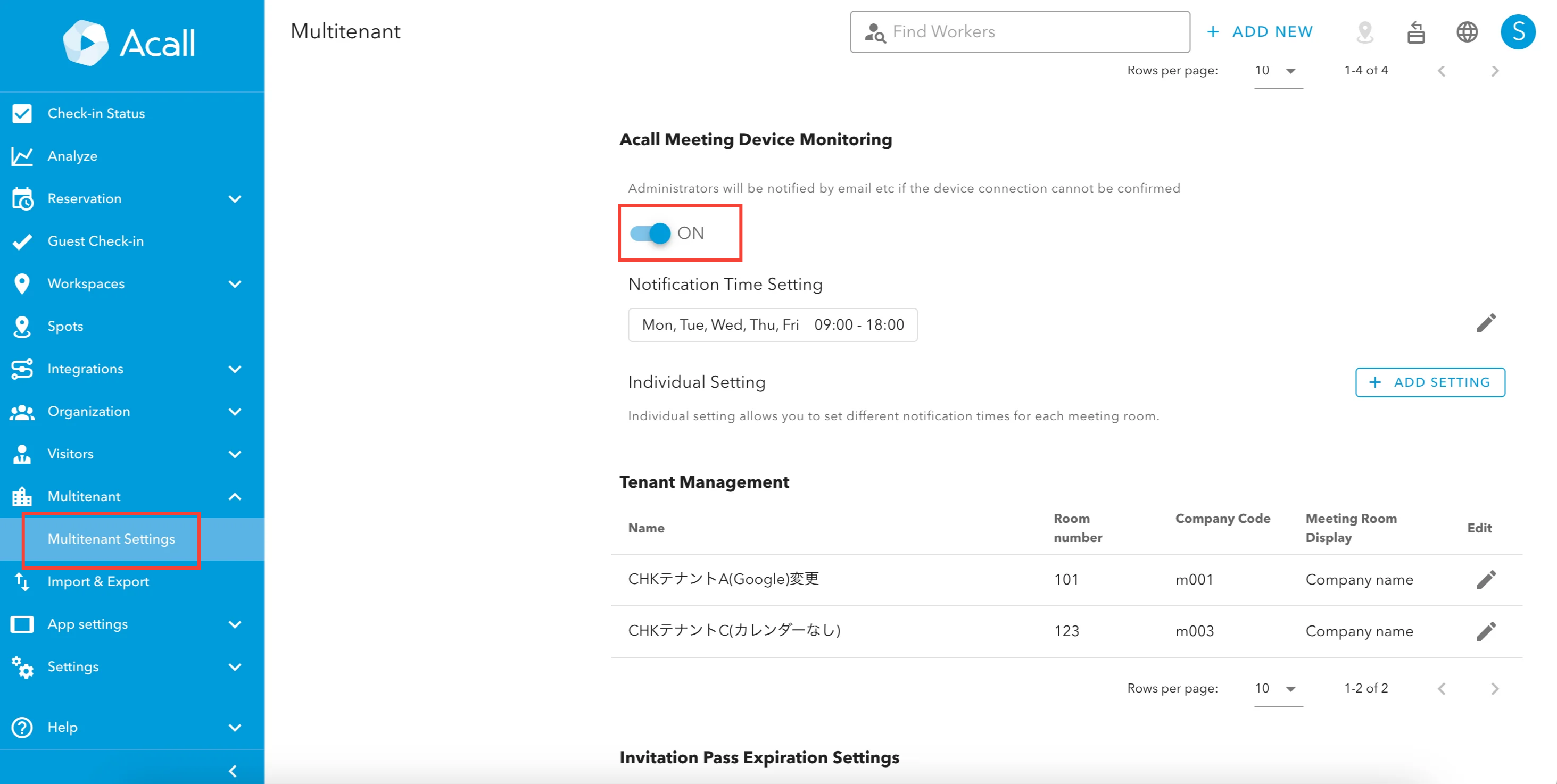
Open the [ Multitenant ] > [ Multitenant Settings ] from the side menu in Acall Portal.
Click the toggle for 'Acall Meeting Device Monitoring' to enable notifications.
Monitoring is disabled by default.
Verify Monitoring Operation
Disconnect the network by, for example, turning off the Wi-Fi on the iPad running the Acall Meeting app. Then, check that a notification is received via email and the Acall Mobile app.
(It may take up to 15 minutes for the notification to be sent after the disconnection is detected.)
Set the Meeting Rooms and Days/Times for Monitoring
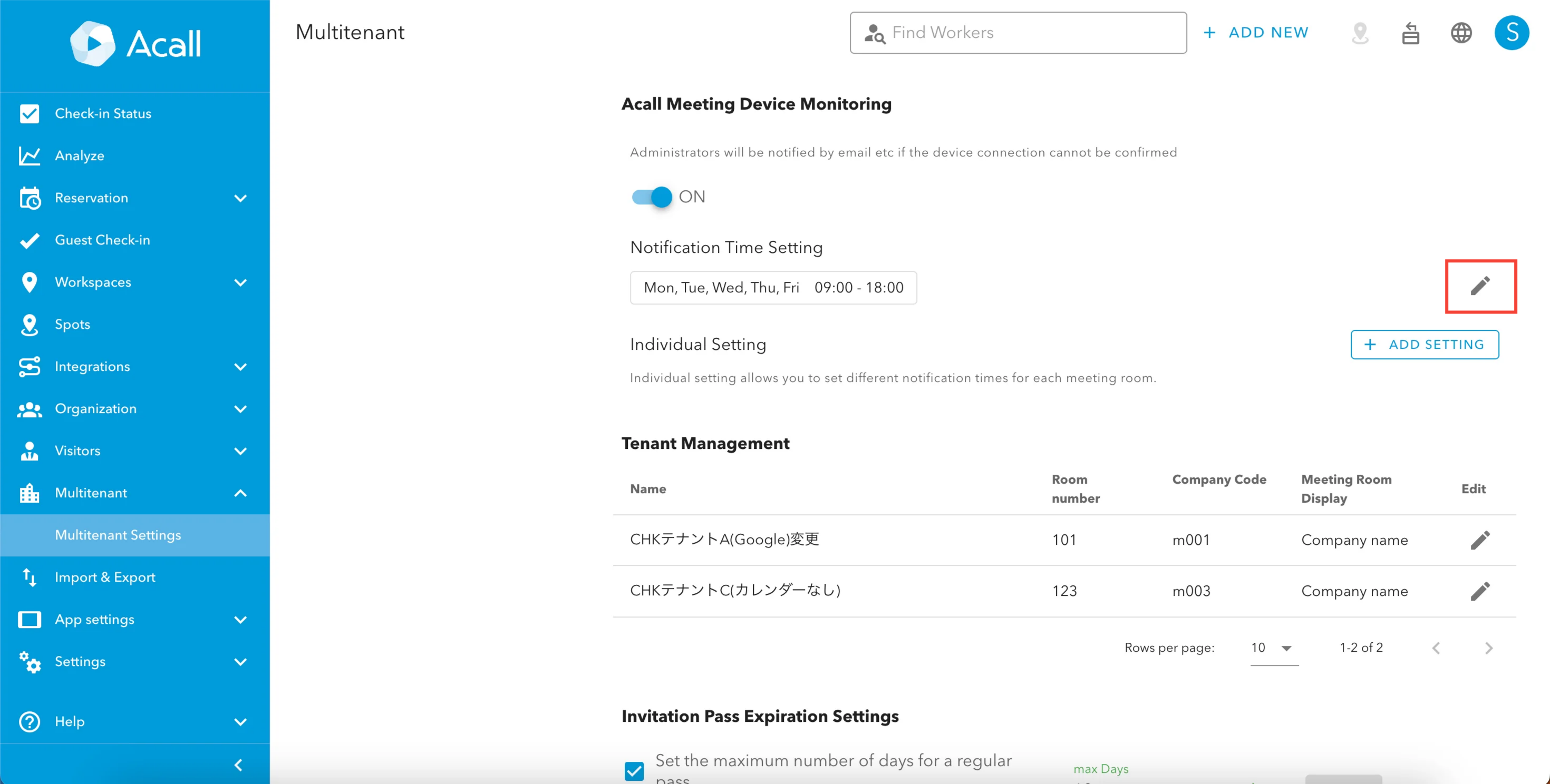
Notification Time Setting
You can configure the days and times for receiving notifications to apply to all meeting rooms.
Click edit (pencil icon) for Notification Time Setting.
In the pop-up window, select the days and times you want to receive notifications.
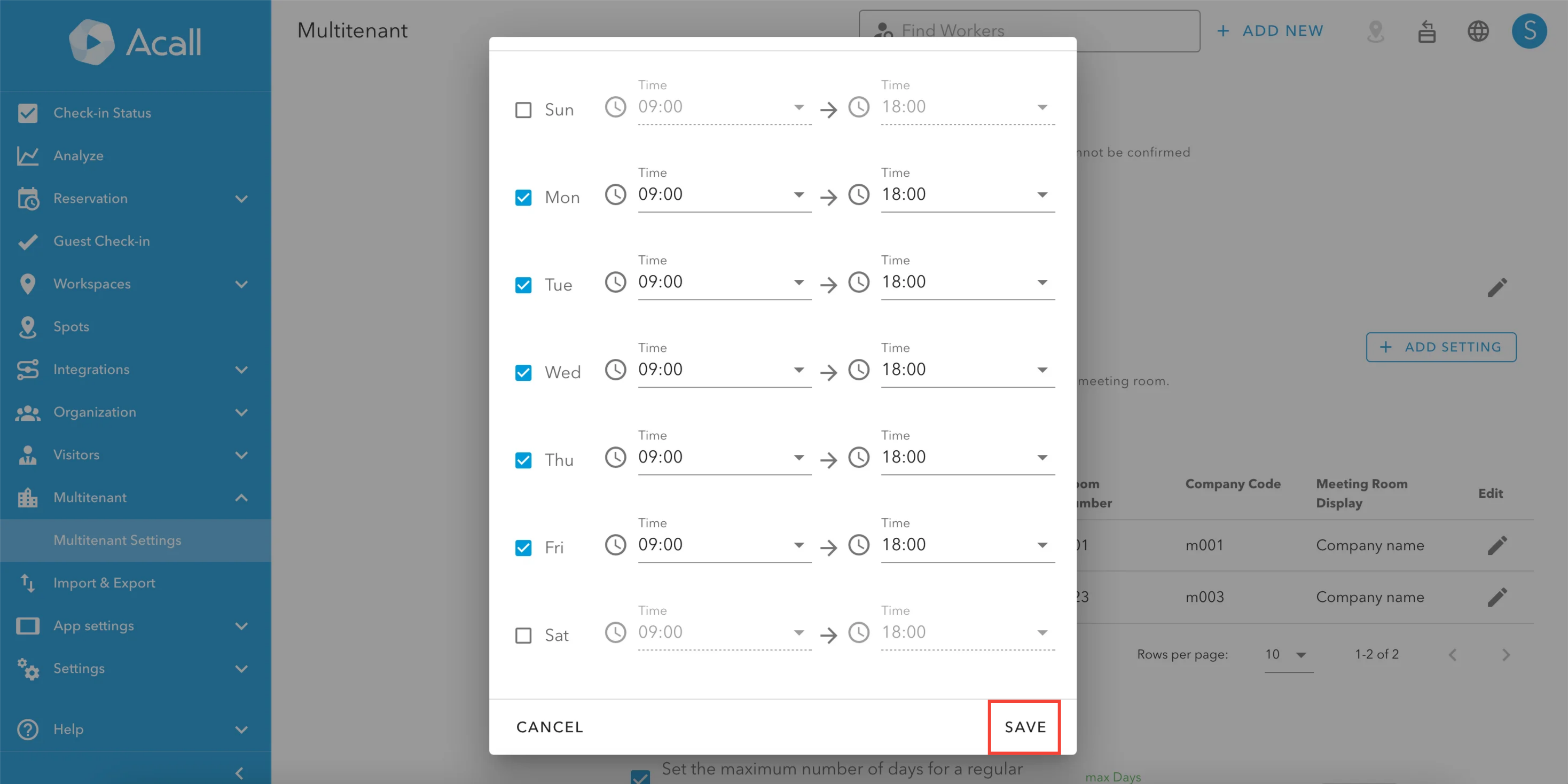
Click [SAVE] to save the settings.
Individual Setting
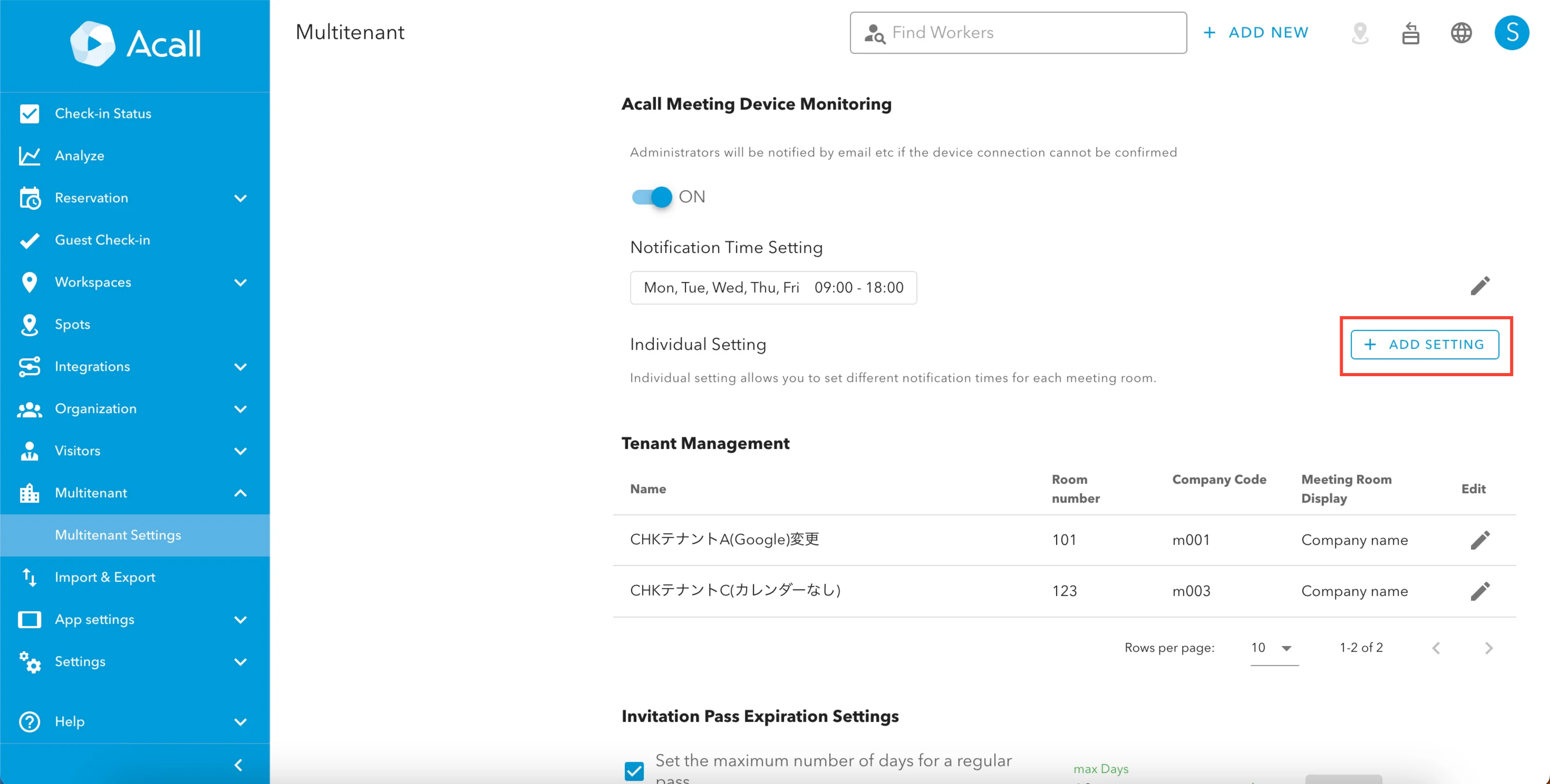
You can group meeting rooms and set individual days and times for each.
Multiple individual settings can be registered. Please follow the steps below.
Click [+ ADD SETTING] for Individual Setting.
Enter the details for each field and click [SAVE].
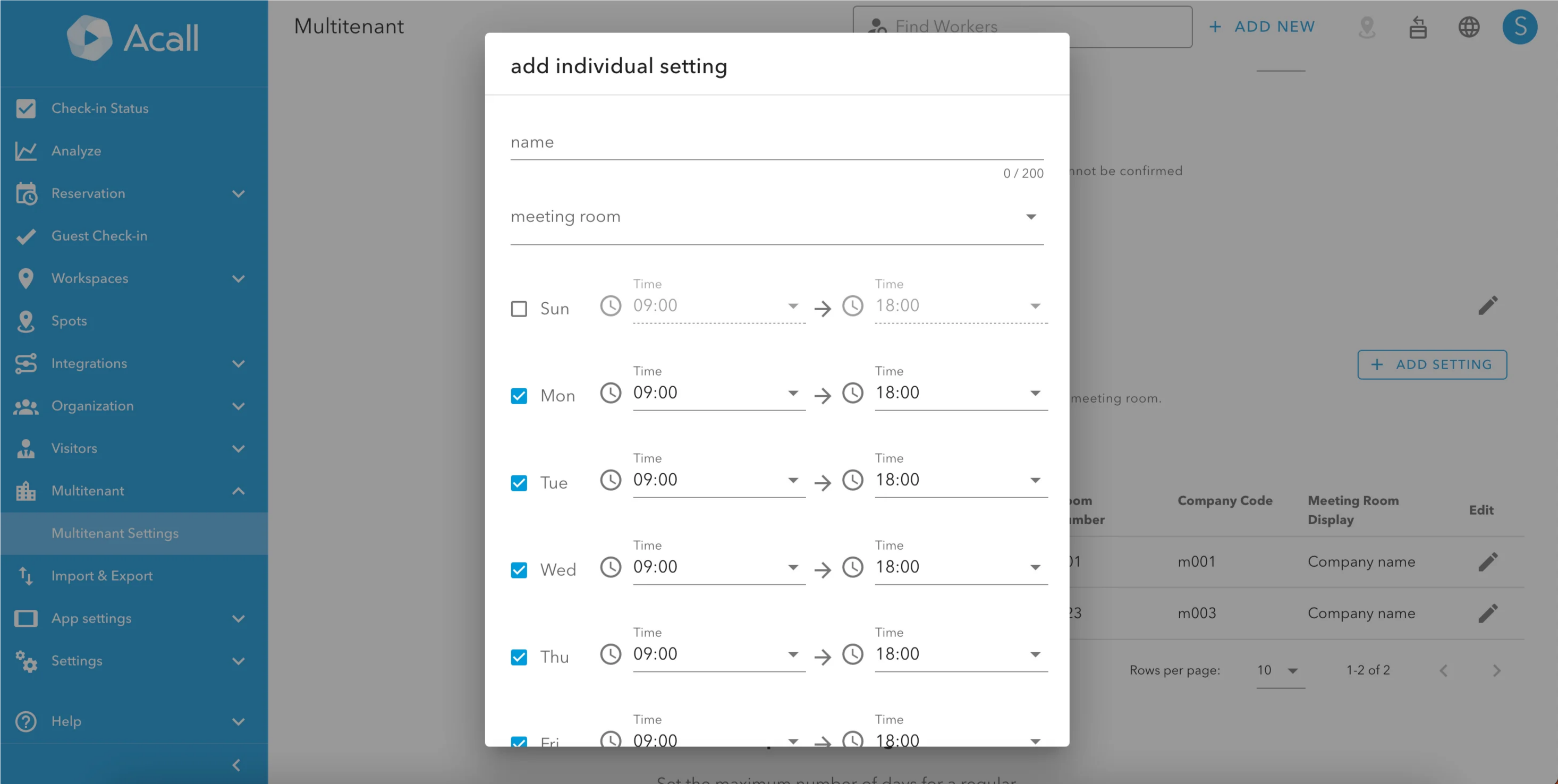
| Item | Description |
| name | Custom name to the setting |
| meeting room | Select the meeting room from the dropdown. You can select multiple meeting rooms. |
| day / time | Select the days and times you want to receive notifications. |
Notification Content from the Monitoring System
Notified Workers
Notifications will be sent to workers with Tenant Administrator or Administrator permissions.
For instructions on how to change permissions, please refer to "Register / Edit / Delete Workers".
Notification Content
When the communication is lost or restored, the following notifications will be sent via email and the Acall Mobile app.
When disconnected
Subject: [Emergency] Acall monitoring system
From: Acall 監視システム <monitor@acall.jp>
Body: {Name of the meeting room} can't confirm the device connection. Check the status of the device as soon as possible.
When connected
Subject: Acall monitoring system
From: Acall 監視システム <monitor@acall.jp>
Body: {Name of the meeting room} confirm the device connection.
Notification settings
You can set the followings.
- ON/OFF for monitoring system
- Meeting rooms to be monitored
- Days/Time to be monitored