This page explains how customers using the Google Calendar integration function prepare a "meeting room for appointments" to create appointments (external meeting).
Meeting rooms for appointments
Customers selected "Create reservation on Google calendar" as meeting reservation method
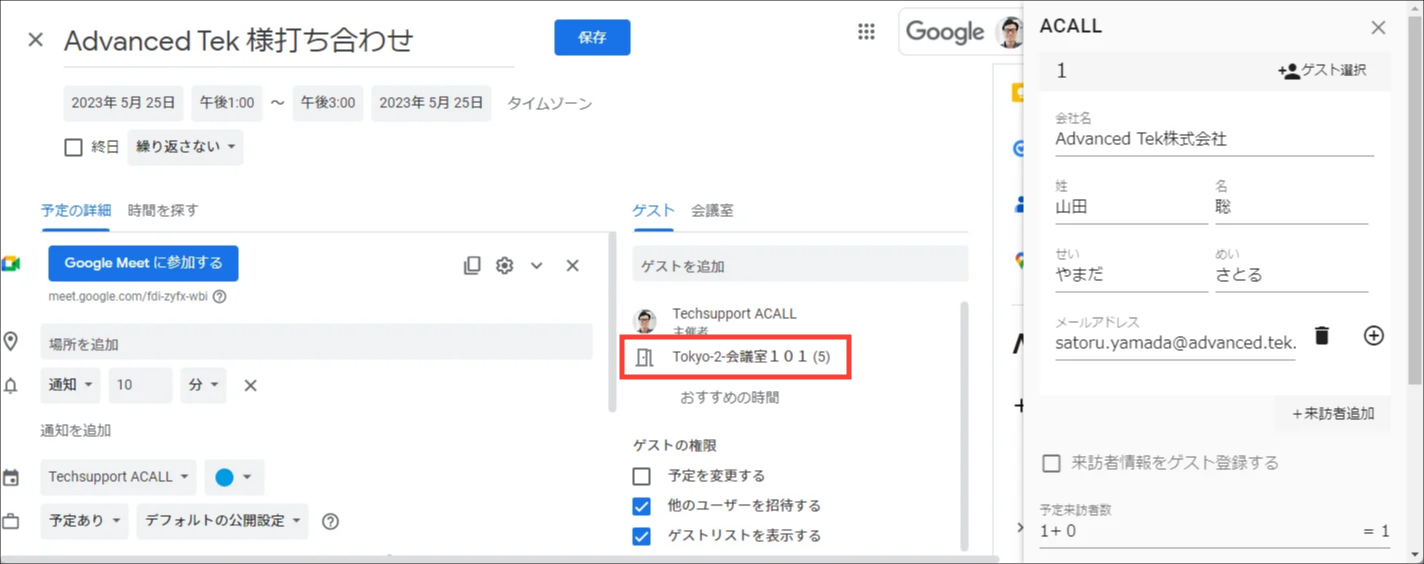
When creating an appointment on Google calendar, you must select a meeting room that has been imported into Acall.
If you do not select a meeting room, created appointment information will not be sync with Acall.
Customers selected "Create reservation on Acall" as meeting reservation method
When creating an appointment on Acall, you must select facilities.

Meeting Rooms for Appointments
If you have appointments that do not use a meeting room, you must have a fictitious meeting room to select when creating the appointments.
(e.g: meeting in a free space, etc.)
Fictitious meeting rooms that are not the real meeting rooms for creating appointments are called "meeting rooms for appointments" in this page.
For example, meeting rooms for appointments are prepared with the following name.
e.g: "Appointment," "External visitors," etc.
e.g: A area name that exists but can be used freely without capacity: "free space," "cafeteria," etc.
Below is an explanation of how to prepare meeting rooms for appointments.
 Note

The following steps are not required for customers who do not have "appointments without using a meeting room".
How to prepare meeting rooms for appointments
There are two methods to set up a meeting room for appointments.
| Method | Description |
| A | Create one room that is allowed overlap. |
| B | Create as many meeting rooms as you need. |
Each method has different way to set up a meeting room for appointments and how to create an appointment.
Please select one or the other according to your needs as explained below.
How to prepare a meeting room for appointments
Method A: Create one room that is allowed overlap.
1. Create one meeting room for appointments on Google Workspace.
2. Allow the created meeting room to overlap.
3. Import the meeting room into Acall ※ Needs to be done by super admin
4. Allow the imported meeting room to overlap on Acall.
Please refer to "Allow overlapping appointments" for the step 2 and 4 to allow overlap appointments.
Method B: Create as many meeting rooms as you need
1. Create multiple meeting rooms for appointments on Microsoft 365
2. Import the meeting rooms into Acall ※ Needs to be done by super admin
How to create appointments
Customers selected "Create reservation on Google calendar" as meeting reservation method
The overall process of creating appointments is the same for both Methods A and B.
1. Open create appointment screen on Google Calendar
2. Select a meeting room for appointments
3. Enter guest information on Acall add-in and click [Register Appointment] button.
4. Save
For Method A, when selecting a meeting room in step 2 above, you must select "Include unavailable rooms" to search and select a meeting room.
If there is another reservation for the same date and time, the meeting room has a strike-out line but ignore it and select the room.

Customers selected "Create reservation on Acall" as meeting reservation method
In the case of Method A, meeting room for appointments will not be displayed on the "Reservation" screen on Acall.
Create a reservation via [ + Add New ] in the upper right corner of the screen.

In Method A, reservation information is not displayed on the "Reservations" screen on Acall.
Please check the information on "Guest Check-in" screen or "My Page".
In the case of Method B, select one of the available meeting rooms for appointments on "Reservations" screen on Acall and make an appointment.

Allow overlapping appointments
This setting is necessary when you select Method A.
Settings on Google Workspace
Open the meeting room on Google Calendar and change the "Auto-accept invitations" setting to "Automatically add all invitations to this calendar".

Ref: Google Calendar Help > Create a calendar for a room or shared space
Settings on Acall
Open the edit screen of the imported workspace and turn ON "Available concurrently".

Workspaces with "Available concurrently" toggle ON will not be displayed on "Reservation" screen on Acall.
You can check guest information on "Guest Check-in" screen and "My Page".
It may take up to 24 hours for the meeting room for appointments to be available.
Please allow extra time to reflect.
This is the end for creating meeting roos for appointments on Google.
All customers
1. Link Acall and Google Calendar
2. Connect Workers with Google Calendar
3. Import Meeting Rooms and Equipment from Google
Customers make reservations on Google Calendar
4. Create Meeting Room for Appointments on Google(This article)