- Help Center > Calendar Linking > Outlook > Set Up > Import Meeting Rooms and Equipment from Outlook
Import Meeting Rooms and Equipment from Outlook
- Category :
Answer
Contents
This page describes how to import meeting rooms and equipment from Outlook to Acall.
Set up Outlook linking
Before importing meeting rooms and equipment from Outlook, please link Acall with Outlook.
Register meeting rooms and equipment on Outlook
Create resources (meeting rooms and equipment) on Microsoft 365 Admin Center / Exchange Admin Center.
Import meeting rooms and equipment from Outlook
Import resources (meeting rooms and equipment) and register on Acall.
Click [Workspace] on Acall side menu.
Click on the three dots in the upper right > [Import from Outlook].

You can see the list of resources (meeting rooms and equipment) registered in Outlook.
Check the checkbox of resources (meeting rooms, equipment) you wish to import into Acall and click import.
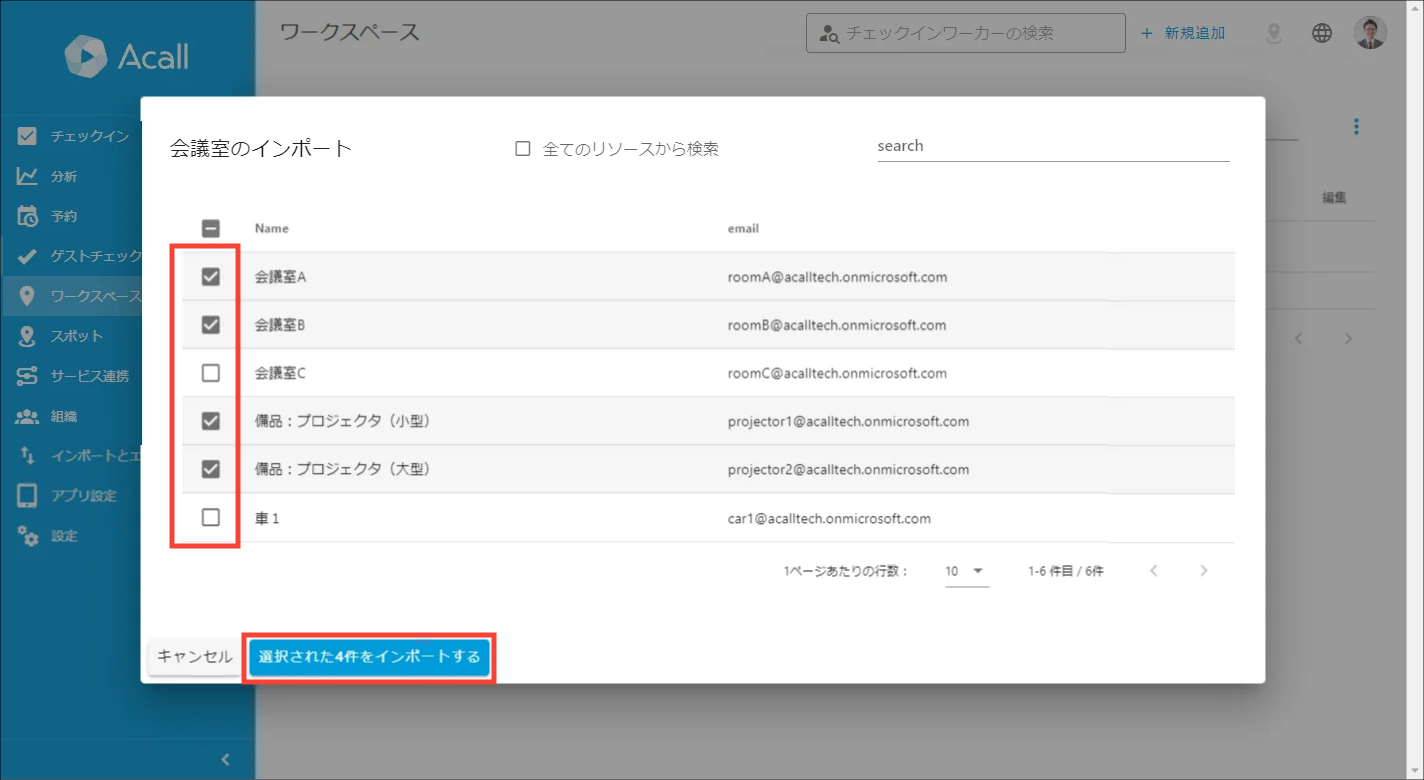
When a confirmation pop-up appears, click [OK].
 Note
・If the number of resources is large (thousands or more), it may take tens of seconds to several minutes before the pop-up appears.
・If there is missing meeting rooms or equipment, please check the "Search from all resources" checkbox.
The selected resource (meeting room/equipment) is registered as workspace.

After import, it may take tens of minutes to several hours to complete the linkage between Outlook - Acall.
※ Only for customers selected "Reservation from Outlook Calendar" as a meeting room reservation method.
An icon indicating the status of the linkage with Outlook will be displayed.
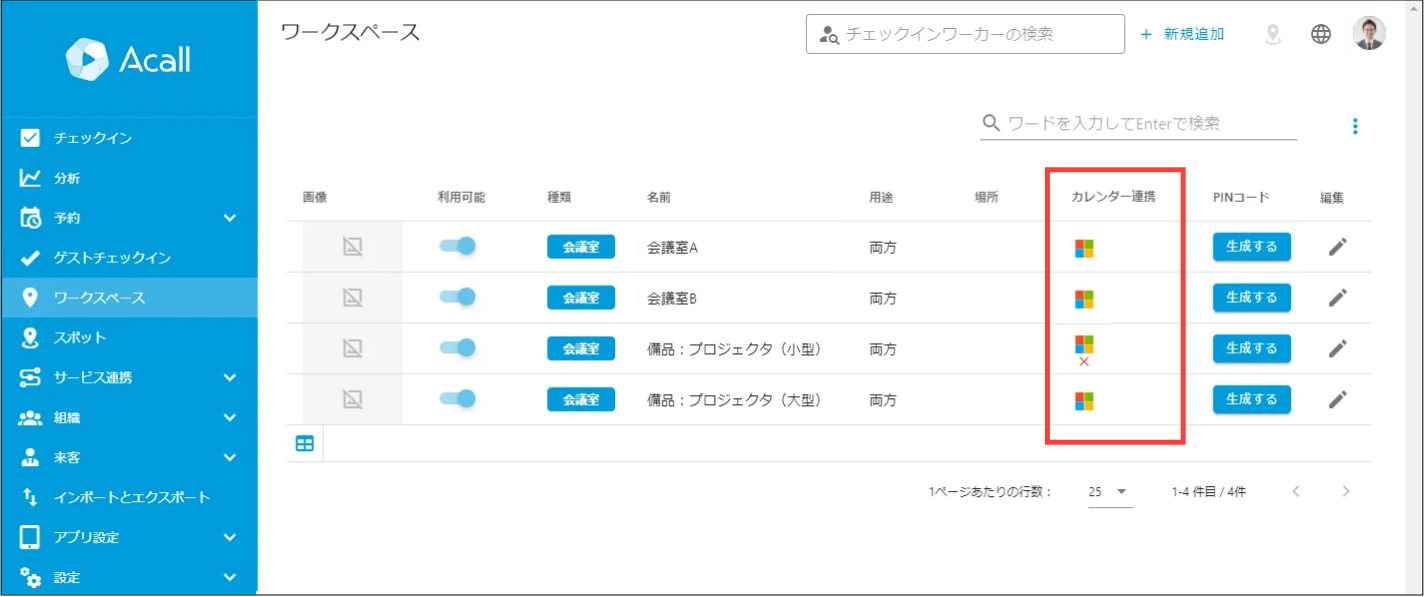
| Icon | Description |
 |
Successfully linked to Outlook Calendar. |
 |
Outlook Calendar linking is not working properly. Please try the following 1. Wait a few minutes to a few hours and refresh the screen. |
Imported meeting room and equipment details
Items whose values set on Outlook and sync with Acall when importing and the items that can be edited from Acall after import are as follows.
| Item |
Registered on Acall when importing |
Editable on Acall after import(※1) |
| Name | ○ | ×(※2) |
| Capacity | × | ○ |
| Location | ○ | ○ |
| Phone number | ○ | ○ |
| Category | × | ○ |
| Usage | × | ○ |
|
Check-in/out method |
× | ○ |
| Authentication type of Acall Meeting | × | ○ |
| ○ | × | |
| Enable group access control | × | ○ |
| Description | × | ○ |
| Image | × | ○ |
Values edited in Acall are not reflected in Outlook.
Since you can not rename on Acall, please rename the meeting room/equipment on Outlook first, and then import it into Acall following the same steps as for a new import.
Renaming and reimporting will not reflect in existing reservation data.
Edit or delete imported meeting rooms / equipment
Please refer to "Registering and Editing a Workplace (workplaces that are not linked to calendars)" for instructions on how to edit or delete imported meeting rooms and equipment.
Importing meeting rooms / equipment is complete.
Please refer to the following pages for the next step.
All customers
1. Link Acall and Outlook Calendar
2. Connect Workers with Outlook Calendar
3. Import Meeting Rooms and Equipment from Outlook (This article)
Customers make reservations on Outlook
4. Create Meeting Room for Appointments on Outlook (Next step)