- Help Center > Spot Check-in / Acall Desktop > General User > Spot Reservation > [iPad] Reserve a Spot in Advance with Spot Check-in Kiosk
[iPad] Reserve a Spot in Advance with Spot Check-in Kiosk
- Category :
Answer
This page explains how to reserve a spot on a spot check-in kiosk (iPad).
 NOTE
To use spot check-in kiosk, admin user needs to do advance preparation.
Please refer to [Use Signage / Spot Check-in Kiosk].
Check the reservation status on the spot check-in kiosk
On a spot check-in kiosk, you can check the reservation status of the spot where you want to use.

| Item | Description |
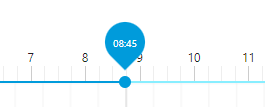 |
Drag to check the reservation status for the specified time slot. |
 |
Tap to check the animated reservation status of the day. |
 |
Tap to check the reservation status at the current time. |
Seat Reservation Status
| Seat Status | Description |
 |
Available seat |
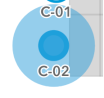 |
Selected seat |
 |
Reserved seat |
Reserve a spot
Tap the available spot on the map that you want to use.
Enter user's "worker code" in the pop-up field.

Tap [●●(Month) ●●(Day) ●●:●● RESERVE].

Select the Date, Start time, End time, and user.
Title and Description are optional.

Tap [MAKE A RESERVATION].

Spot reservation is completed.
Tap [ × ] in the upper right corner of the pop-up field to exit.

Modify a reservation
You can not modify or delete reservations on the spot check-in kiosk.
Please edit on Acall Portal or Acall Mobile.