- Help Center > Spot Check-in / Acall Desktop > General User > What You Can Do with Spot Feature > View Workers Check-in Status
View Workers Check-in Status
Answer
Contents
Acall visualizes "who" is working "where".
This page explains how to find the check-in status of a worker using the Acall Portal's search function for workers who currently checked in.
NOTE

・To find the check-in status of workers, you need to use the spot function.

Please refer to [Register and Edit Spots]to set up a spot.
On this page, we will search for "Onnophris Bran" and his check-in status as an example.
After that, you can reserve a seat near Onnophris Bran.
Search for workers
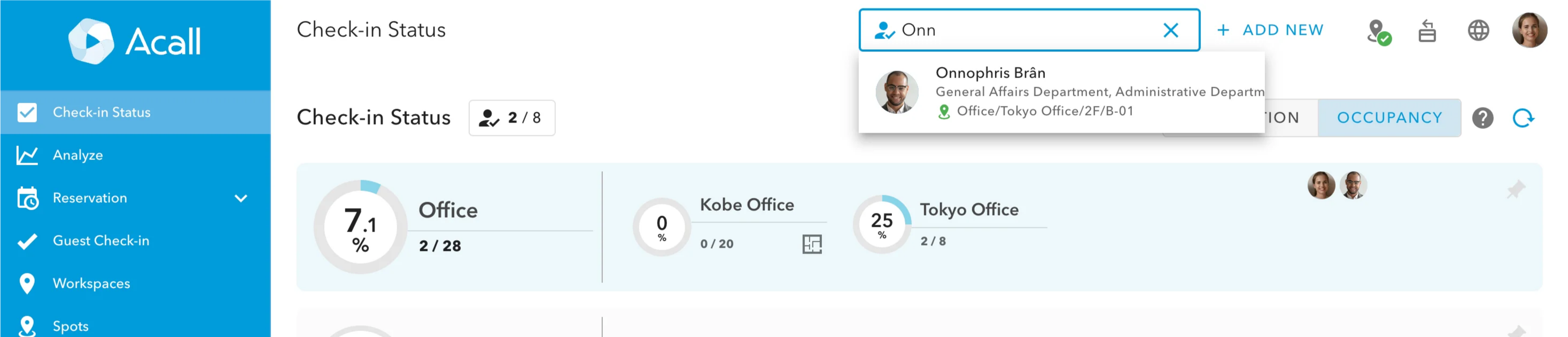
At the top of the screen on every page of Acall Portal, you will see a search box, "Find Check-in Workers".

Search for a worker by entering one of the followings
- Worker's name (no spaces)
- Worker's email address
- The name of the group to which the worker belongs
- Worker's search key

NOTE

- You can search by broad match.

- You cannot search across items (AND search).

- You cannot include a space in the search.
Check the check-in status of the worker you searched
Group information and the spot where the worker has currently checked in is displayed under the worker's name as shown in the picture below.
If the worker has not checked in, the spot name will not be displayed.
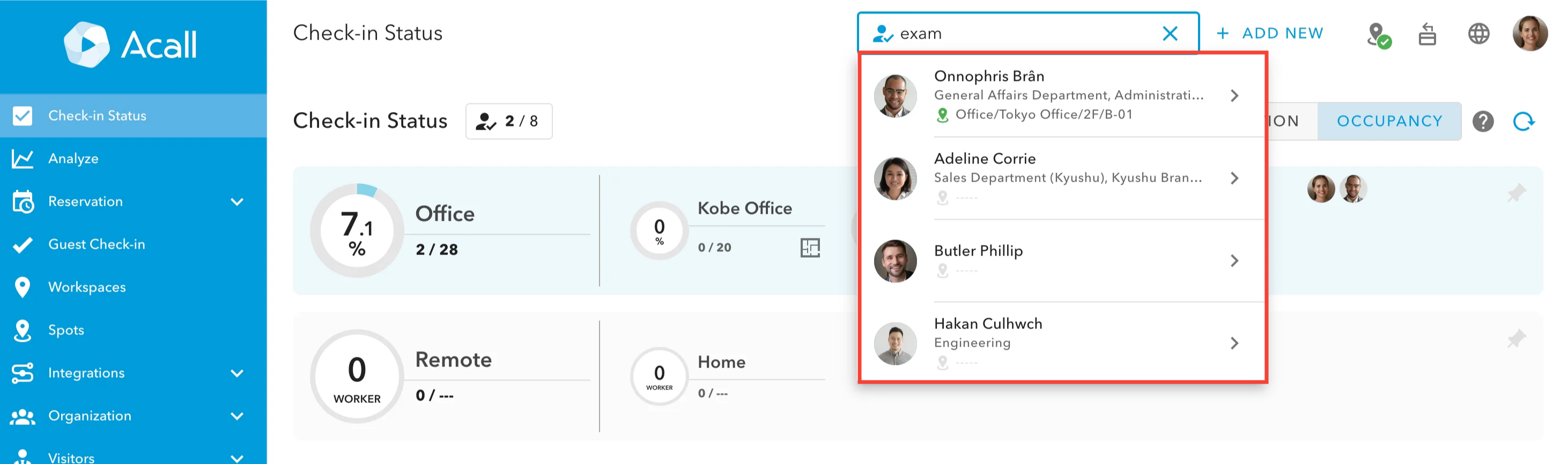
Click on the map icon on the right of the spot name to display a pop-up window of the worker's check-in status.
Worker Information Screen
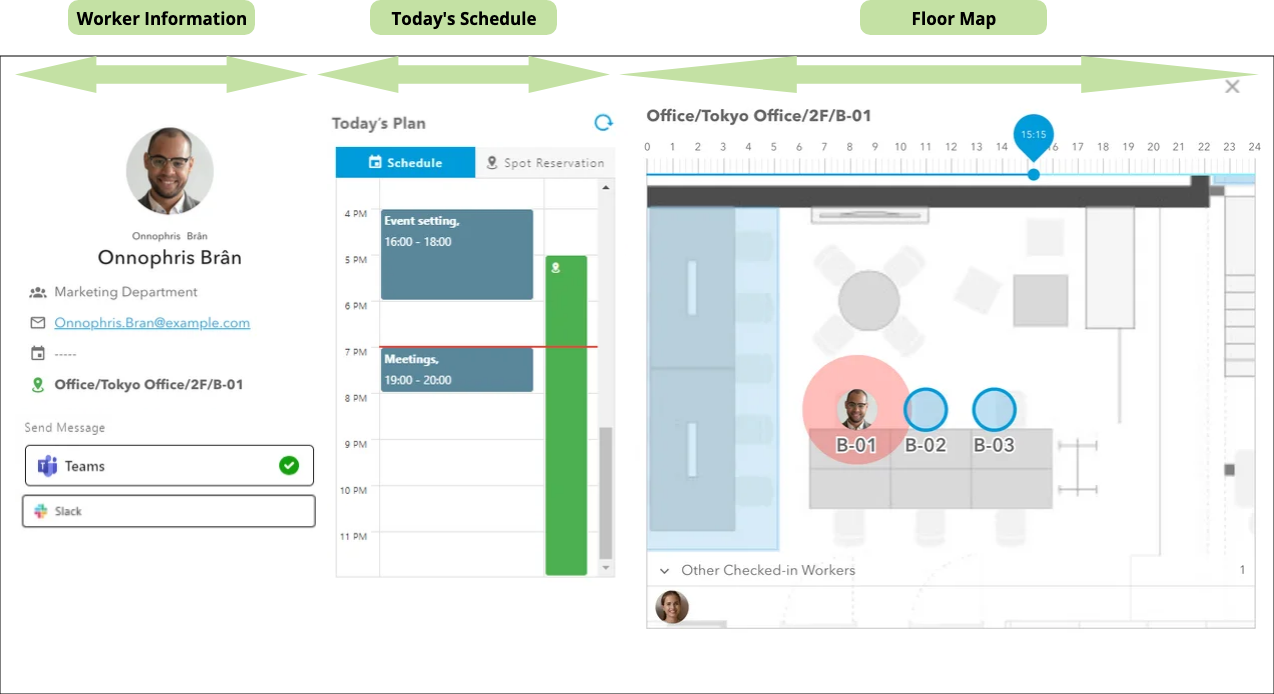
(Worker Information)
It displays the worker's name, phone number, email address, and other useful information for contacting them.
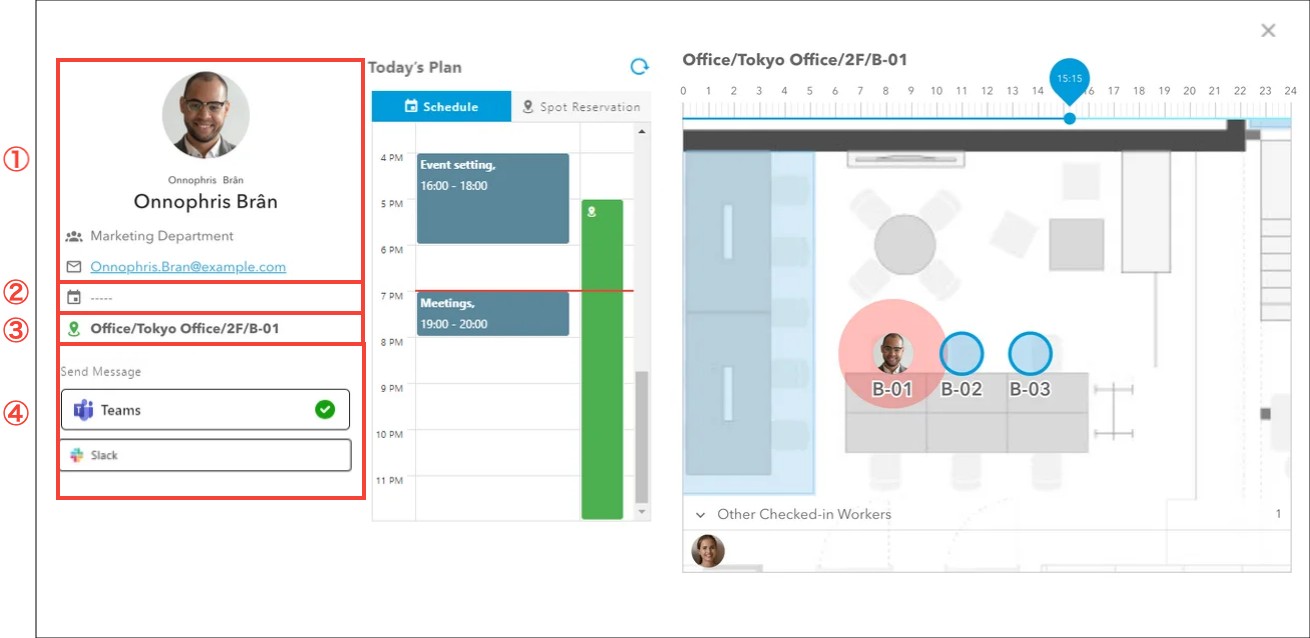
| No. | Item | Description |
| ① | Worker Information | Worker's name, group, email address, and phone number. |
| ② | Current Schedule | ■ Customers using Worker Information sharing function When linked with Microsoft Account, the current schedule registered in Outlook is displayed. |
| ③ | Spots being checked in | Spots currently checked in are displayed. |
| ④ | Send Direct Message | ■ Customers using Worker Information sharing function When linked with Microsoft Account, "Teams" button is displayed. On the right side, Teams' user presence (status information) is displayed.
■ Customers using Slack chat integration function Workers who have already registered their Slack user ID, “Slack” button will appear.
|


(Today's Schedule)
Today's Schedule is displayed.
You can switch between “Schedule” and “Spot Reservation” tabs.
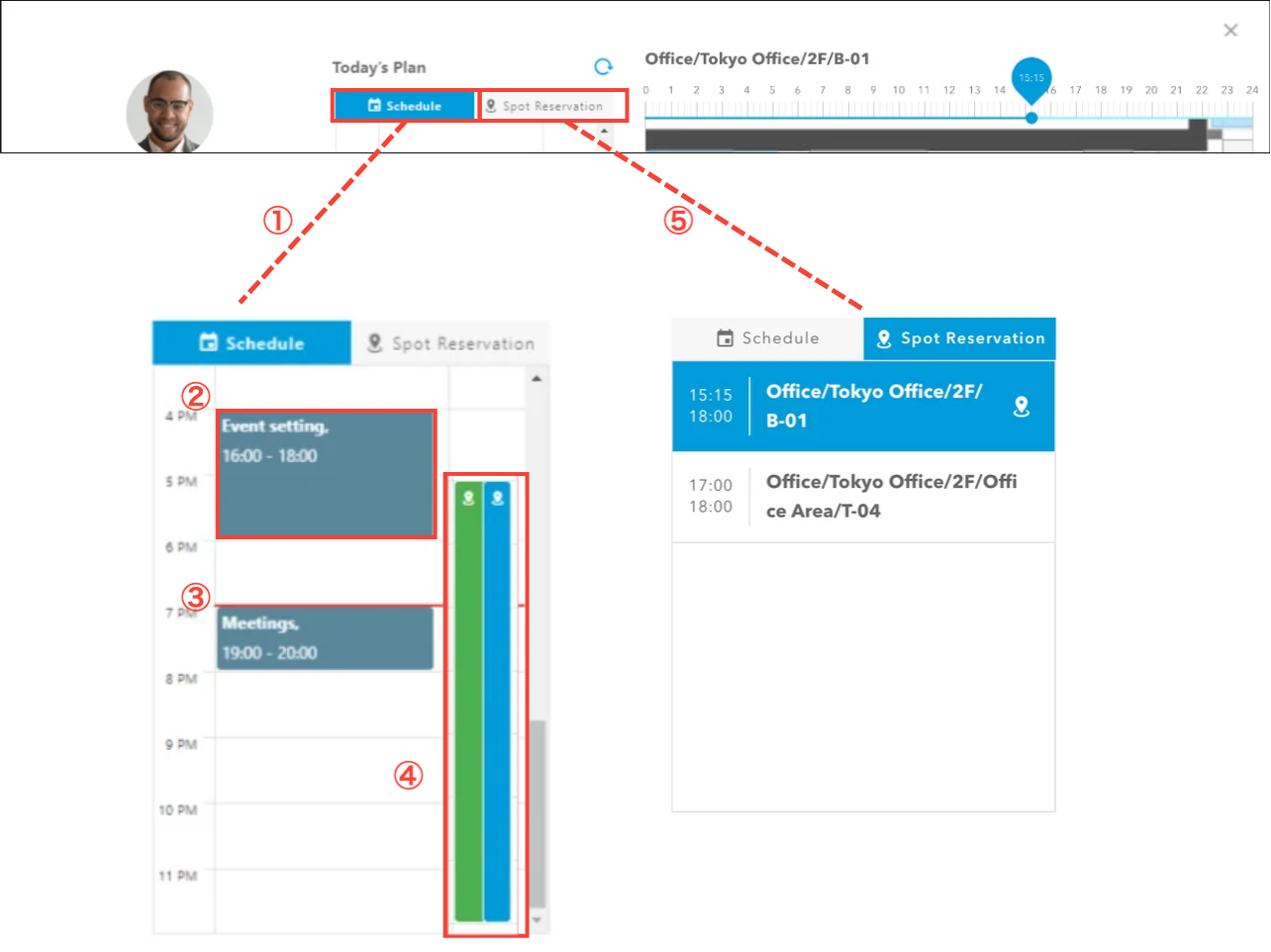
| No. | Item | Description |
| ① | "Schedule" Tab | Today's spot reservations are displayed on the timeline. |
| ② | Outlook Schedule | ■ Customers using Worker Information sharing function When linked with Microsoft Account, the schedule you have registered in Outlook is displayed on the left side of the timeline. For details on how to see the schedule, please refer to the note “If the worker has registered Microsoft Account to share Outlook Calendar on Acall Portal” below. |
| ③ | Current Time | Current time is indicated by a red line. |
| ④ | Spot Usage Schedule | The right side of the timeline displays today's spot usage schedule.
|
| ⑤ | "Spot Reservation" Tab | List of today's spot reservations will be displayed.
|
 Main color set in company setting: Reservations which have not been checked-in.
 Green: Reservations which have been checked-in.
 Main color set in company setting: Selected reservation.
 Reservations which have been checked-in.
Floor Map
The "Floor Map” currently checked in is displayed.
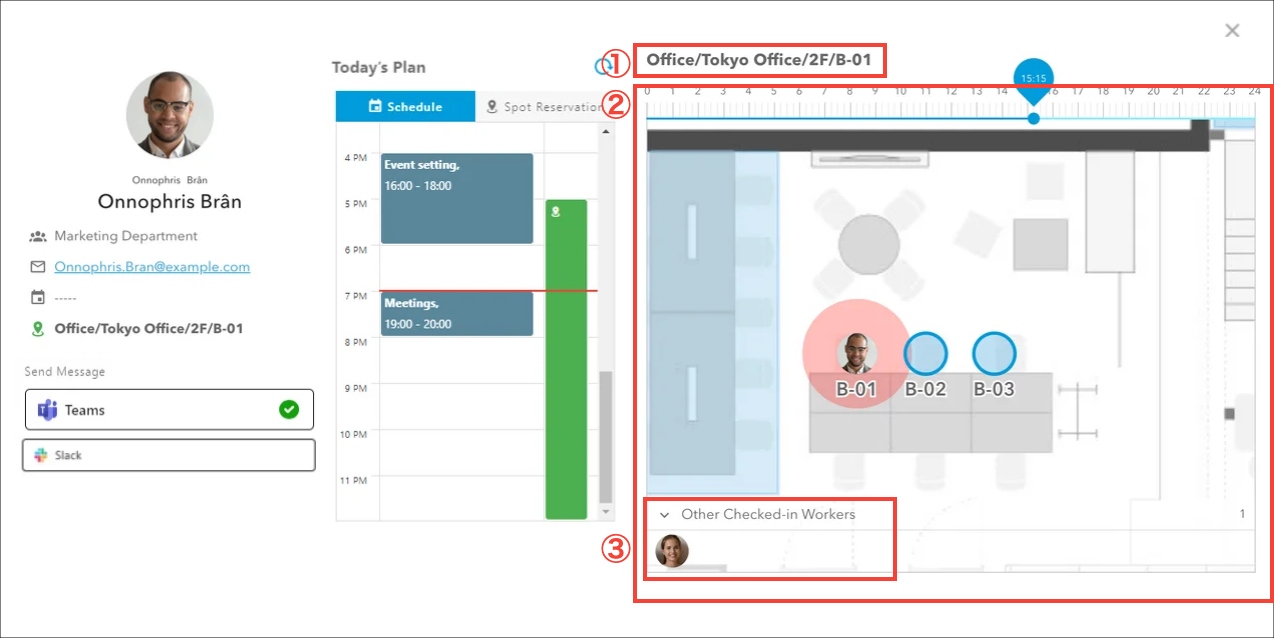
| No. | Item | Description |
| ① | Spot Name | Spot Name |
| ② | Floor Map | Spot that the worker has been checked-in or spot selected in “Today's Schedule” is displayed.
Floor map will not be displayed in the following cases: - You have not checked in to any spot. - The worker has checked in to a spot that is not registered on the map. |
| ③ | Other Checked-in Workers | Workers checked-in on the same floor is displayed. If a spot has child floors in the hierarchical structure, workers checked in on the child floors will also be displayed. |
If the worker has registered Microsoft Account to share Outlook Calendar on Acall Portal
By integrating workers' Microsoft Account to Acall, their Outlook Calendar for the day can be viewed on Acall Portal.
- Share Worker's Outlook Calendar on Acall Portal
- Integrate Microsoft Account to Share Your Outlook Calendar on Acall Portal
Note

・ Both the viewer and the viewed user must set up the integration with Microsoft Account. Even if you have already set it up, if the other has not, you will not be able to view the user’s schedule.

・ Only the subject, start time, and end time of the schedule can be viewed. Other information (participants, meeting room, etc.) cannot be viewed.

・ You can view only today's schedule. You cannot view the schedule for the next day or later.

・ You cannot edit schedules.

・ Calendar sharing settings (private setting etc.) in Outlook will be reflected.
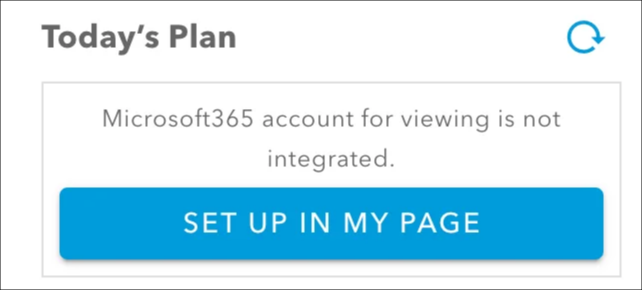
If the worker is not integrated their Microsoft Account, it will be as follows.
- "Send Message” is not displayed.
- Teams' presence is not displayed.
- “Schedule” tab does not show the worker's Outlook schedule.
- "Today's Plan” will show the following
Reserve a spot near the worker you searched
You can reserve a spot from the floor map displayed on the worker's check-in status.
NOTE

If the floor is not registered, it will not display the floor map, and you will not be able to reserve a spot from the pop-up screen.
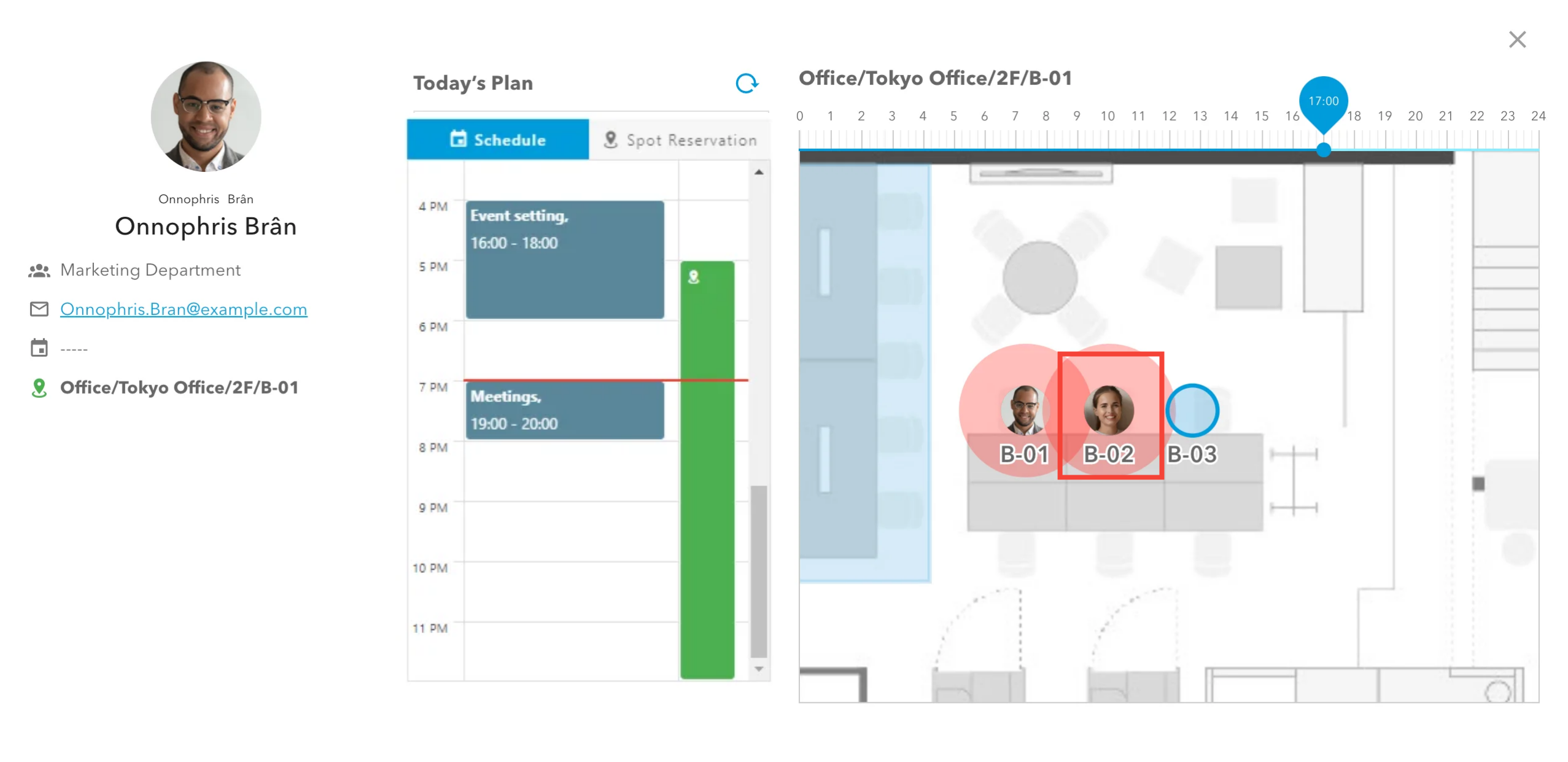
As you see below, "Onnophris Bran" has reserved the spot "B-01" from 15:15 to 18:00.
On this page, as an example, we will reserve the spot "B-02" next to "B-01".
Click on the reservation for "15:15 - 18:00" on Onnophris Bran's spot reservation list to display the floor map. Then, click on "B-02" for the spot you want to reserve.
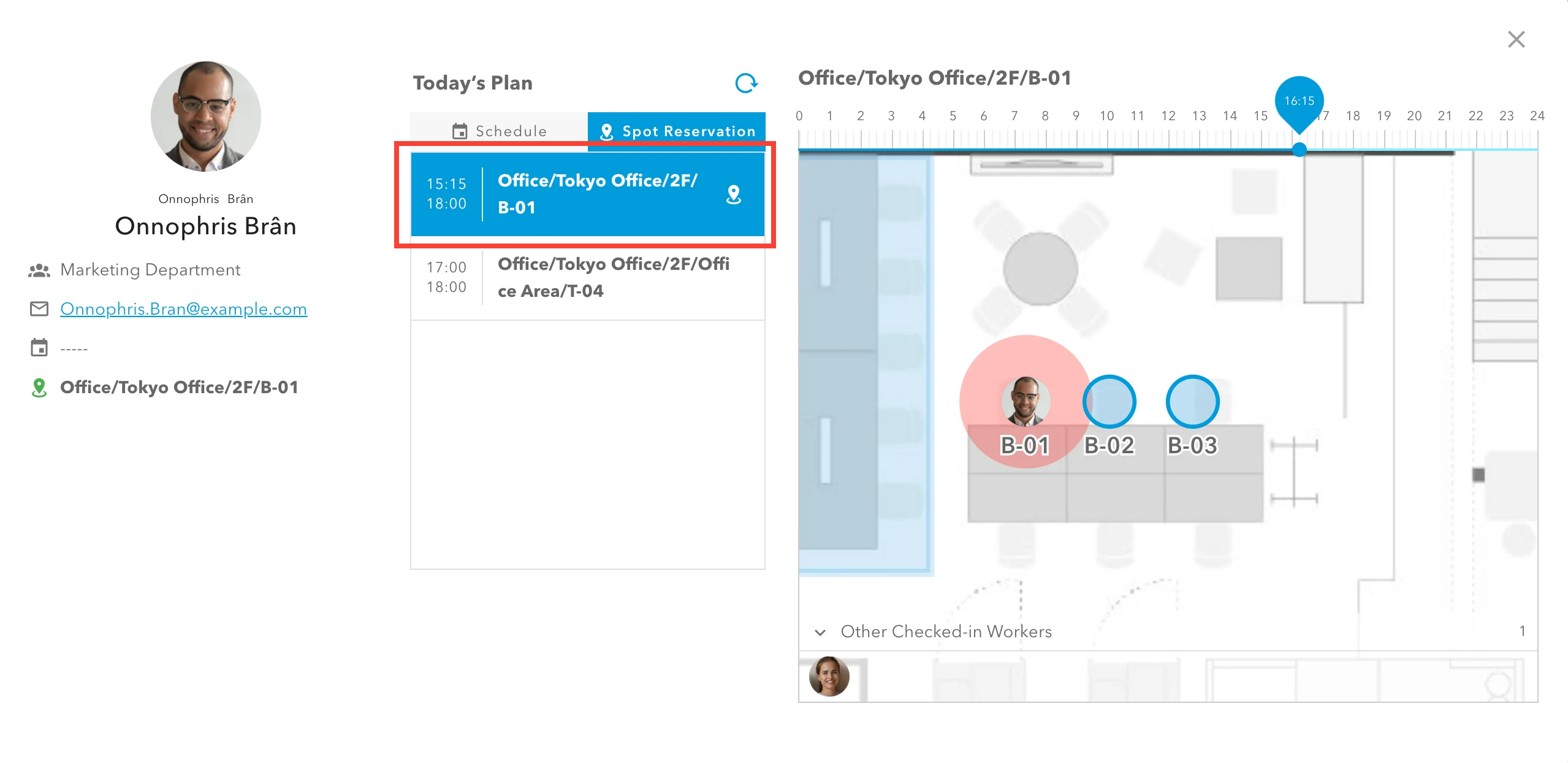
Spot reservation screen will open.
After confirming or changing the reservation details, click [MAKE A RESERVATION].
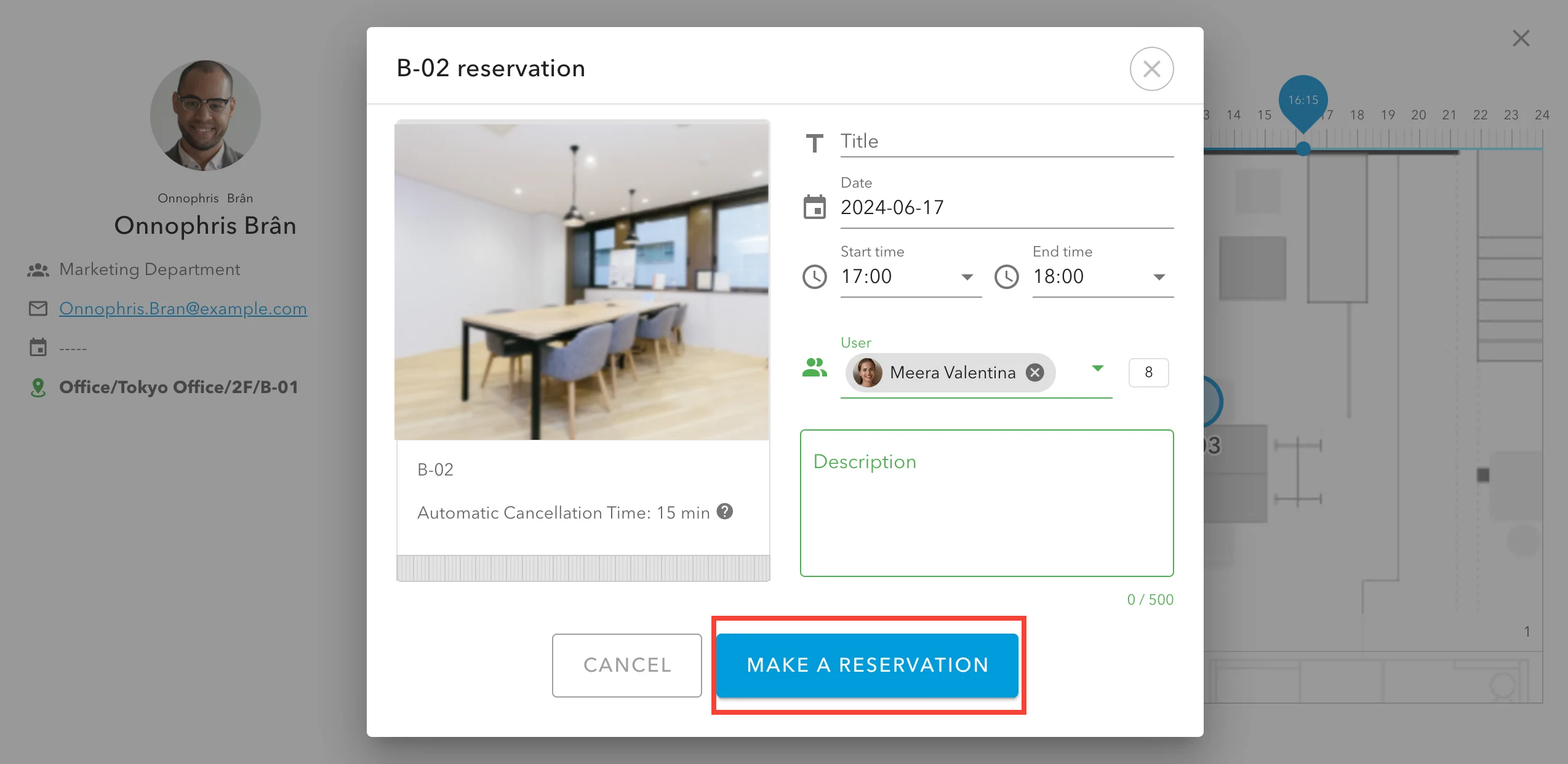
Once the reservation is completed, you will see your own icon on the floor map.