- Help Center > Meeting Room Check-in / Acall Meeting > Administrator > Acall Meeting App Settings (General) > Make Worker Code Authentication Mandatory for Acall Meeting
Make Worker Code Authentication Mandatory for Acall Meeting
Answer
Contents
When starting a meeting with Acall Meeting, you can set up authentication by worker code (QR code / alphanumeric characters).
- When using the meeting room for a scheduled meeting, you can prevent use of people who are not participants of the meeting (only in Acall Meeting Outside Mode).
- When meeting is started immediately without a reservation, you can record of who has used the meeting room.
This page explains how to make worker code (QR code / alphanumeric) authentication mandatory to start a meeting on Acall Meeting.
Acall Meeting Authentication
When the authentication function is enabled, you will be asked to authenticate with a worker code at the start of the meeting.

The operations that require authentication differ between Outside Mode and Inside Mode.
In Inside Mode, authentication by worker code is required only for immediate use without reservation.
〇:Authentication ×:No authentication
| Operation | Outside Mode | Inside Mode |
|
Start meeting(ENTER) |
〇 | × |
|
End meeting(EXIT) |
〇 | × |
|
Immediate use(External use / Internal use) |
〇 | 〇 |
To use the authentication function, the following settings are required
- Set the authentication function enabled for each workspace
- Set worker codes for all workers
Make worker code authentication mandatory
 ATTENTION
If you set code authentication, all workers are required to enter a worker code.
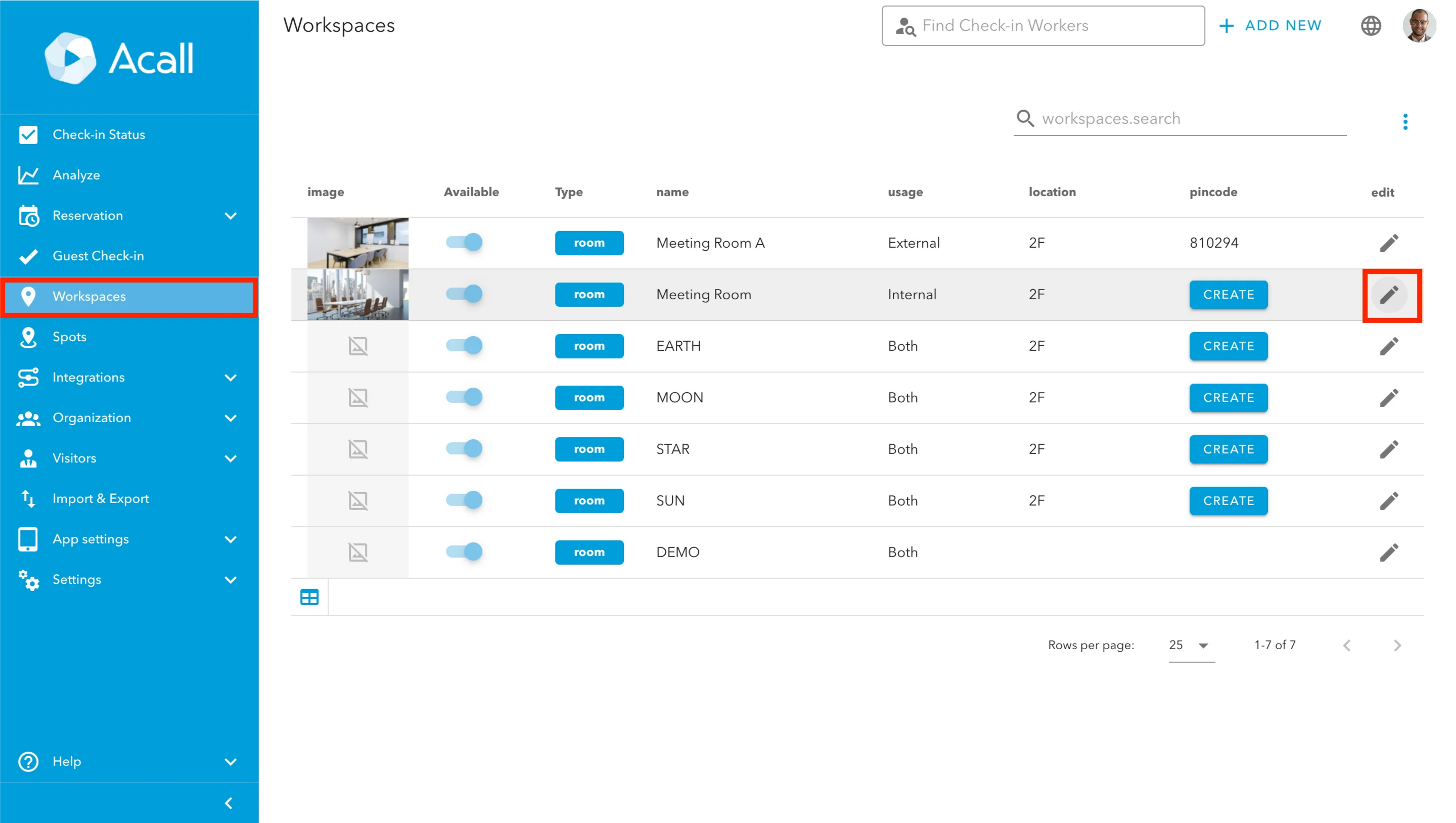
Click [Workspaces] in the side menu on Acall Portal.
Click [Edit (pencil icon)] of the meeting room for which you want to set code authentication in the list of workspaces.
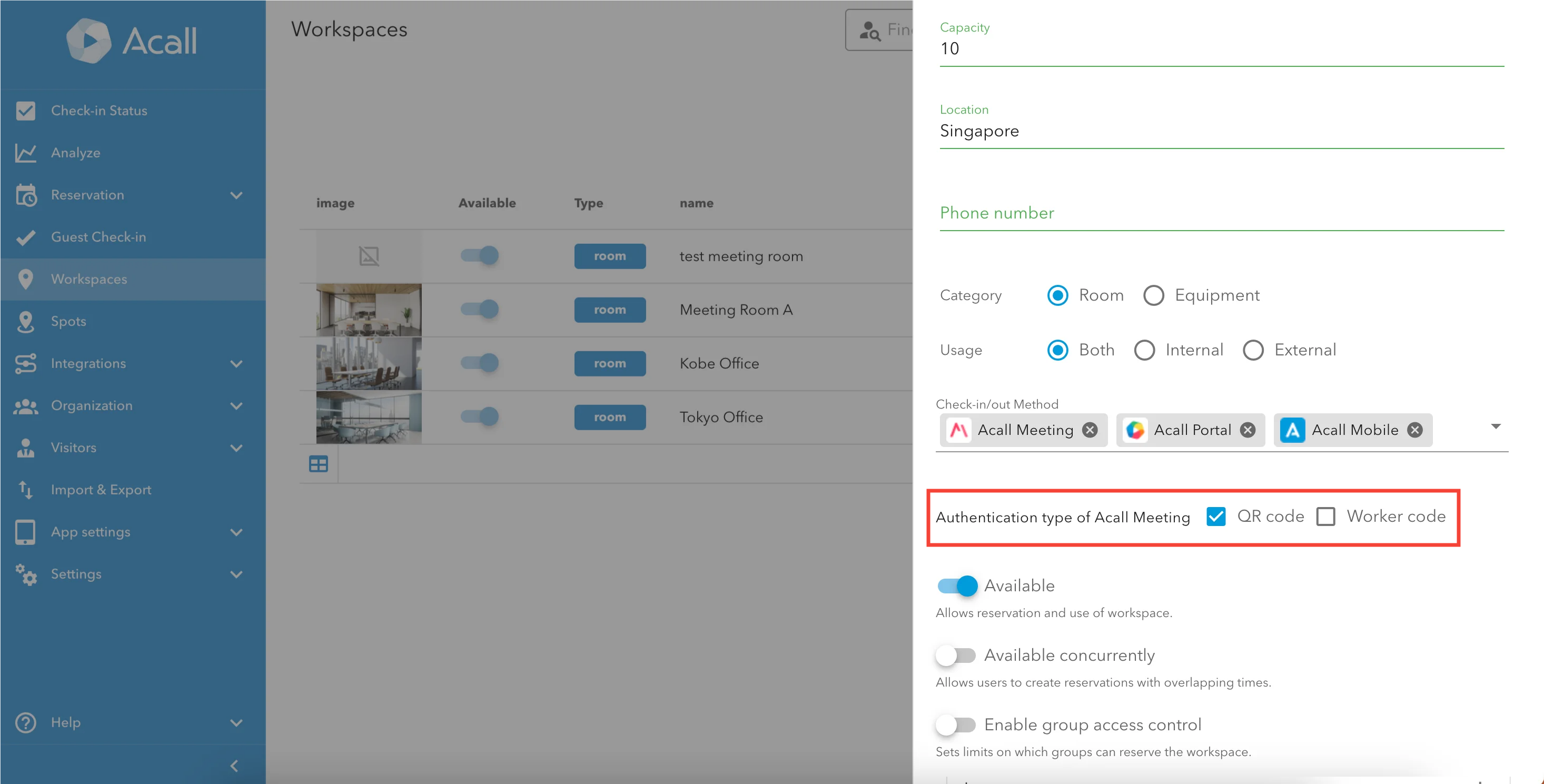
Check the checkbox for the code (QR code / alphanumeric) you want to ask users for authentication, and click [UPDATE].
 Note
If "Acall Meeting" is not set as the check-in/out method, the Acall Meeting authentication type cannot be configured.
Set worker codes for worker
 NOTE
To set worker codes for multiple workers at once, please refer to [Registering Multiple Workers at Once].
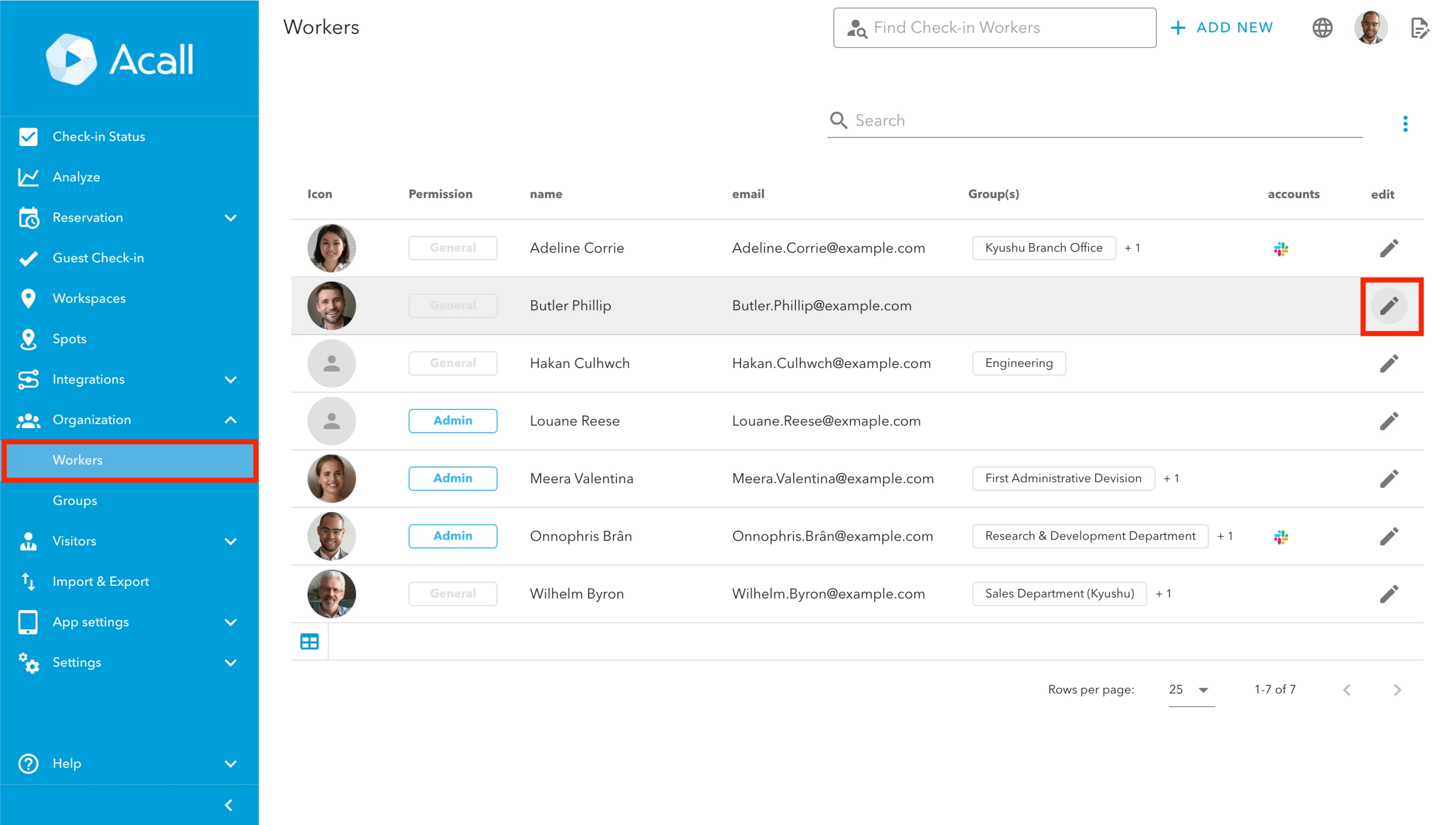
Click [Organization] > [Workers] in the side menu on Acall Portal.
Click [Edit (pencil icon)] of the worker for which you want to set the worker code.
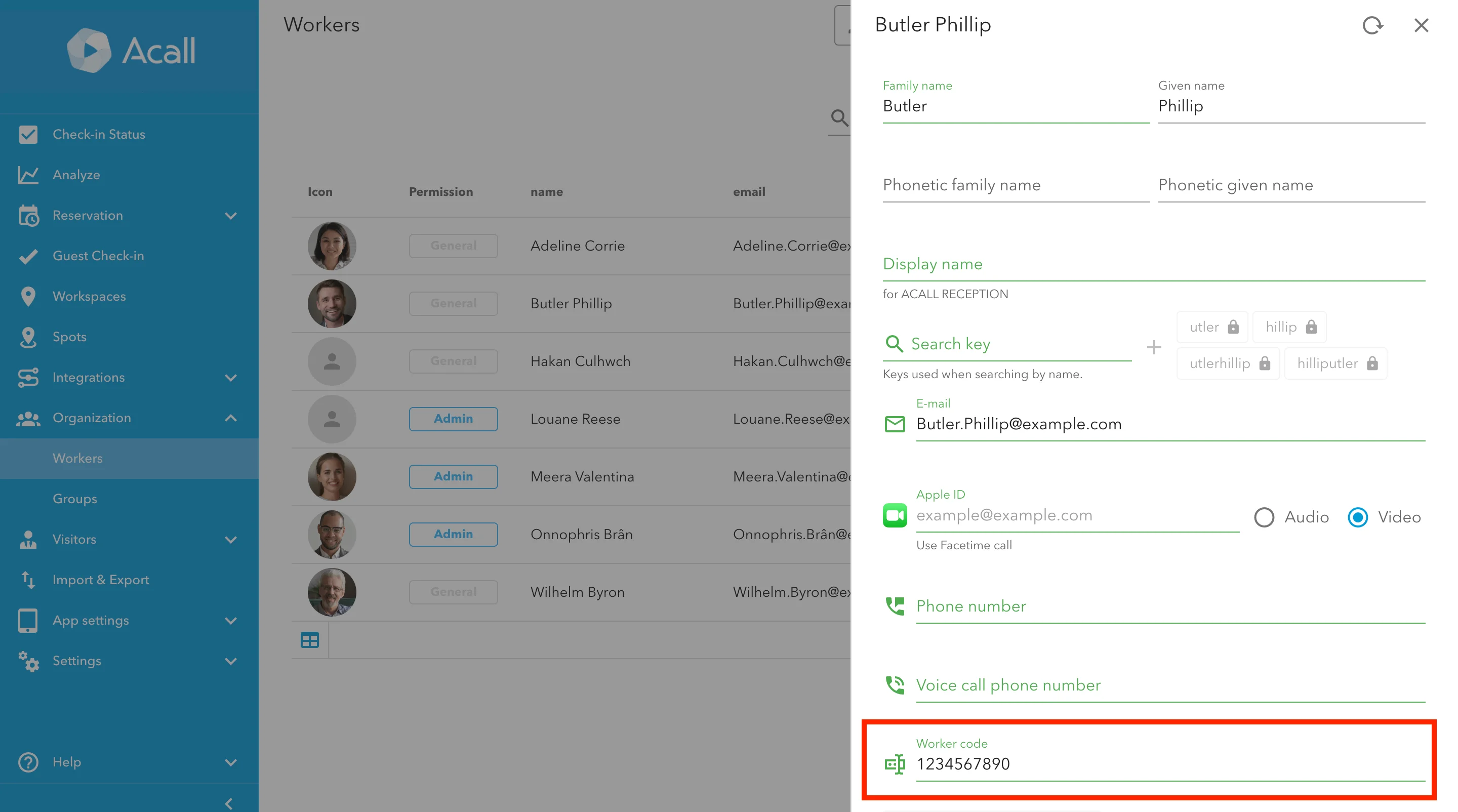
Enter the worker code in alphanumeric characters and click [UPDATE].