- Help Center > Meeting Room Check-in / Acall Meeting > General User > Acall Mobile > Check-in/check-out and Extend a Workspace Reservation from Acall Mobile
Check-in/check-out and Extend a Workspace Reservation from Acall Mobile
- Category :
Answer
This page explains how to check in/check out and extend a workspace reservation from Acall Mobile.

The administrators must configure Acall Mobile as the check-in/check-out method for the workspace in advance.
For more details, please refer to "Register / Edit Workspace."
What is Check-in / Check-out?
The start of the reserved workspace usage is referred to as "check-in," and the end of the usage is referred to as "check-out."
Check-in / Check-out and Extend
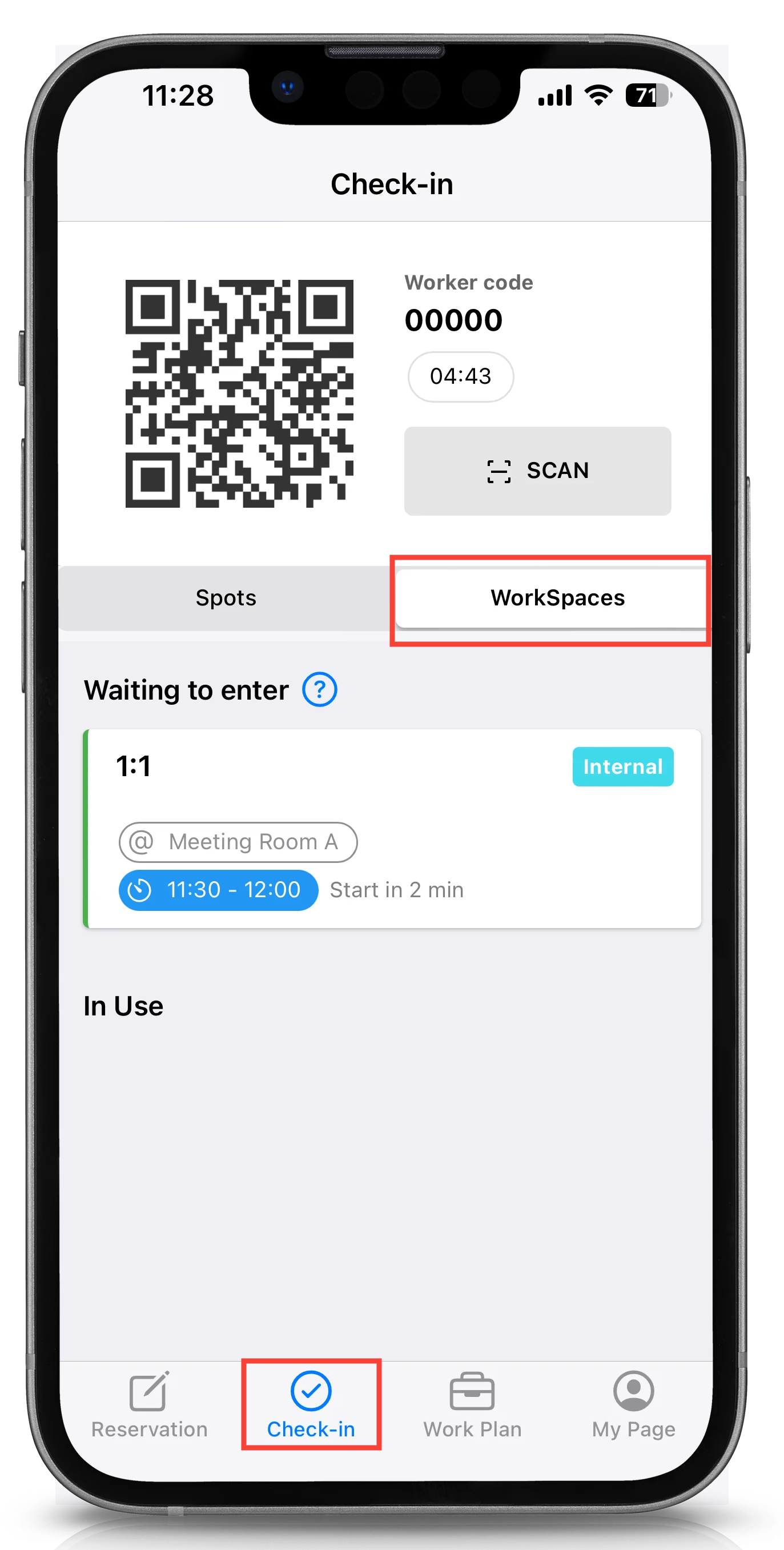
In Acall Mobile, tap the [Workspaces] tab in the [Check-in] section of the bottom menu, and in the displayed reservations, you can check in/check out or extend the reservation.
 Note
Depending on your subscription status, the [Workspace] tab may not be available.
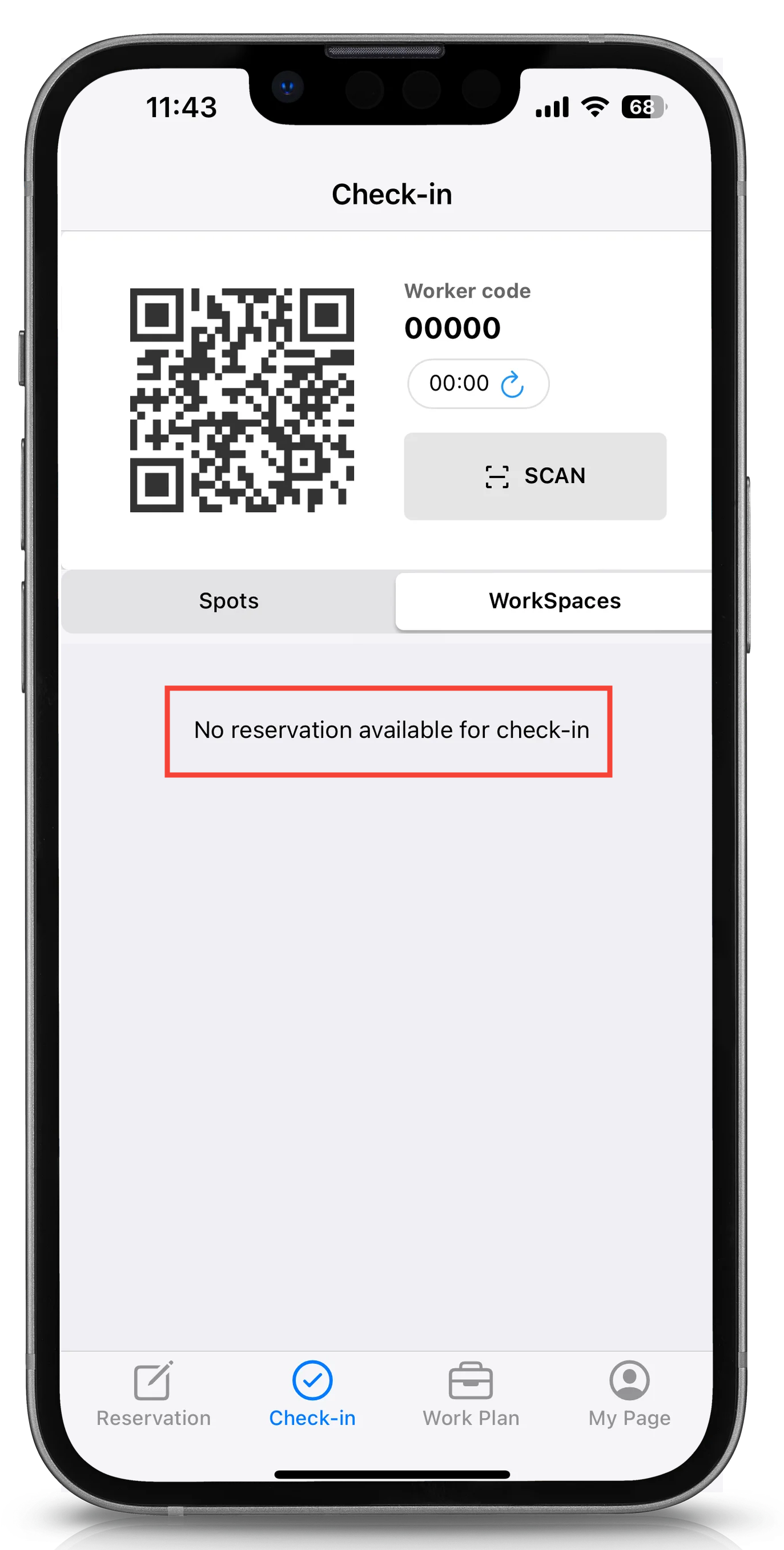
If there are no reservations available for check-in or no reservations currently checked in, the message "No reservations available for check-in" will be displayed.
Check-in
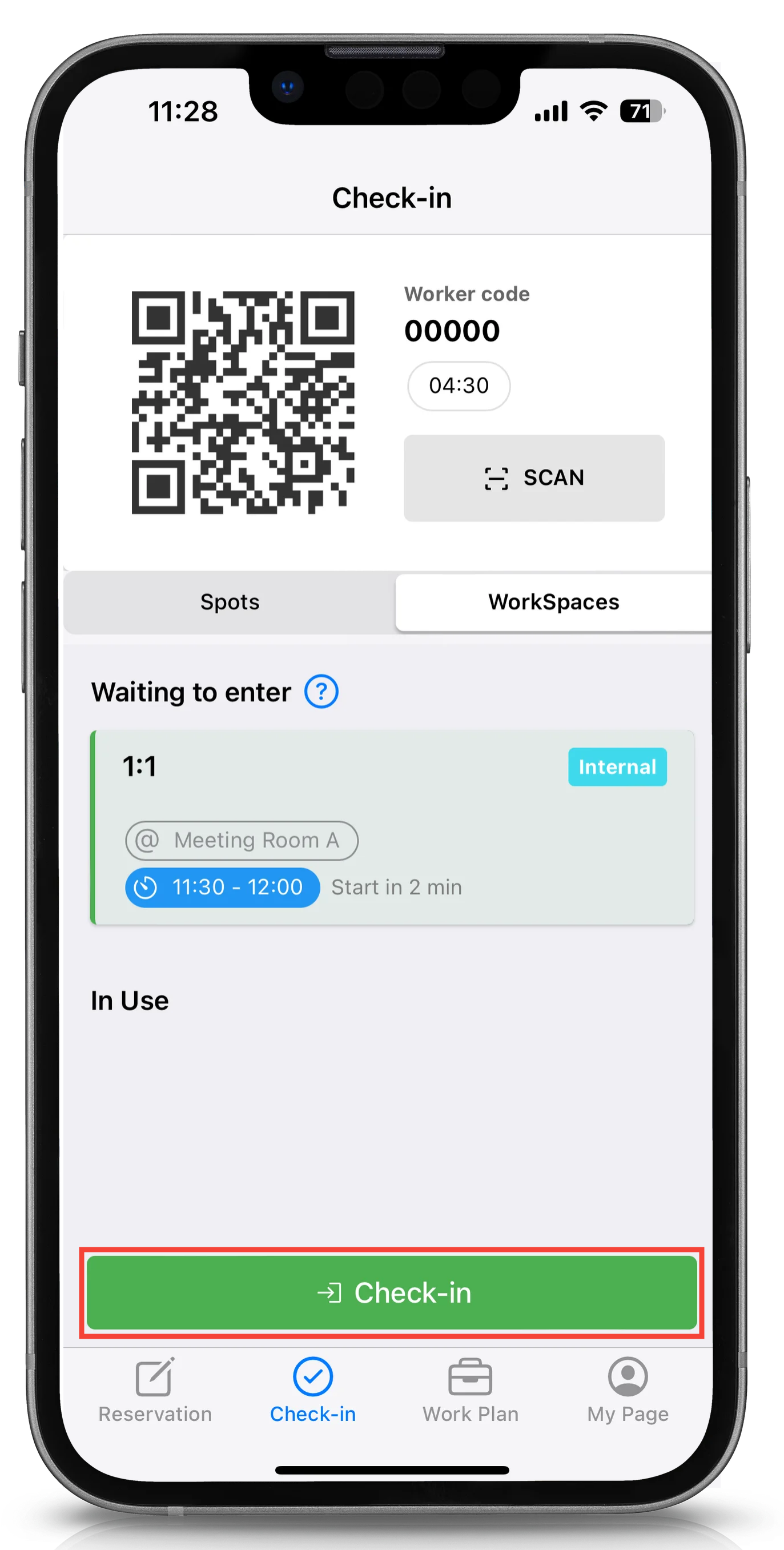
Reservations for which you are the person in charge will appear under [Waiting to Enter] 15 minutes before the reservation start time.
Tap the reservation and then tap [Check-in].
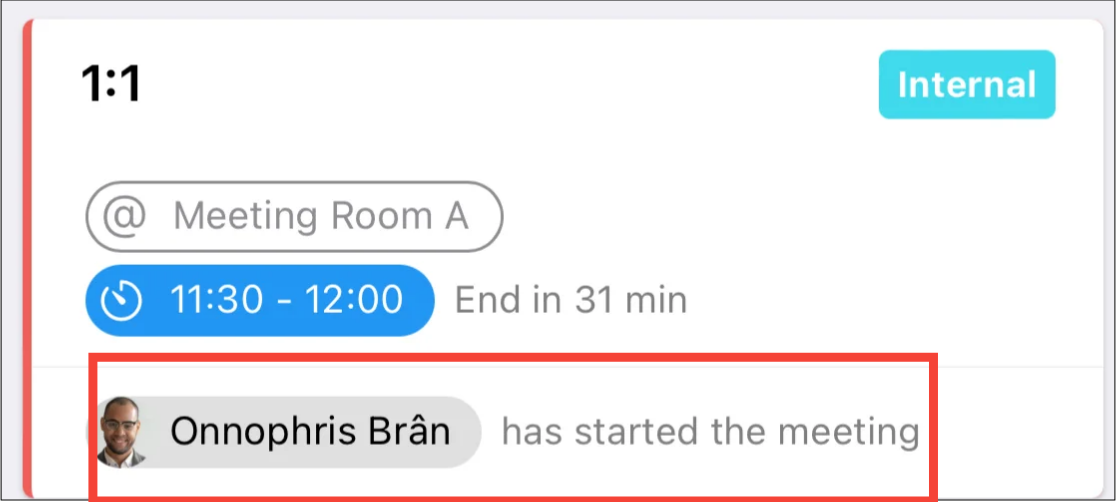
Reservations that have been checked in will appear under [In Use].
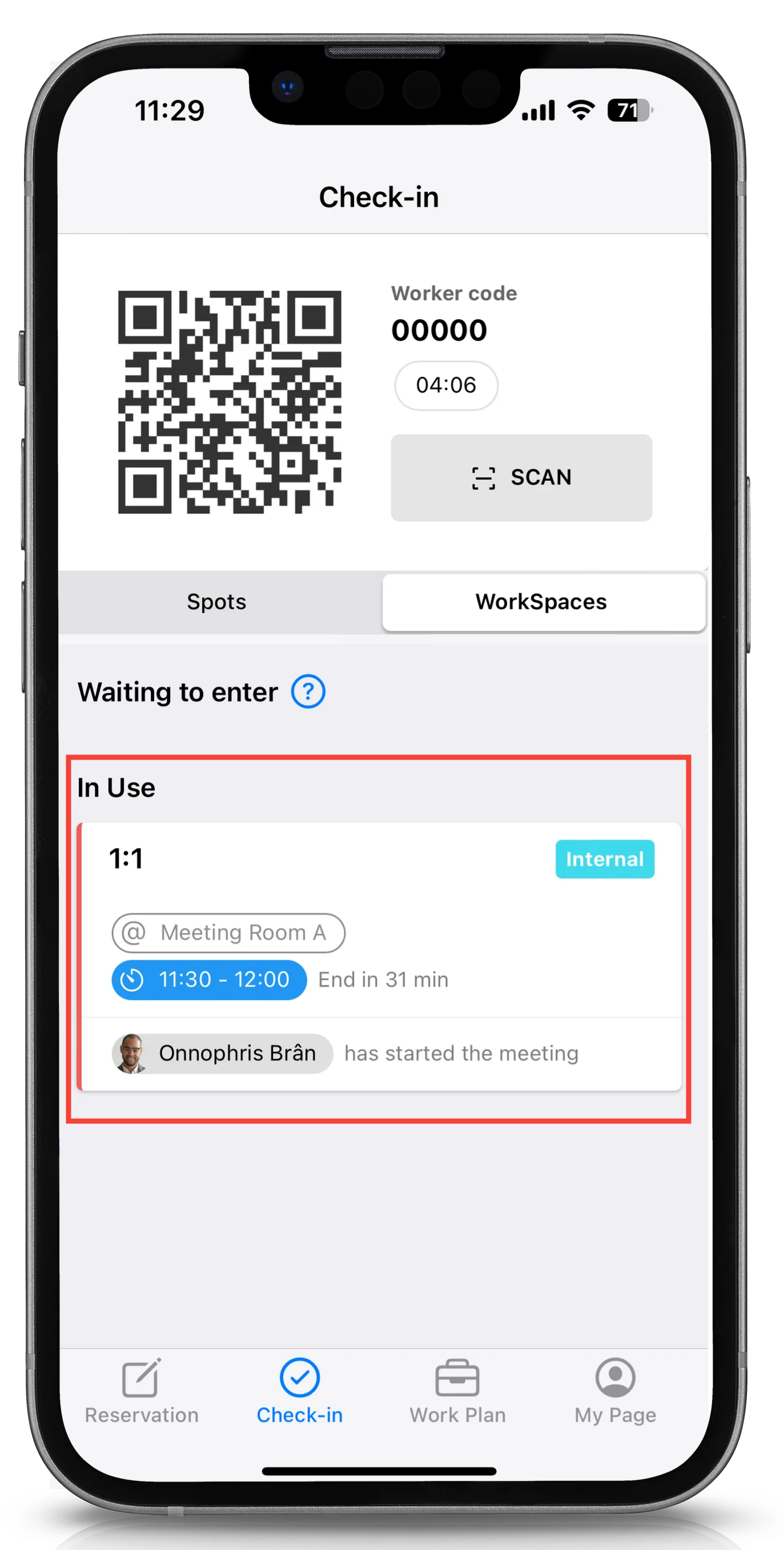
For reservations under [In Use], the worker's name and icon who checked in via Acall Portal / Acall Mobile or authenticated via Acall Meeting will be displayed.
Check-out
Reservations that have been started / checked in via Acall Meeting or Acall Portal can also be checked out on Acall Mobile.
The check-in method varies depending on the workspace settings.
Tap the reservation and then tap [Check-out].
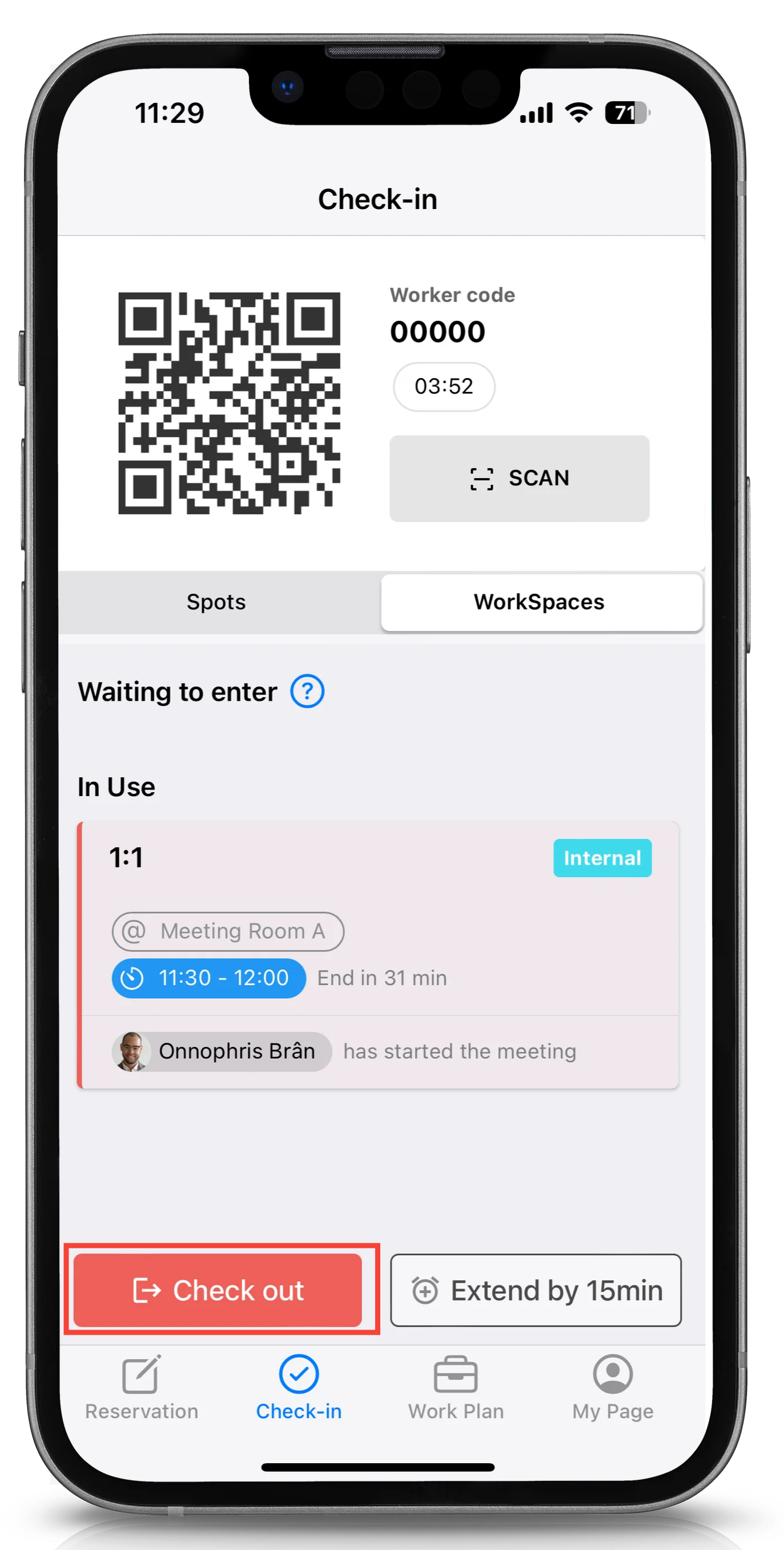
Once the check-out is complete, the reservation will no longer appear in the [Check-in] menu.
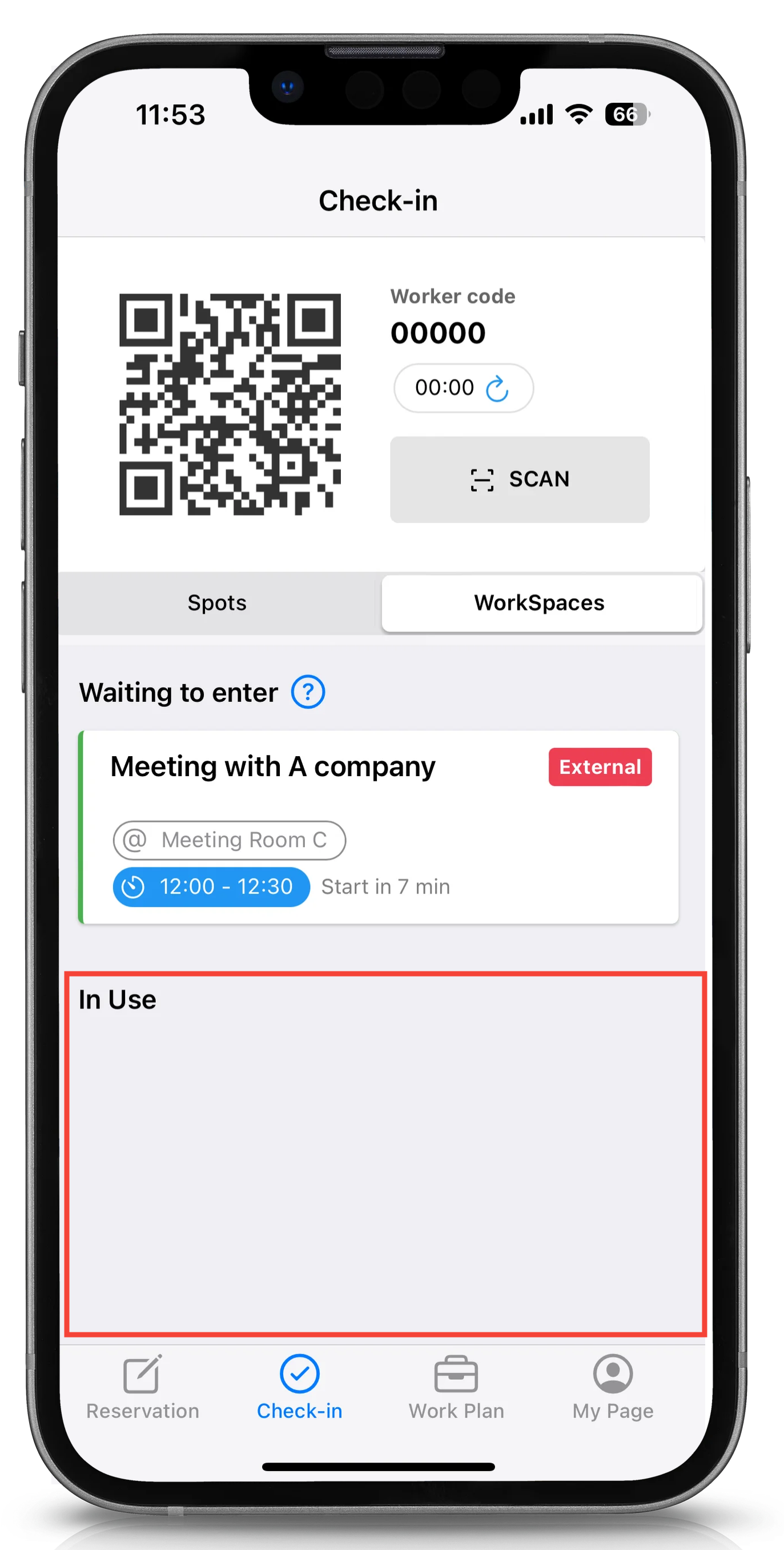
You can check the details of the checked-out reservation from your My Page.
Extend
You can extend the reservation after checking in.
In addition to the scheduled usage time, the reservation can be extended in 15-minute increments, up to a maximum of 120 minutes or until the start time of the next reservation.
Tap the reservation and then tap [Extend by 15 min].
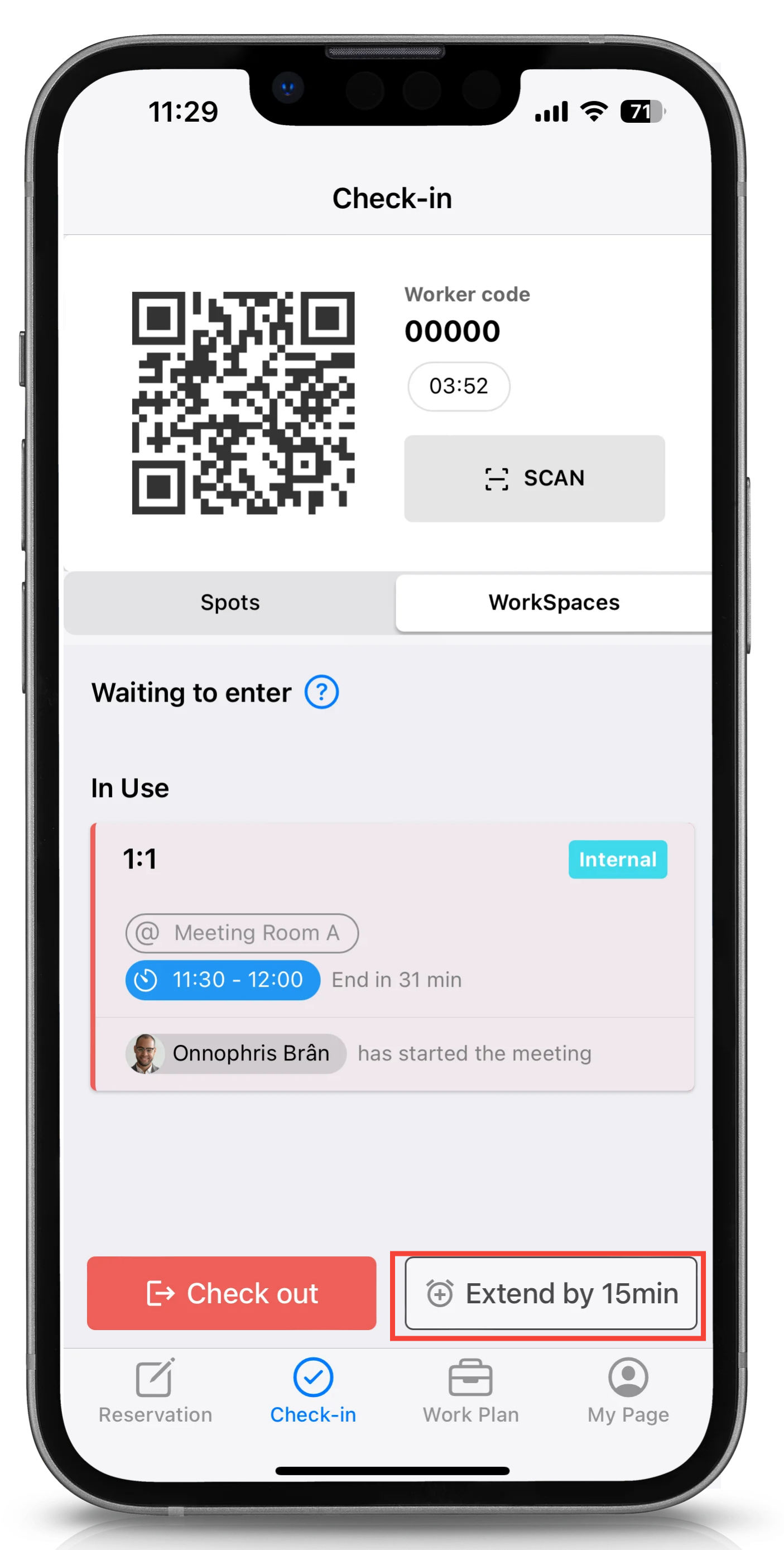
Once the extension is complete, 15 minutes will be added to the scheduled end time.
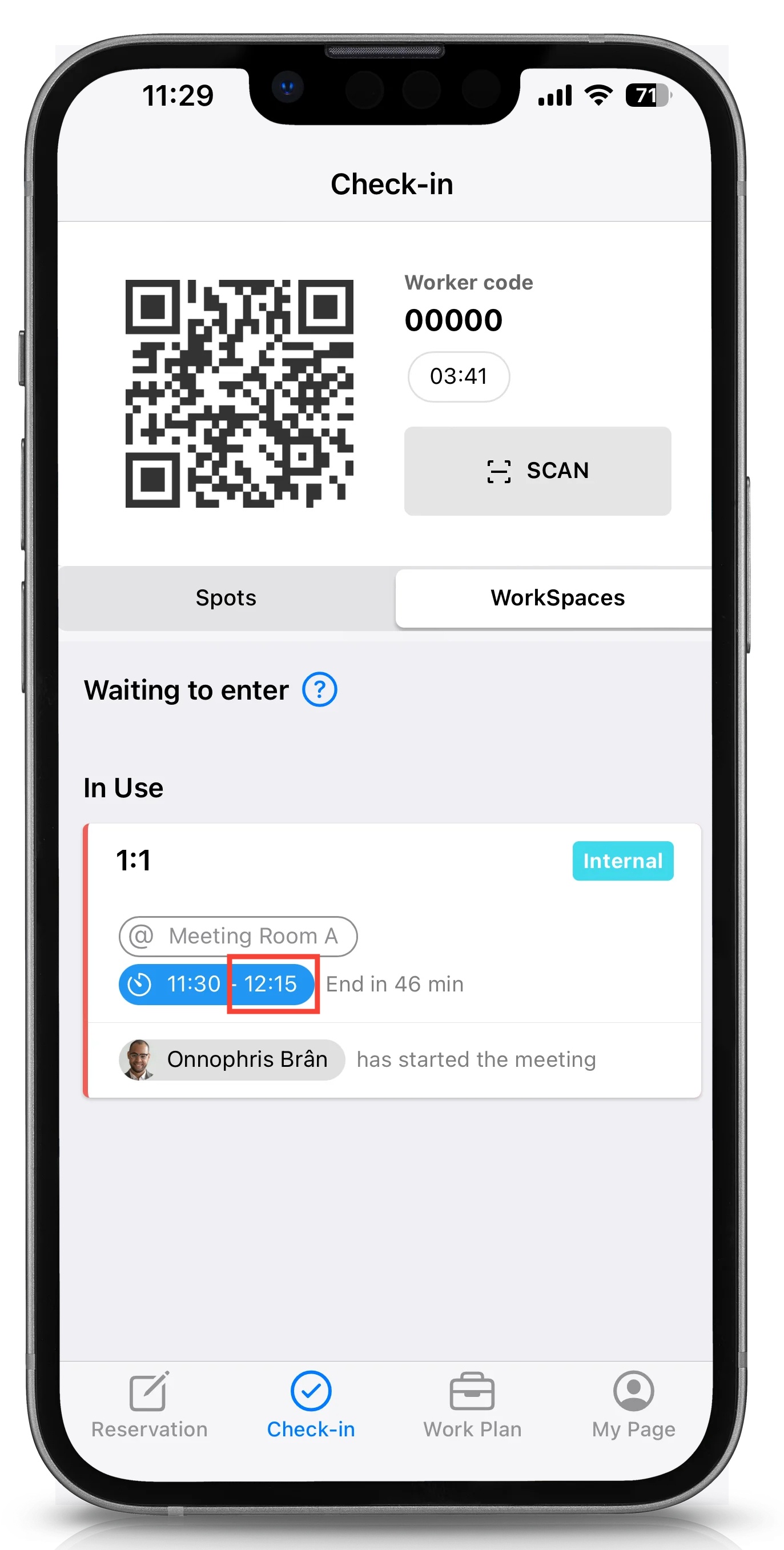
If auto extension is set to ON in the workspace settings, the reservation will be automatically extended in 15-minute increments until the start time of the next scheduled meeting or by the end of the day.