 Notes on Outlook / Google Calendar linking

You can reserve, edit, and delete workspace reservations on Acall Mobile only if you have selected "Reservation on Acall" as your meeting room reservation method.

 If you have selected "Reservation on Google/Outlook Calendar" method, you can only check the reservation status of the workspaces on Acall Mobile.
Reserve a workspace on Acall Mobile
Check the availability of workspaces
Open Acall Mobile app and find the meeting room or equipment you want to reserve from the list of workspaces in the [Reservation] menu.

 Note

If you are using Spot Check-in feature, [Spot] and [Workspace] will be displayed. Tap [Workspace] in this case.

Filter the list of available meeting rooms and equipment by date and time
Tap the filter icon in the upper left corner, specify the date and time, and tap [Filter].

Filter available meeting rooms and equipment by name
Tap the search icon in the upper right corner and enter the name of the meeting room or equipment.

Reserve meeting room/equipment
Tap the meeting room/equipment you want to reserve and tap [Reservation] icon.

Tap the date you want to reserve on the calendar, and the available time slots and current reservation information will be displayed.
Select and tap the time slot that says "Available up to xx:xx".

Enter reservation detail.
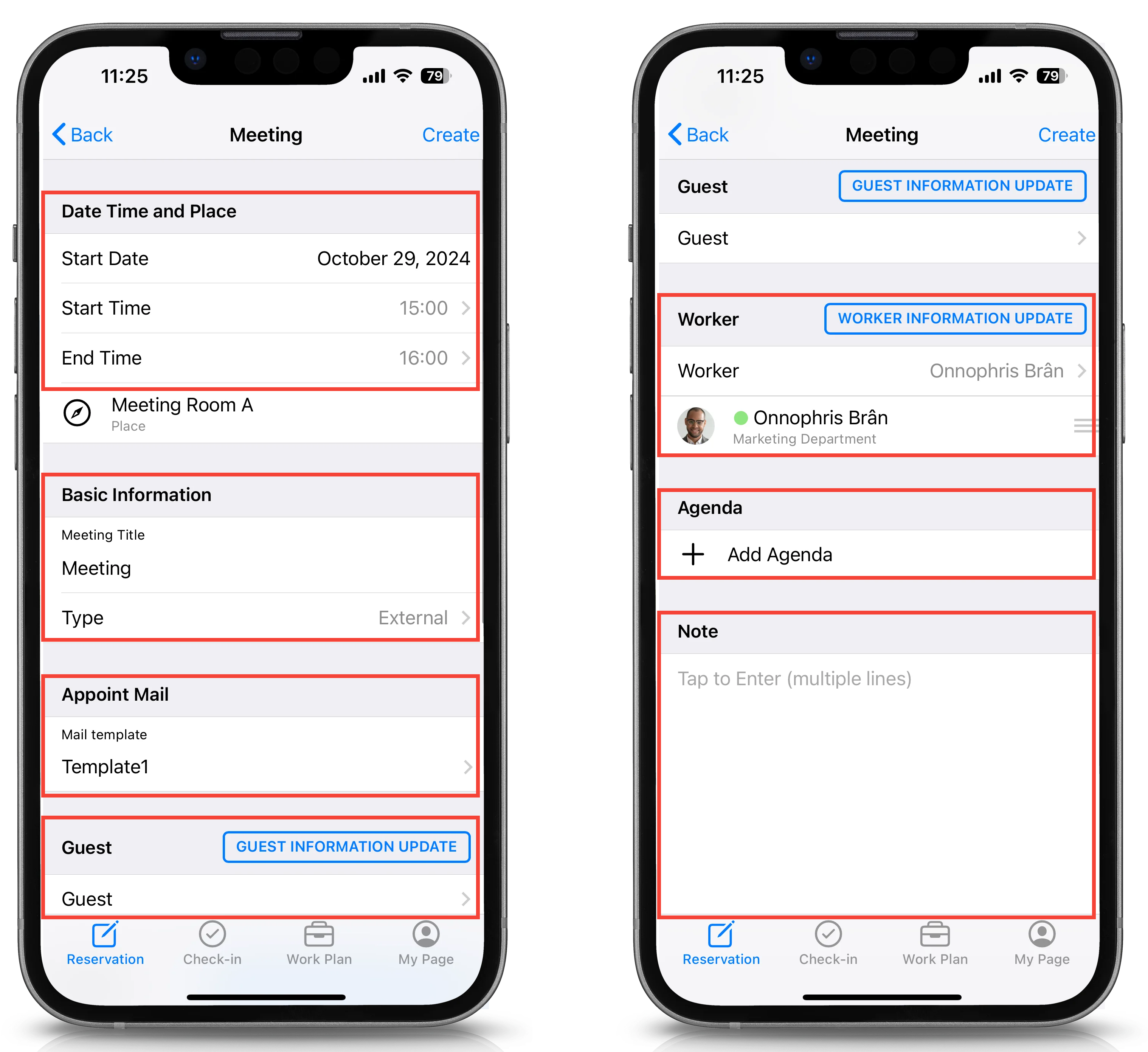
| Item | Description |
| Start Date | Start date of the reservation |
| Start Time | Start time of the reservation |
| End Time | End time of the reservation |
| Meeting Title | Name of the reservation |
| Type | External / Internal |
| Mail template | Appointment code email template to send to guests. Tap the item to select other email templates. |
| Guest | Guests you are inviting (You can select multiple guests) ※ Available only when you select "External" for Type By tapping "GUEST INFORMATION UPDATE", you can get the latest guest information. |
| Worker | Person in charge (You can select multiple persons) ※ Meeting attendee / user of the equipment By tapping "WORKER INFORMATION UPDATE", you can get the latest worker information. |
| + Add Agenda | Meeting agenda ※ When use Acall Mobile, you can add your meeting agenda and check on your iPad during the meeting. |
| Note | Note |
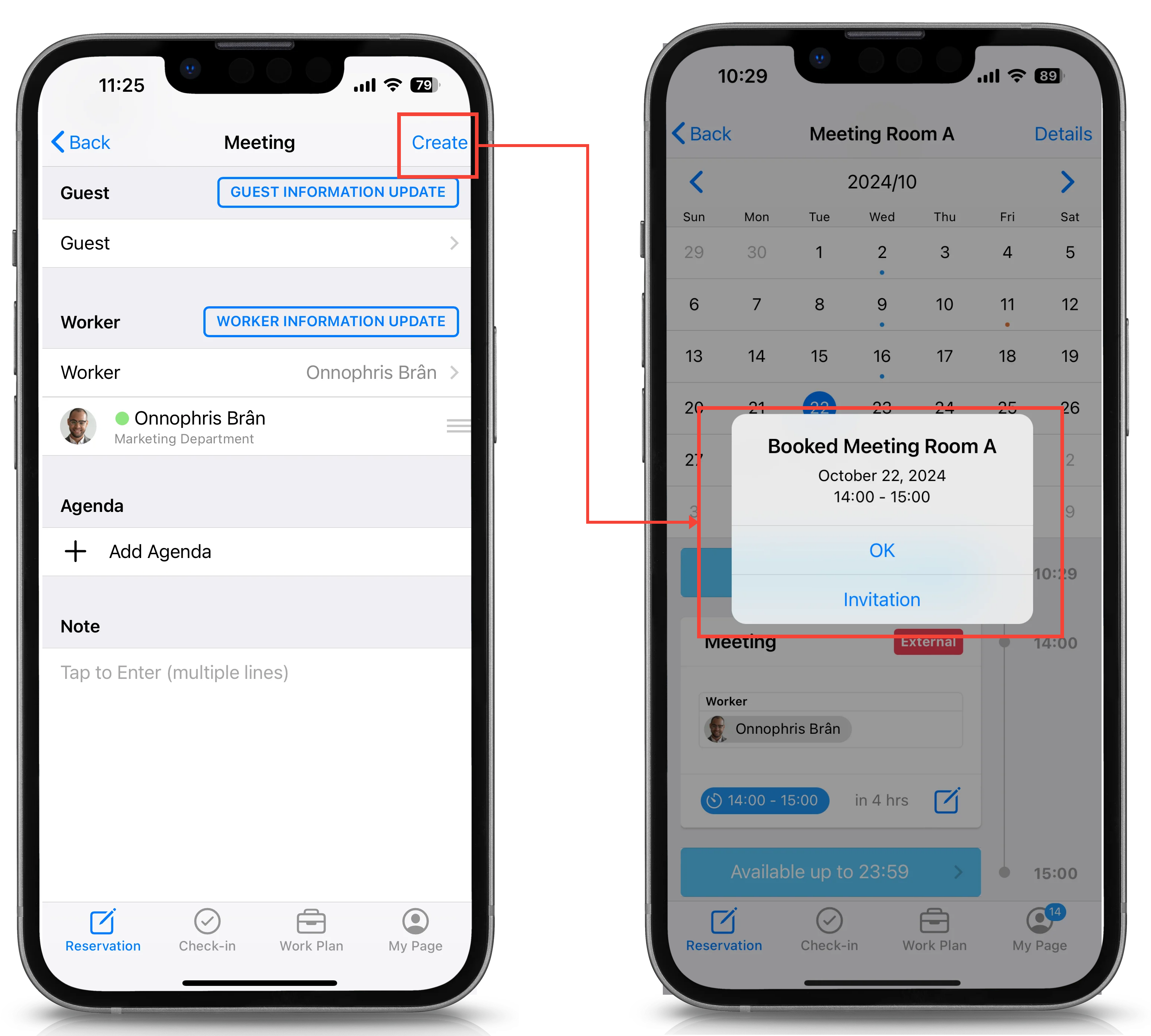
Once you complete the entry, tap [Create] in the upper right corner.
When you see the confirmation pop-up, reservation is completed.
Send appoint code to guests
In the "External" reservation, you can send appointment code to the guest via e-mail that they can use on Acall Reception when they arrive at your office.
Tap [ Invitation ] on the appointment reservation completion pop-up.
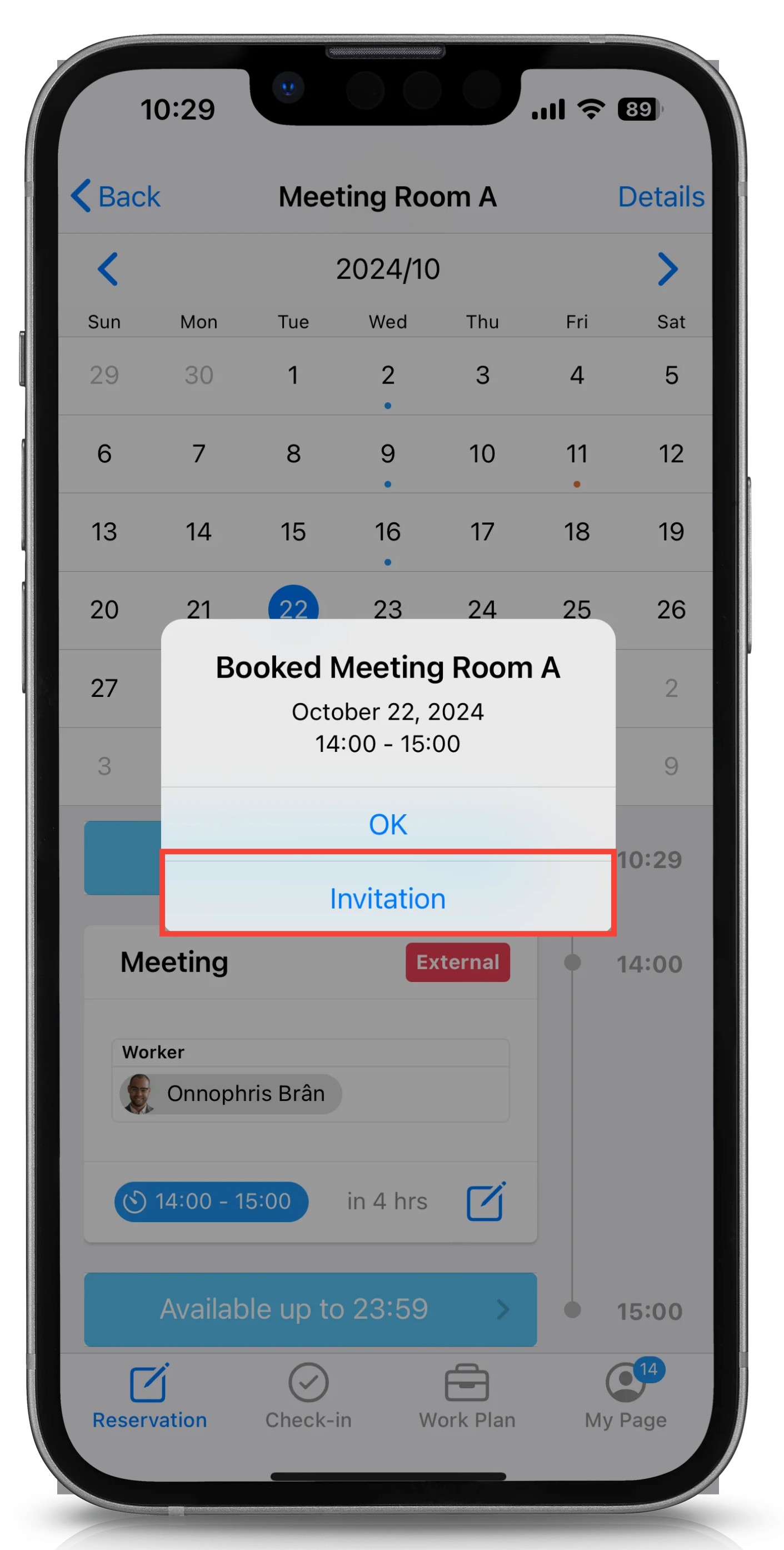
If you do not select any guest when creating or editing a reservation, the [ Invitation ] option will not appear.
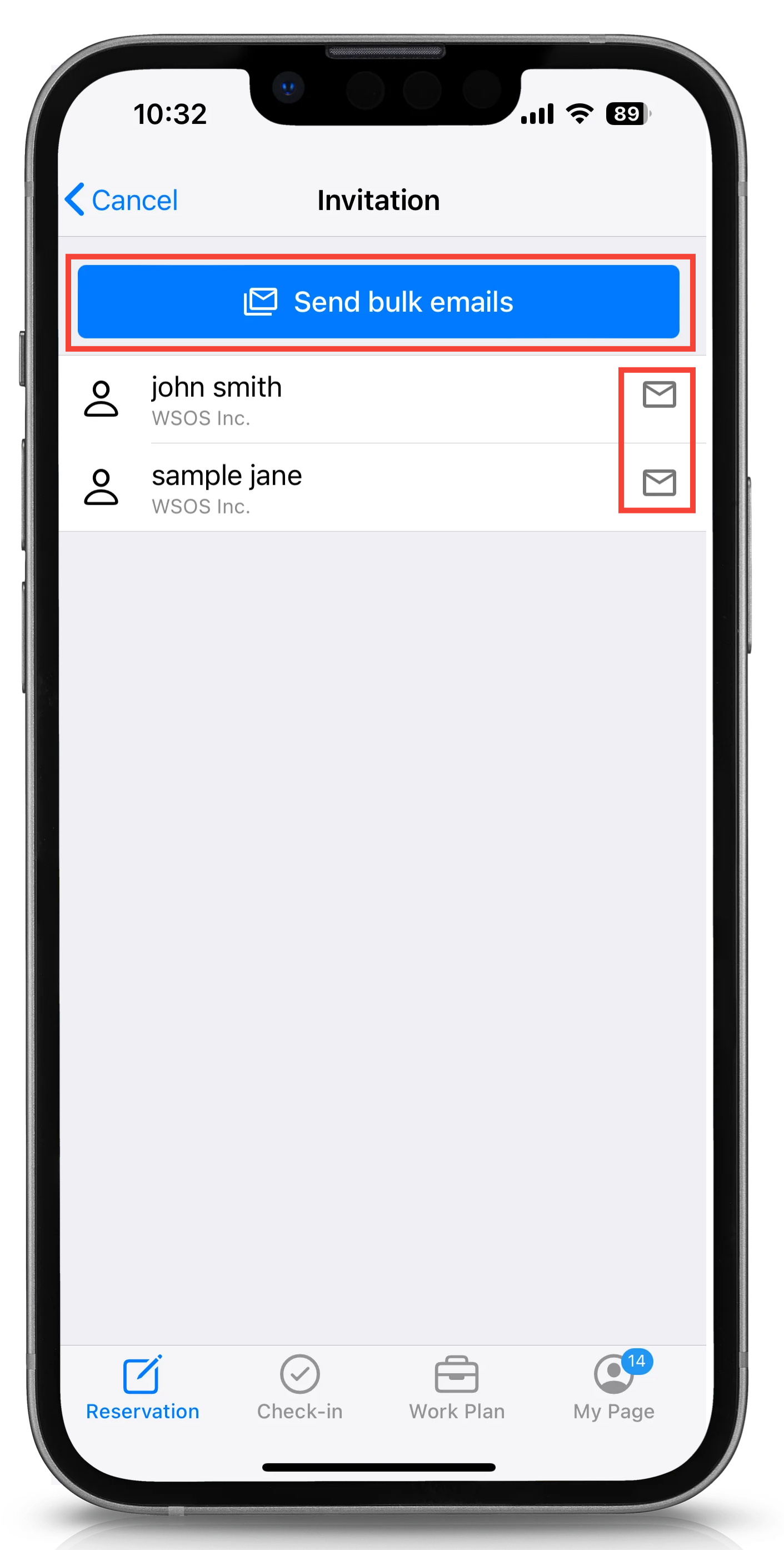
Tap "Send bulk emails" or the letter icon if you want to send individually.
Edit the subject and body of the email as desired and tap [ Send ] in the upper right corner.
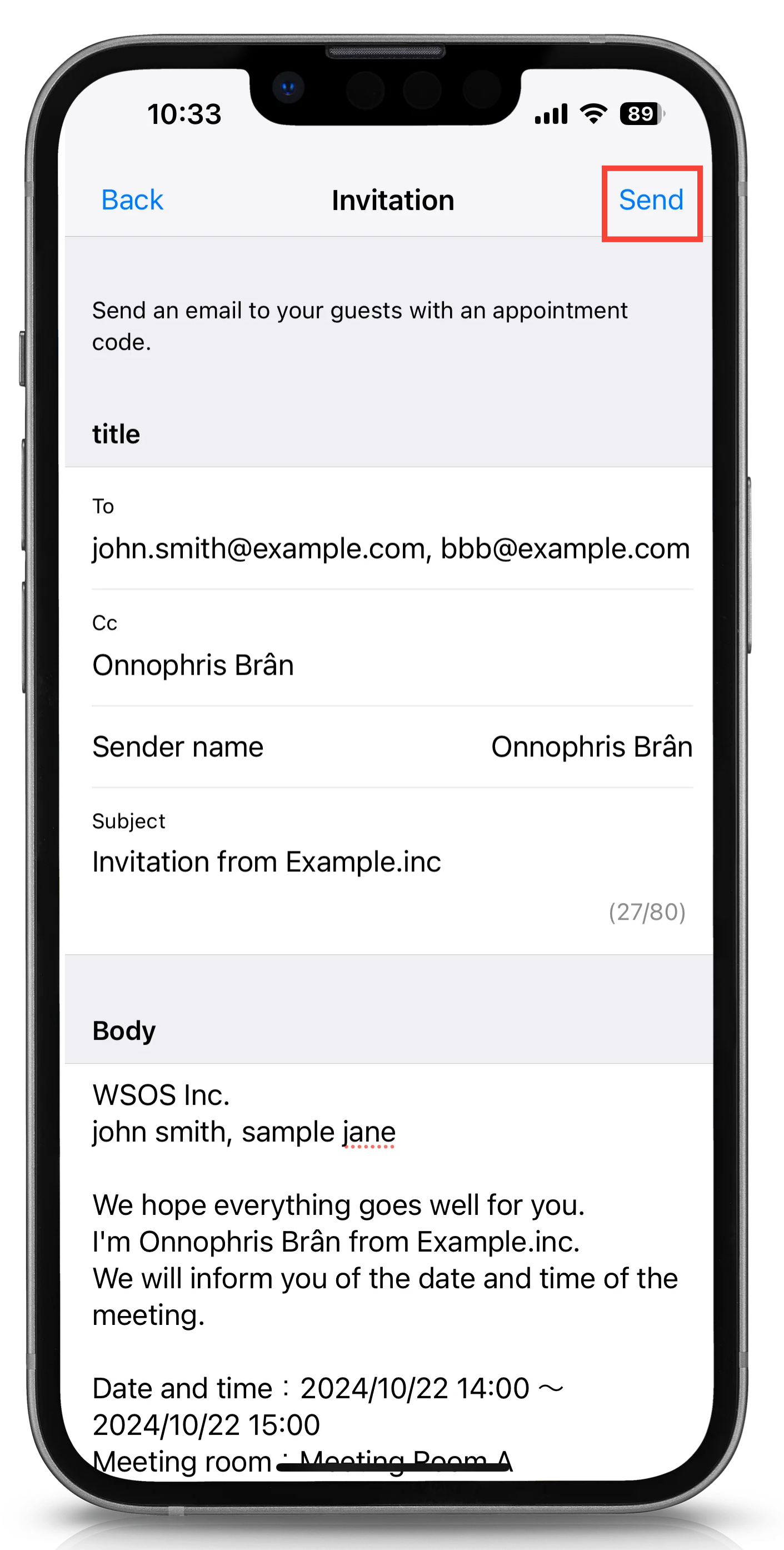
If you see "Sent invitation successfully", sending invitation mail is completed.
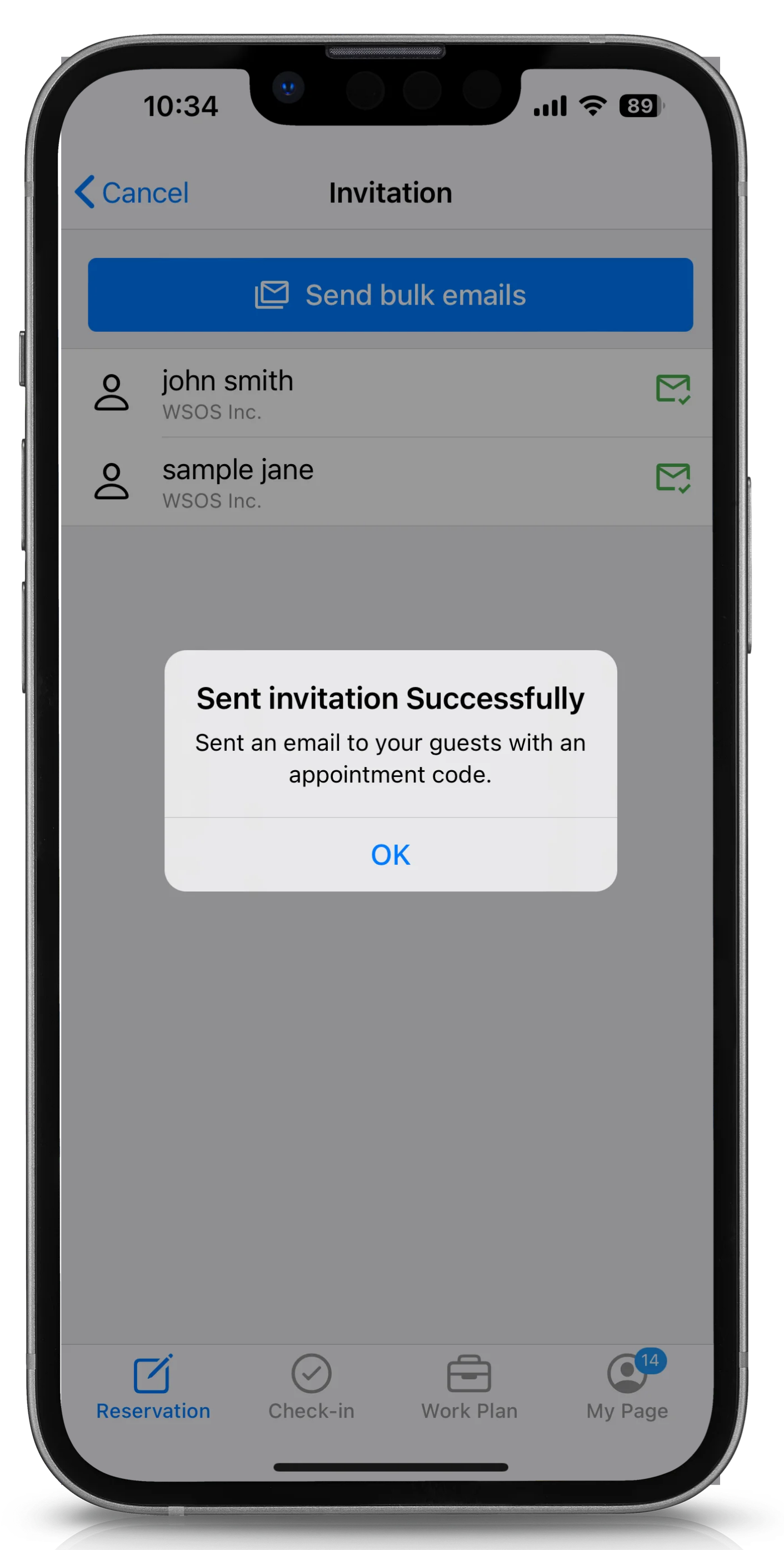
Use meeting room and equipment immediately
To use a workspace immediately, tap the workspace you want to use and then tap [Use Now].

Select each of the following.
- Type (External/Internal)
- Start Time (Right Now/15 mins later/30 min later)
- Meeting duration (30 minutes/1 hour/2 hours/3 hours)

If "Reservation successful" message pops up, your reservation is complete.

To edit the reservation, tap [Continue Edit].
If you want to add guest/person in charge, tap [Continue Edit] and edit the detail.
Edit workspace reservations on Acall Mobile
Open Acall Mobile app and open [My Page].

Find the reservation you want to edit and tap the edit icon  in the lower right corner.

Edit the reservation and tap [Save] in the upper right corner.

"Changes saved successfully" message will popup. Tap [OK] to complete.

・You can also view and edit reservation information on [Workspace] tab in [Reservation] menu.
・You cannot edit past reservations.
Send appointment code to guests later
Open My Page, find the reservation for which you want to send an appointment code to the guest, and tap the letter icon in the lower right corner.
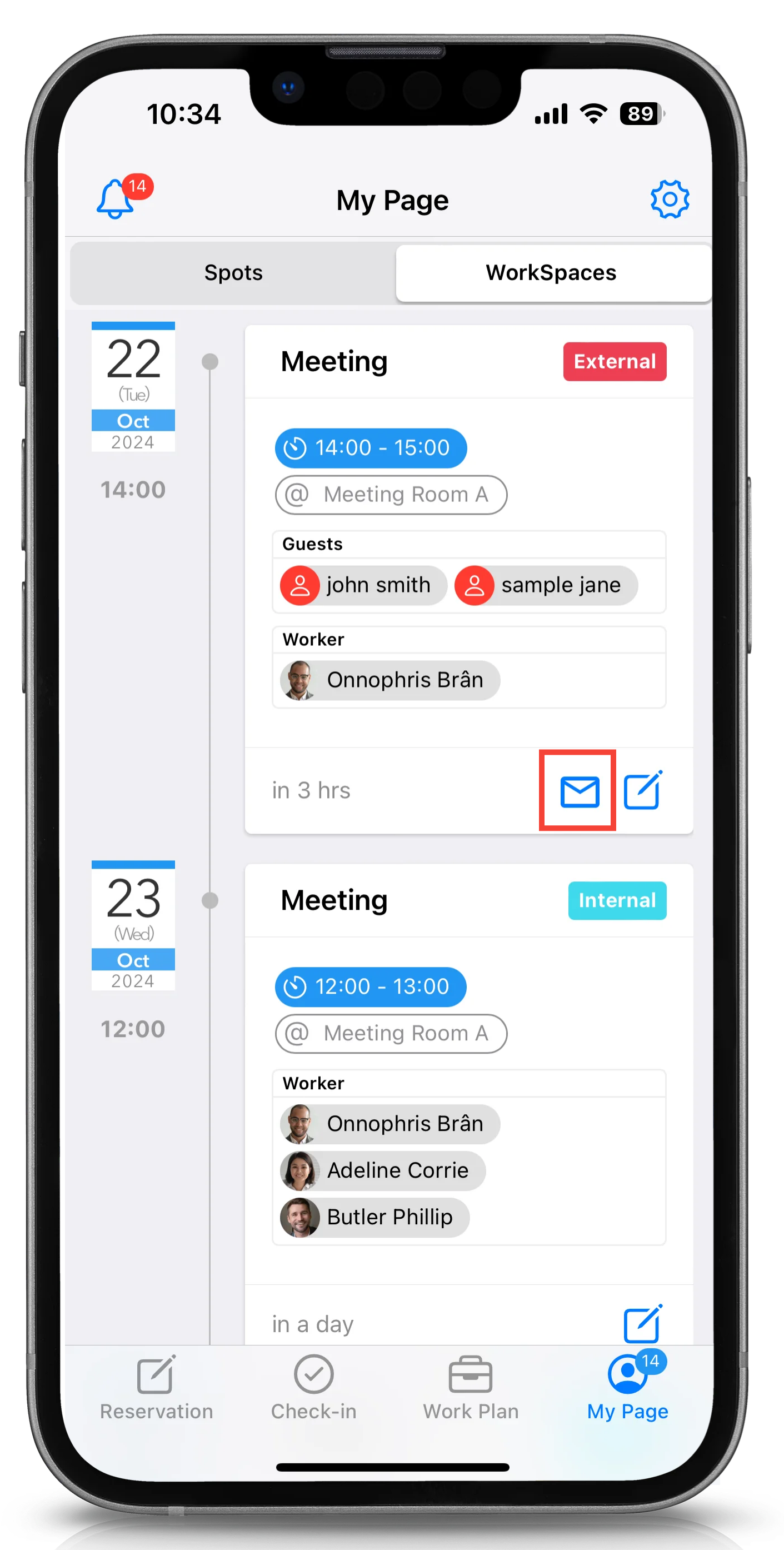
Tap "Send bulk emails" or the letter icon if you want to send individually.
Edit the subject and body of the email as desired and tap [ Send ] in the upper right corner.
If you see "Sent invitation successfully", sending invitation mail is completed.
Delete workspace reservation on Acall Mobile
Open Acall Mobile app and open [My Page].

Find the reservation you want to edit and tap the edit icon in the lower right corner.

Scroll down on the reservation screen and tap [Cancel booking] to complete the deletion.

・You can also delete reservation on [Workspace] tab in [Reservation] menu.
Reservations that have already started cannot be deleted on Acall Mobile.

Please delete on Acall Portal if you need. For details, please refer to "Delete reservations on Acall Portal".