- Help Center > Meeting Room Check-in / Acall Meeting > General User > Acall Portal > Check-in/check-out and Extend a Workspace Reservation from Acall Portal
Check-in/check-out and Extend a Workspace Reservation from Acall Portal
- Category :
Answer
Contents
This page explains how to check in/check out and extend a workspace reservation from Acall Portal.

The administrators must configure Acall Portal as the check-in/check-out method for the workspace in advance.
For more details, please refer to "Register / Edit Workspace."
What is Check-in / Check-out?
The start of the reserved workspace usage is referred to as "check-in," and the end of the usage is referred to as "check-out."
Check-in / Check-out and Extend
Check the reservation on the Guest Check-in screen
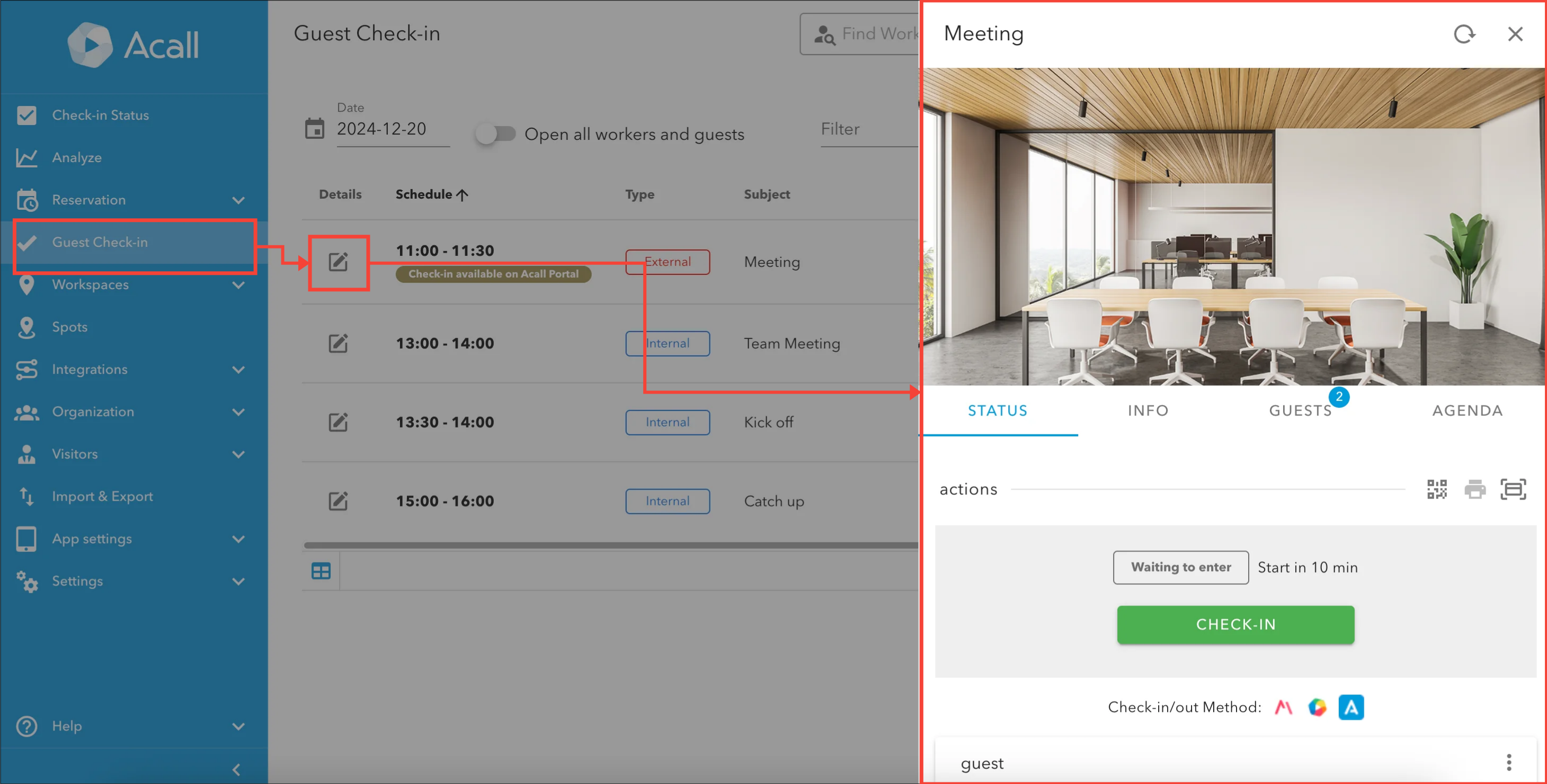
Click on [Guest Check-in] in the side menu of Acall Portal, then click the [Details] icon of the reservation you wish to check in/check out or extend.
In the reservation details screen, you can check in, check out, or extend in the [STATUS] tab.
Check-in
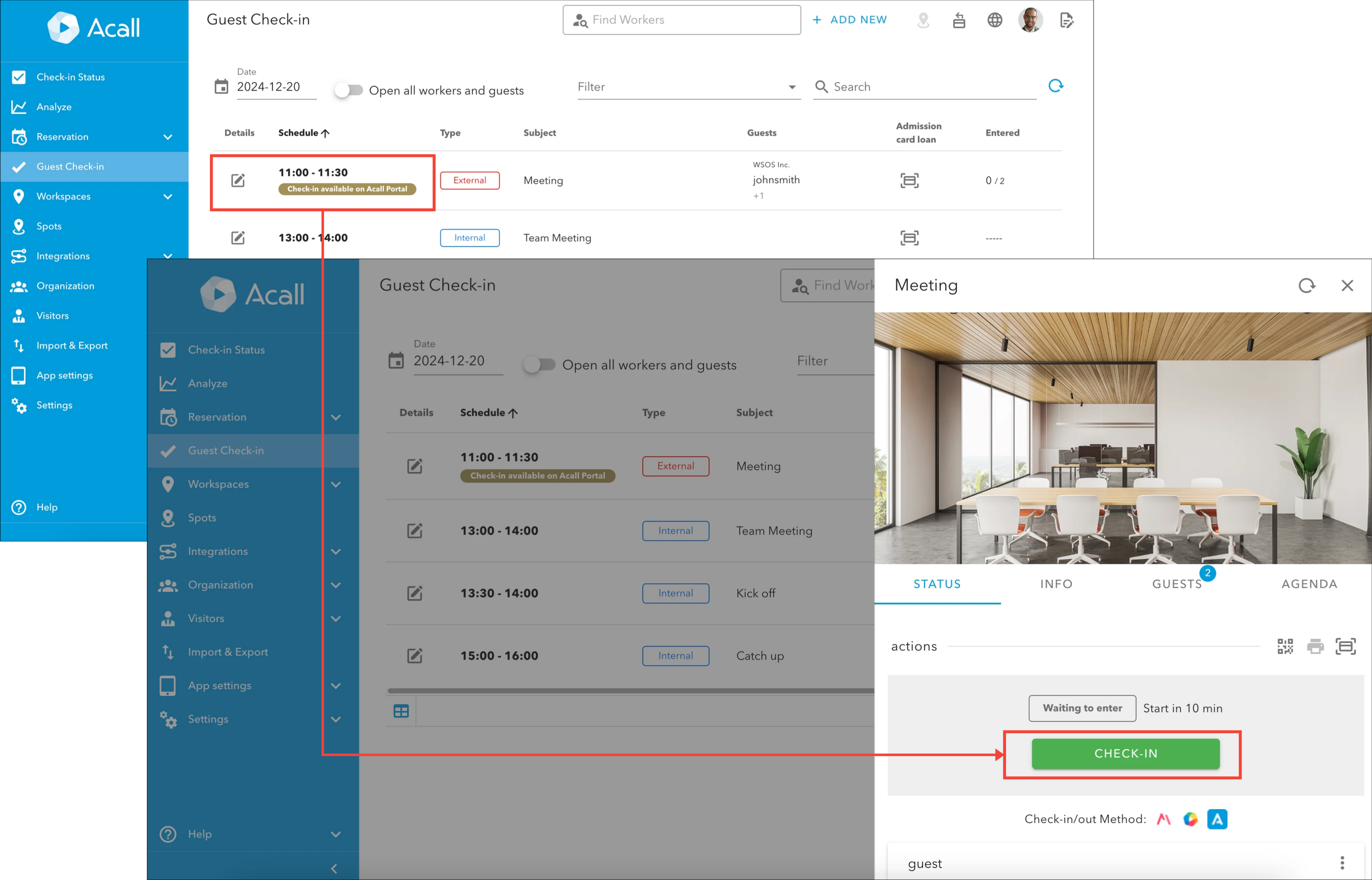
You can check in starting 15 minutes before the reservation start time, and a label will be displayed as shown below.
 Note
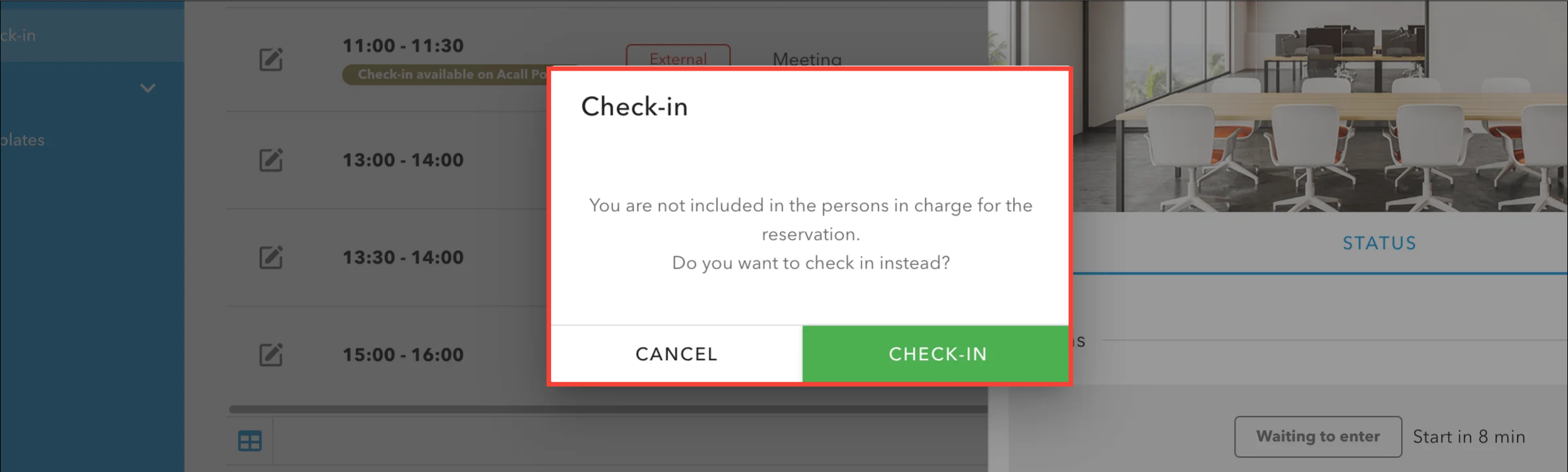
Even workers who are not the reservation's person in charge can check in.
If a worker who is not the person in charge clicks [CHECK-IN] for a reservation, the popup below will appear.
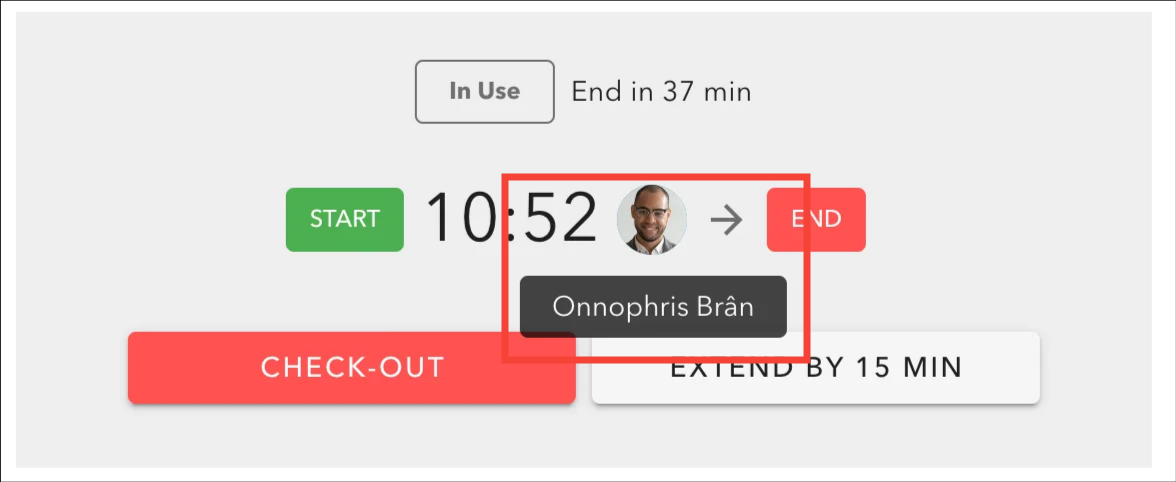
Once the check-in is complete, the check-in time and the icon of the worker who did the check-in operation will be displayed.

When you hover your cursor over the worker icon, the worker's name will be displayed.
Check-out
Reservations that have been started / checked in via Acall Meeting or Acall Mobile can also be checked out on Acall Portal.
The check-in method varies depending on the workspace settings.
Click [CHECK-OUT] in the "STATUS" tab.
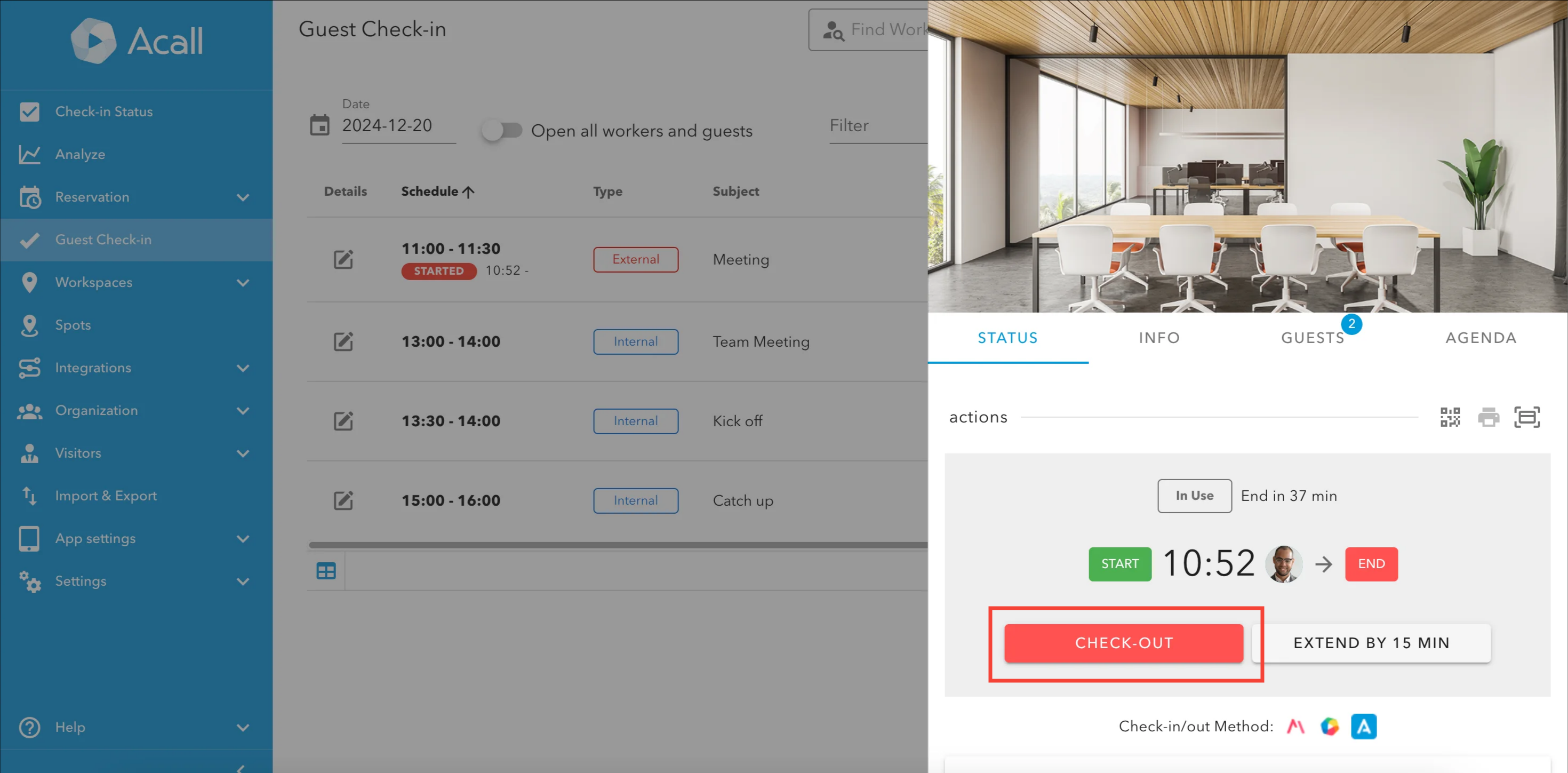
Even workers who are not the reservation's person in charge can check out.
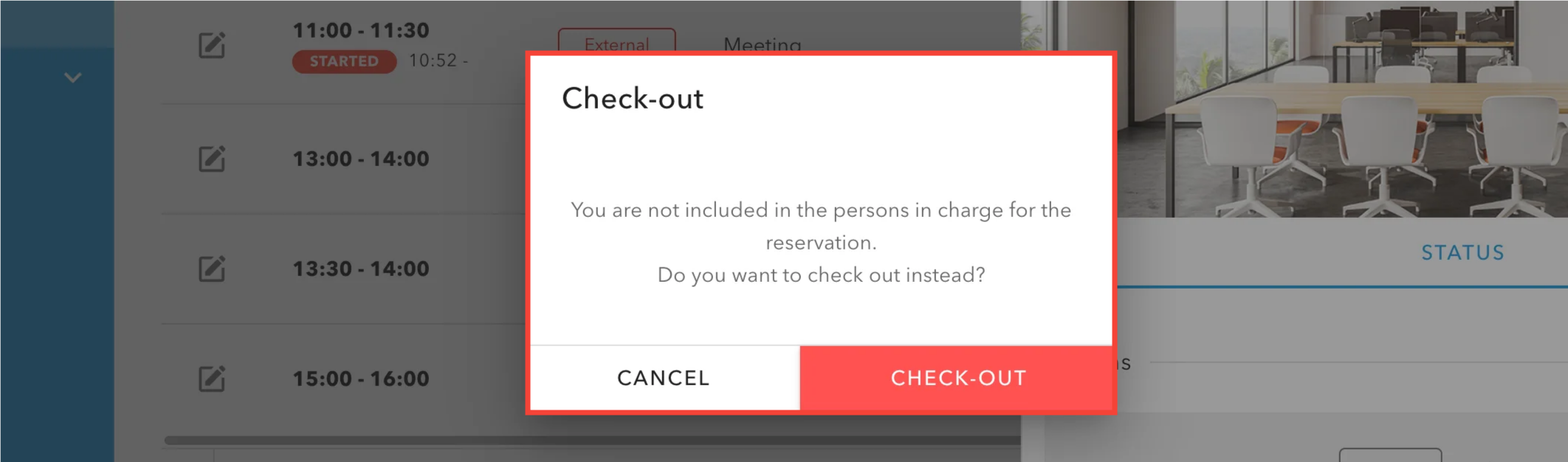
If a worker who is not the person in charge clicks [Check-out] for a reservation, the popup below will appear.
Once the check-out is complete, the check-out time and the icon of the worker who did the check-out operation will be displayed.
Extend
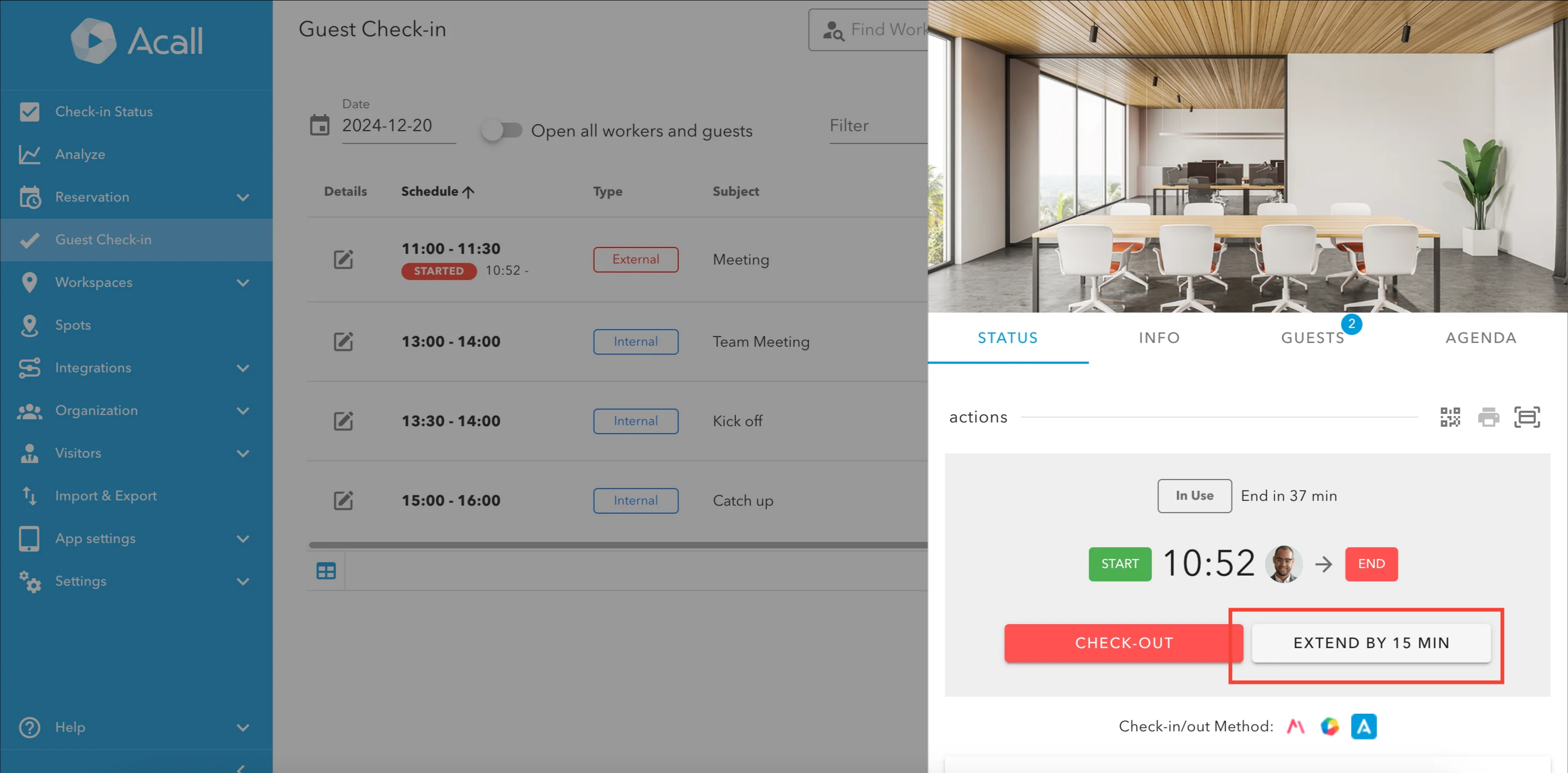
You can extend the reservation after checking in.
In addition to the scheduled usage time, the reservation can be extended in 15-minute increments, up to a maximum of 120 minutes or until the start time of the next reservation.
Once the extension is complete, 15 minutes will be added to the "Ends in N minutes".

If auto extension is set to ON in the workspace settings, the reservation will be automatically extended in 15-minute increments until the start time of the next scheduled meeting or by the end of the day.