
- Help Center > Meeting Room Check-in / Acall Meeting > Administrator > Others > Delete Resigned Worker's Reservation
Help Center
Delete Resigned Worker's Reservation
- Category :
Answer
Contents
Even when the worker's status is changed to "resigned", the worker's visitor appointments and meeting room reservations remain undeleted.
This page explains how to delete resigned worker's schedule from Acall.
Check resigned worker's schedule
On the workspace reservation screen, resigned worker's name still remains on the appointment/reservation.

Note
Resigned worker's name will not appear in the appointment details or the guest check-in screen.
Workspace log outputs the name of the resigned worker as the person in charge of the appointment/reservation.
You can check resigned worker's schedule using workspace log.
Delete resigned worker's schedule
Customers who use Outlook calendar
Deleting schedule from Outlook calendar will also delete the schedule from Acall.
Please consider deleting the schedule from the Outlook calendar with administrator permission, or have your successor manage the schedule by granting access permission
Customers who use Google calendar
When removing the user from Google Workspace, please refer to the following to transfer the calendar events to another user.
Customers who use Acall
You can select the resigned worker and delete schedule on Acall.
Deleting schedule from Acall will also delete the schedule from Outlook/Google Calendar.
・ Schedule for which only the resigned worker is set as the person in charge will be deleted. If the schedule has other people in charge, it will not be deleted.
・ Schedules for the next day or later will be deleted.
Click [Organization] > [Workers] on the side menu of Acall.
Click on the three dots at the upper right and turn on "show resignee" toggle.
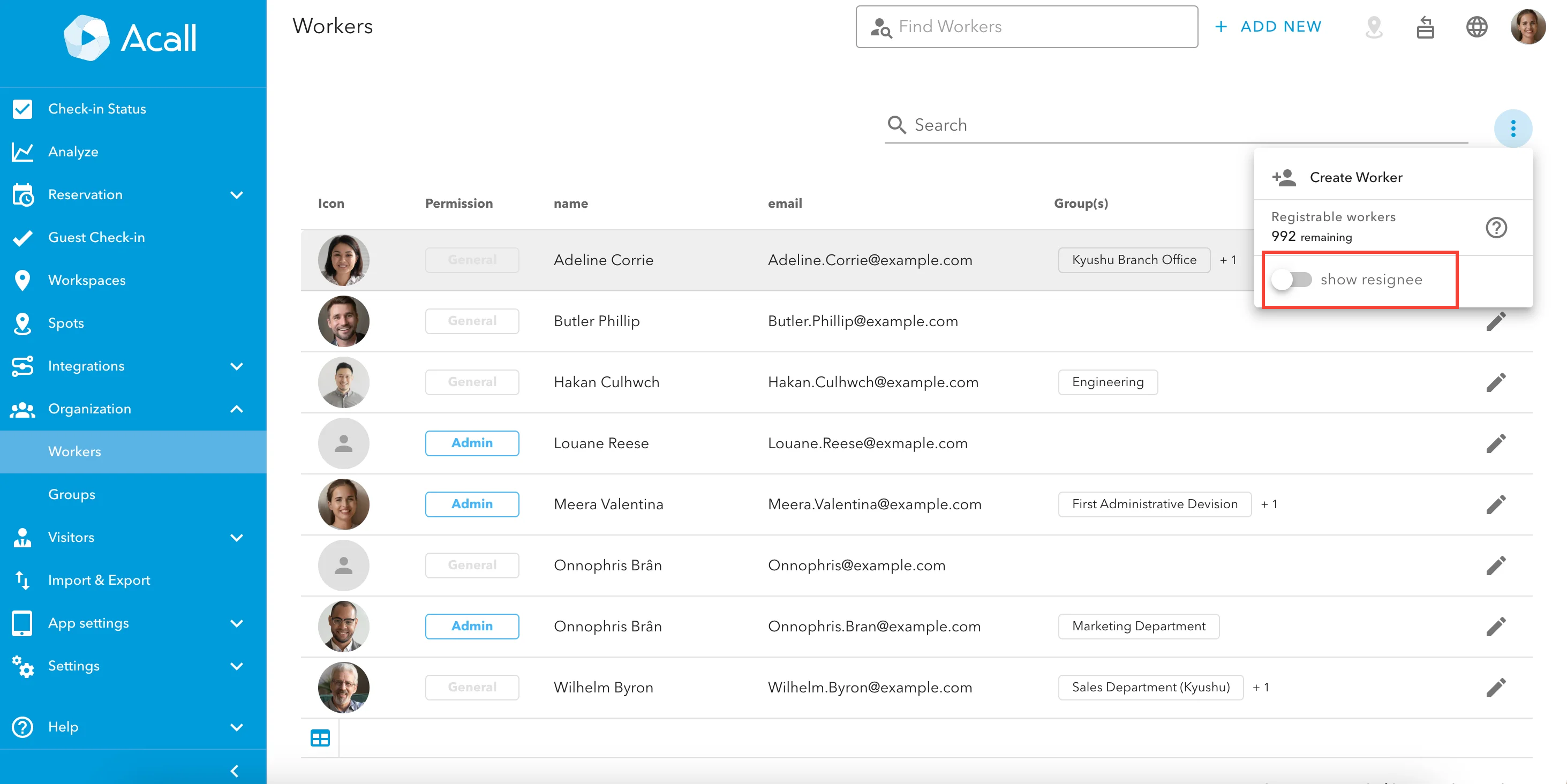
Click the calendar icon.

Click [OK].

Deleted schedule will disappear from the reservation screen, but the data will remain on the guest check-in screen with "cancelled" status.
It will also be output in the workspace log as cancelled schedule.


