- Help Center > Meeting Room Check-in / Acall Meeting > Administrator > Settings > Set Up Workspace Reservation Notification
Help Center
Set Up Workspace Reservation Notification
- Category :
Answer
Contents
This page describes how to set up workspace reservation notification.
Reservation Notification
When workspace reservation is created, updated, or deleted, the reservation, workers who created the reservation and the workers who are participating can be notified.
In addition, multiple reminders can be sent to workers creating or participating the meeting at any desired timing, such as "N days before the reservation" or "1 hour before the reservation".
In Acall Portal, the action-by-action notification function for workspace reservations and the reminder notification function are collectively referred to as "Reservation Notification".
 Note
- Reservation Notification is a function that can be set by workers with admin permission.
- Reservation Notification cannot be set per reservation or per worker, but are set on a company basis.
- In the case of multi-tenancy, reservation notifications are only enabled for the company that has company that has set it up and does not affect other companies.
- Reservation notifications are not sent to external guests.
- Notifications may be delayed depending on the situation.
Set Up Reservation Notification
Change notification
Notifications can be set up for each action for workspace reservations.
| Item | Notification Timing |
| Create |
When you create a workspace reservation on Acall Portal / Outlook Calendar / Google Calendar |
| Update | When you update a workspace reservation on Acall Portal / Outlook Calendar / Google Calendar |
| Delete | When you delete a workspace reservation on the Acall Portal. |
- Change notification cannot be added or deleted.

- Change notification is not available when using the external calendar integration function.
- Many notifications will be sent when a large number of appointments (reservations) are created with the import function. So please temporarily disable change notifications.
- If you edit and update a repeat reservation selecting "following", you will only receive a change notice with the content of the first reservation after update. (This will be fixed in the future.)
   -For example, if you have a repeat reservation from January 1 to January 4, and you edit January 2 one with "following", you will receive a change notification with updates for January 2 only.
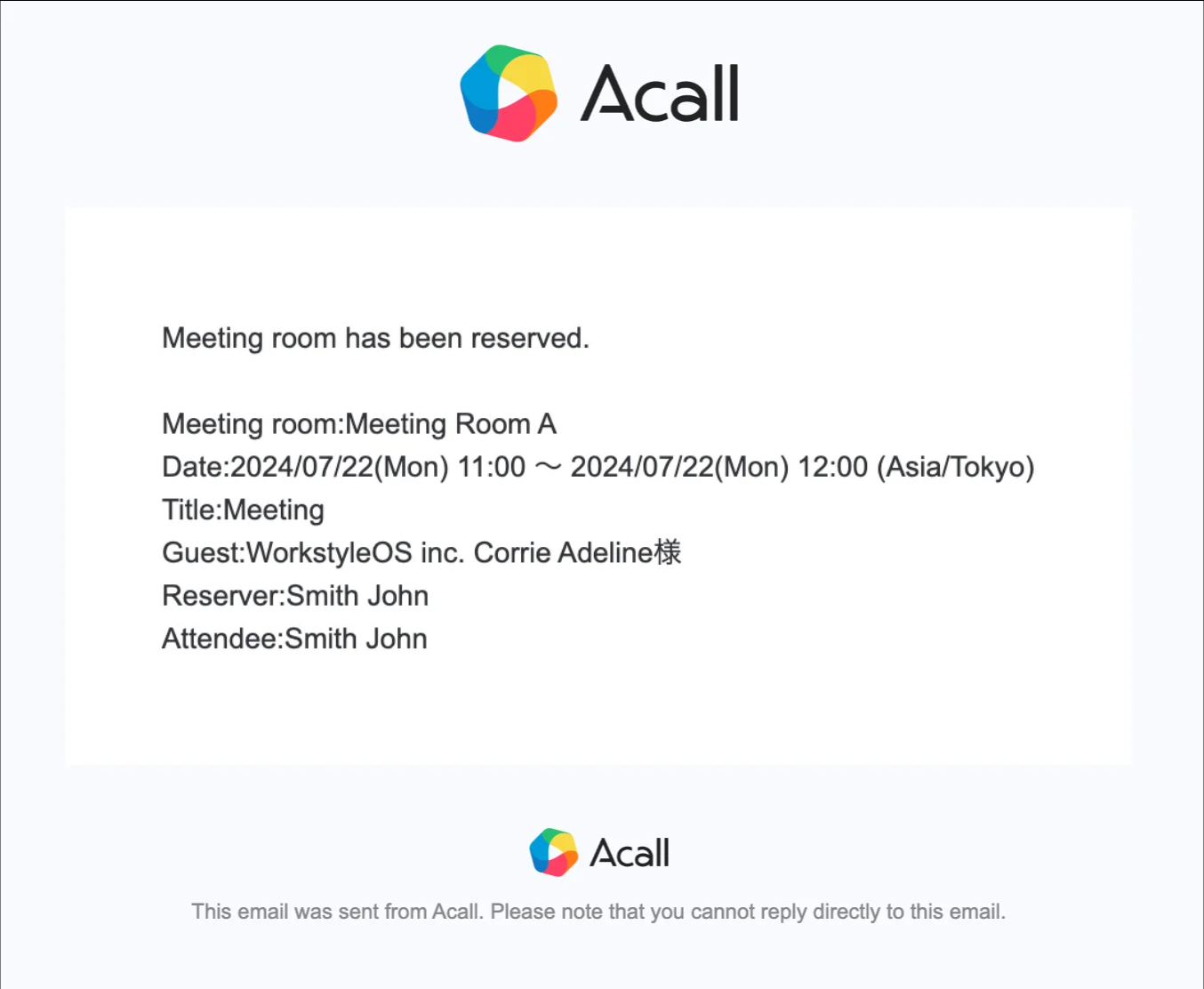
For example, when you create a reservation, you will receive the following notification via email
Edit change notification
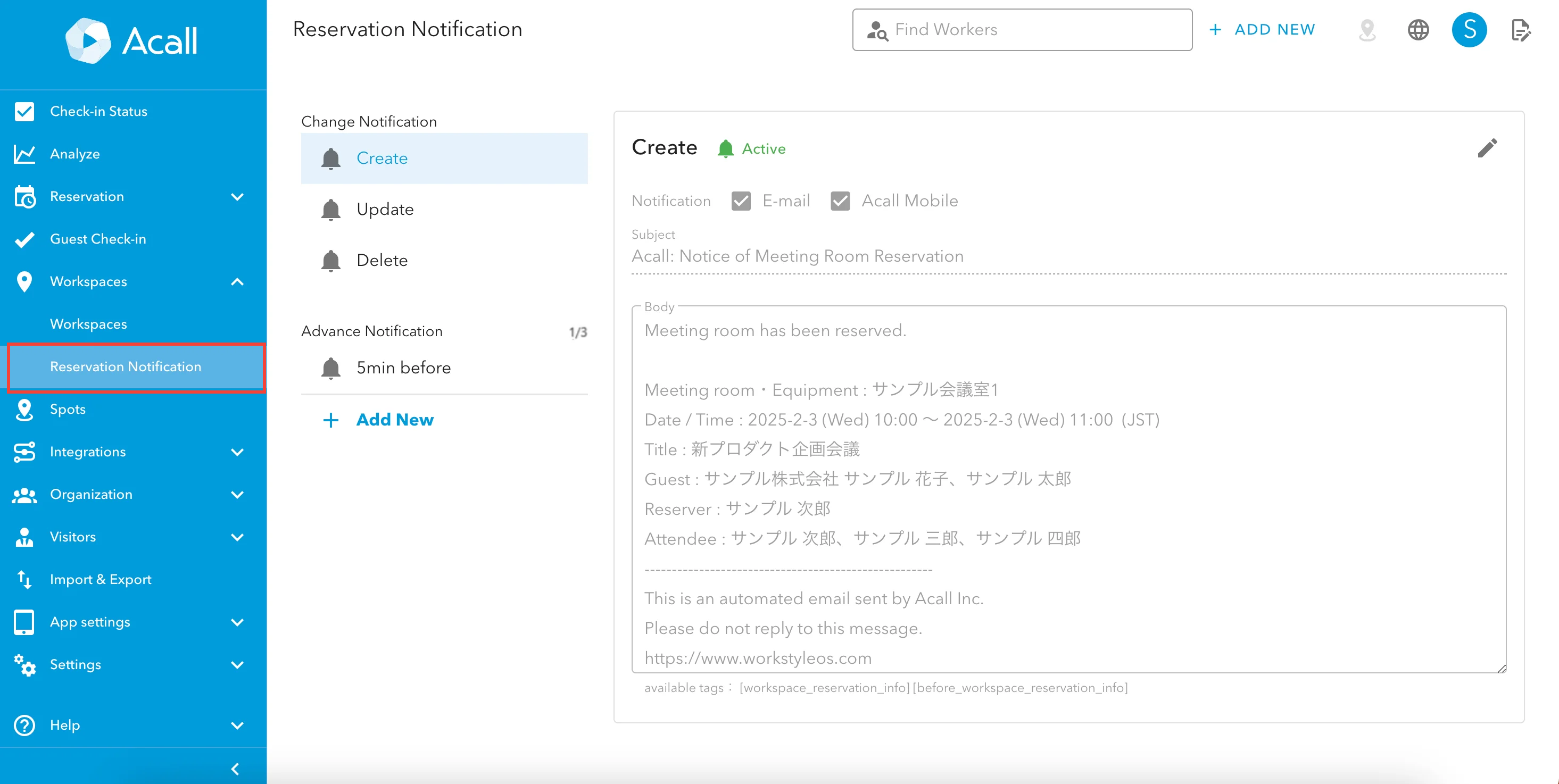
From the Acall Portal side menu, click [Workspaces] > [Reservation Notification].
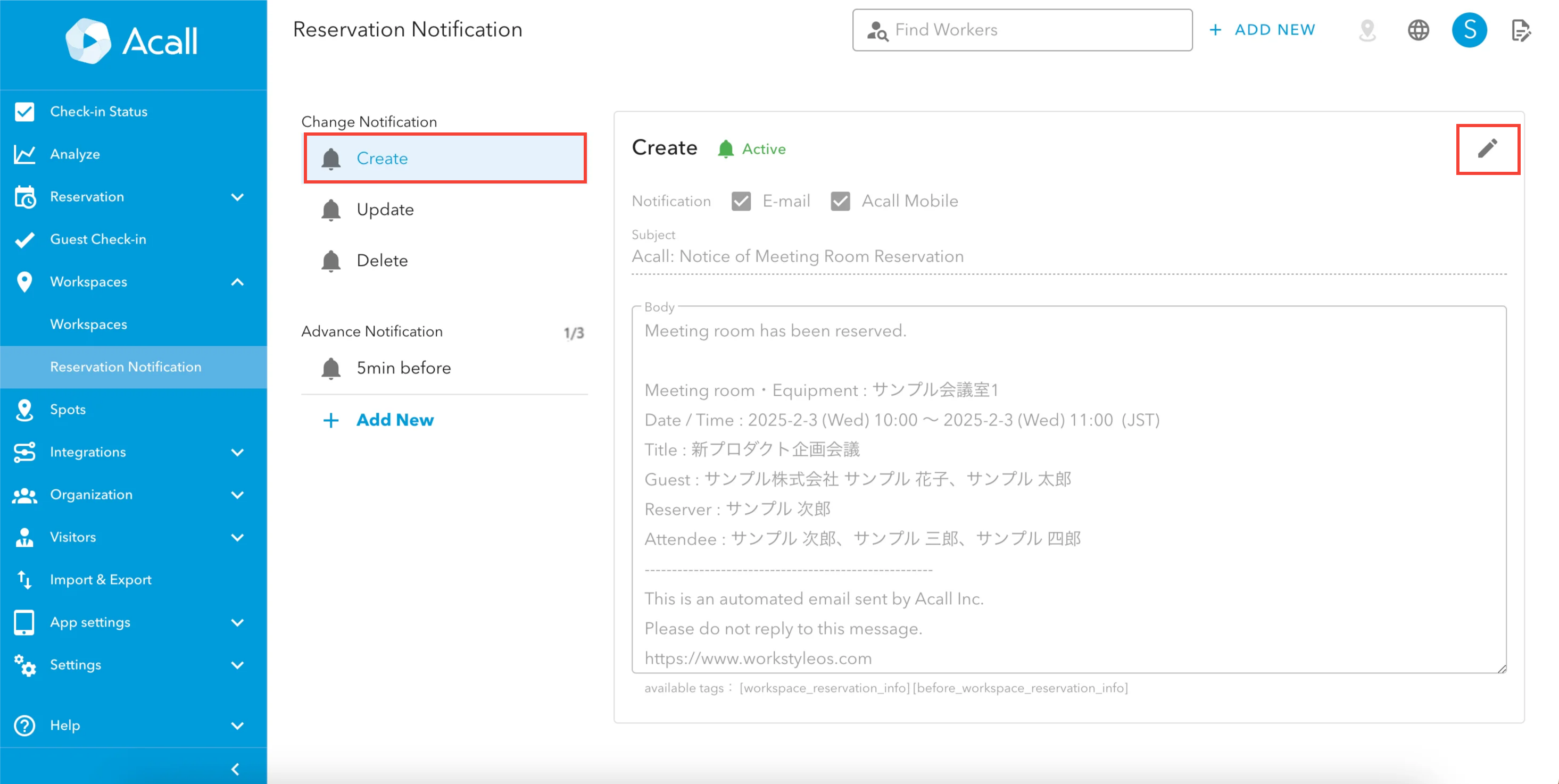
Click on the change notification you want to edit and click Edit (pencil icon).
Enter for the required fields and click [UPDATE].
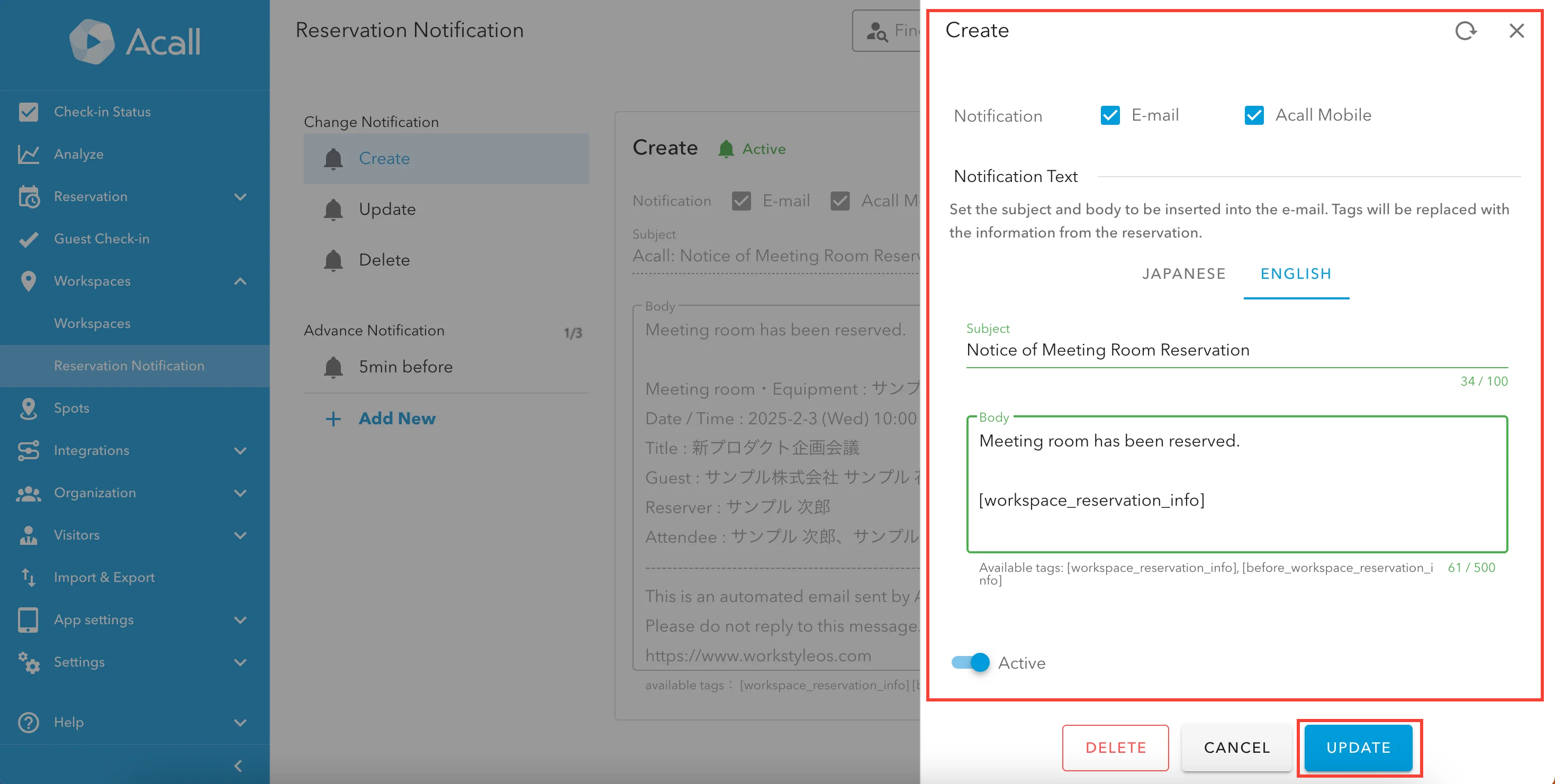
Change Notification Items
| Item | Description |
| Notification |
Select Notification Destination
Please be sure to select one of the options. Email: Notification will be sent to the email address of the worker who created the reservation or participate the meeting. Acall Mobile: Notification will be sent to the Acall Mobile of the worker created the reservation or participate the meeting.
Notifications sent to Acall Mobile will also appear in each worker's Acall Portal under [My Page] > [Schedules and Notifications] > [Notifications]. |
| Notification Text |
Setup of notification text for each language
When Japanese language support is on, notification text can be set in Japanese and English respectively. In this case, the subject and body of the notification will be displayed in both Japanese and English.
Please refer to "Acall Portal Language Setting" for multi language support. |
| Subject | Subject of the notification |
| Body |
Body of the notification
You can insert reservation information when you use available tags in the body. [workspace_reservation_info]: Insert reservation information [before_workspace_reservation_info]: Insert reservation information before update. |
| Active | ON / OFF for notifications |
Advance Notification
You can set up reminder for reservations.
Up to 3 notifications can be registered.
One of the three notifications is registered for [ 5 min before ] in advance, but the notification is disabled by default.
You can edit the content of notifications and whether they are enabled/disabled.
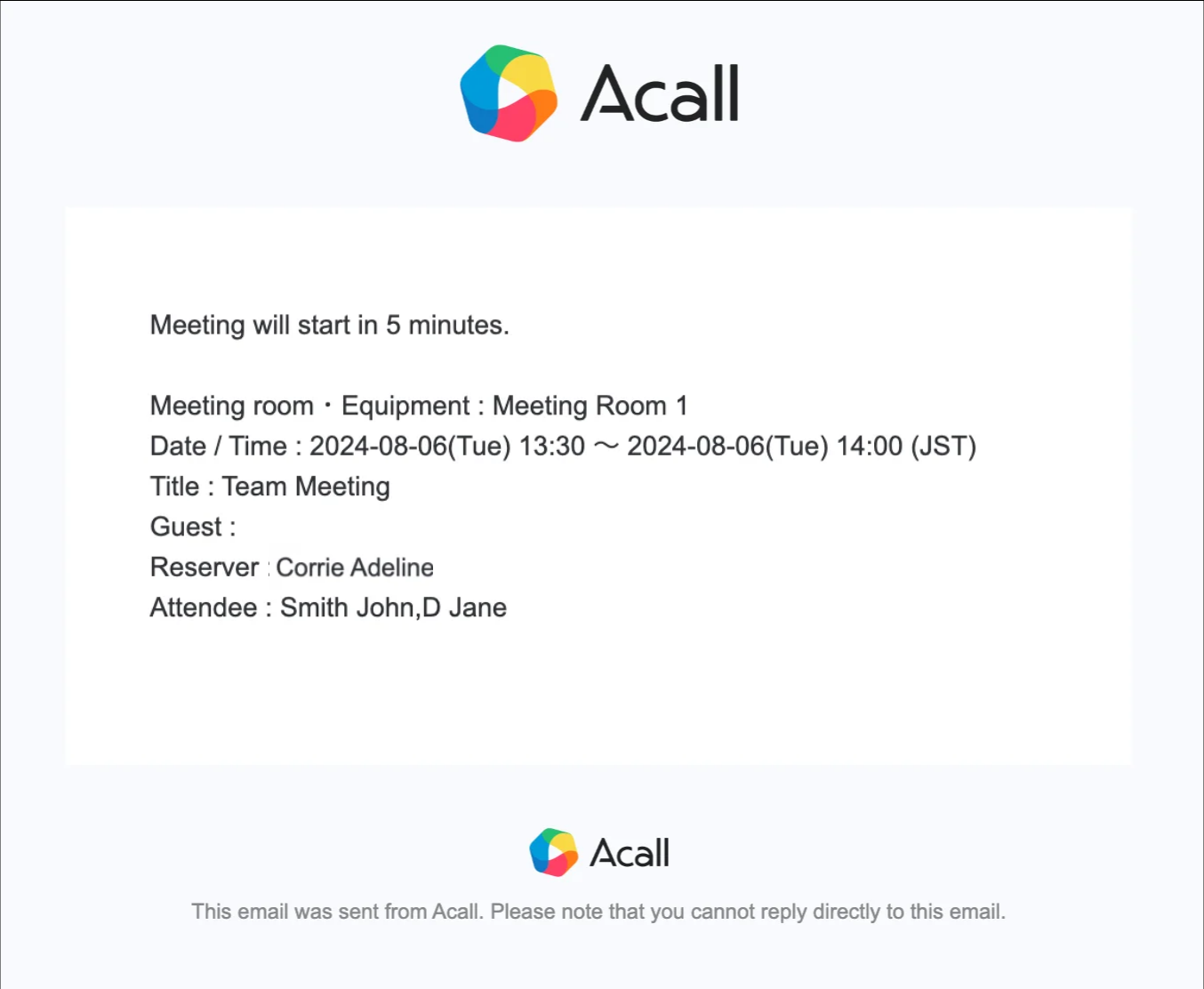
For example, when you set up a one-day advance notice, you will receive the following notification by email.
Create advance notification
From the Acall Portal side menu, click [Workspaces] > [Reservation Notification].
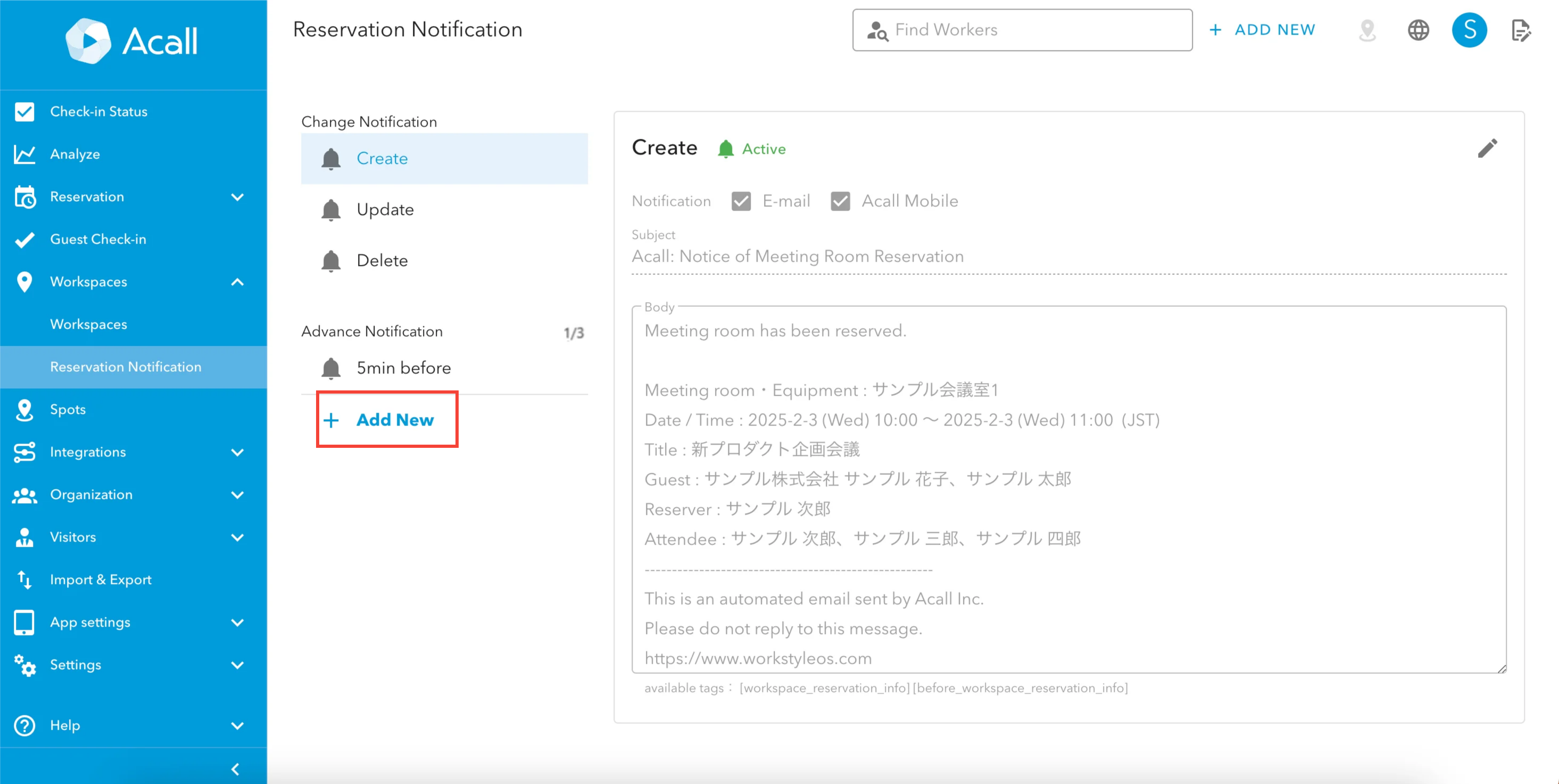
From the Advance Notification section, click [+ Add New].
Enter for the required fields and click [CREATE].
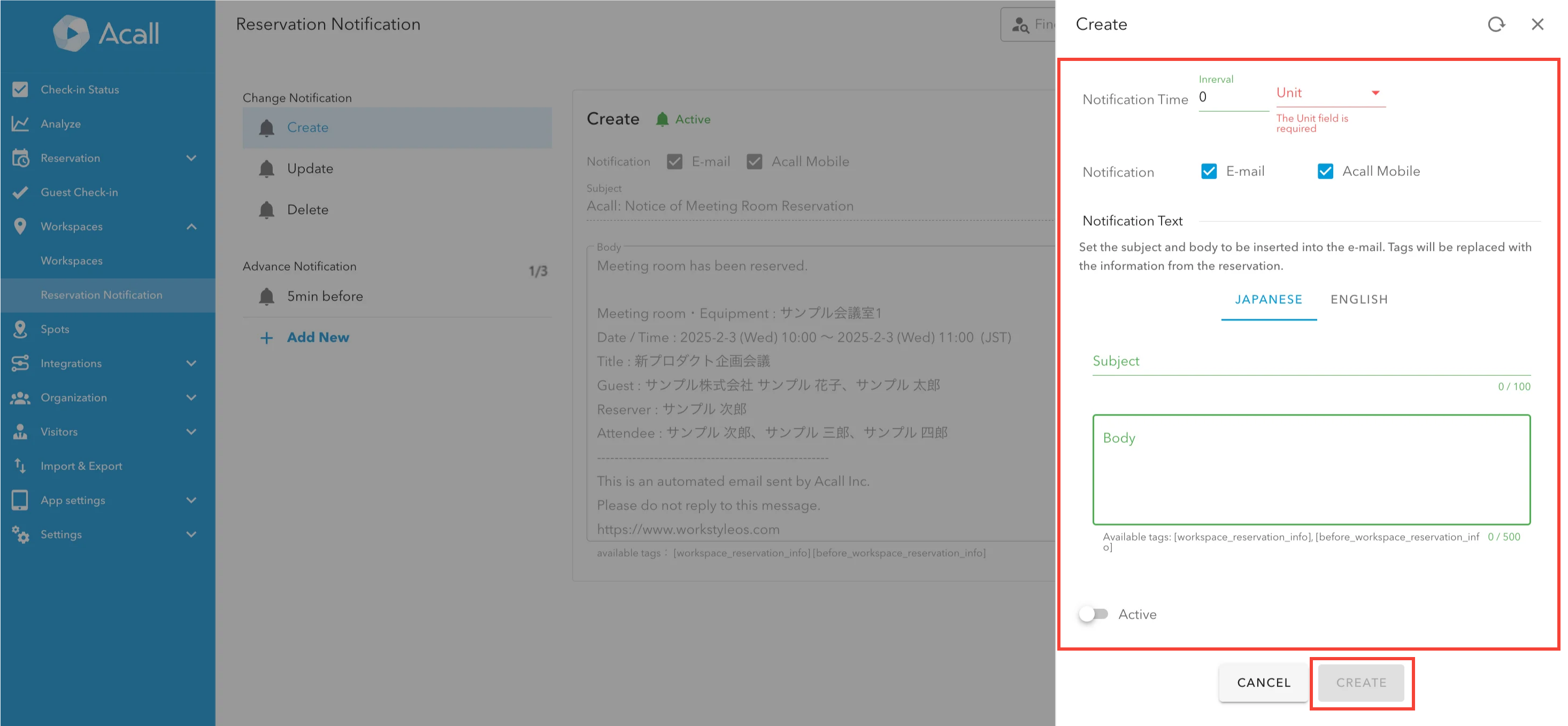
Advance Notification Items
| Item | Description |
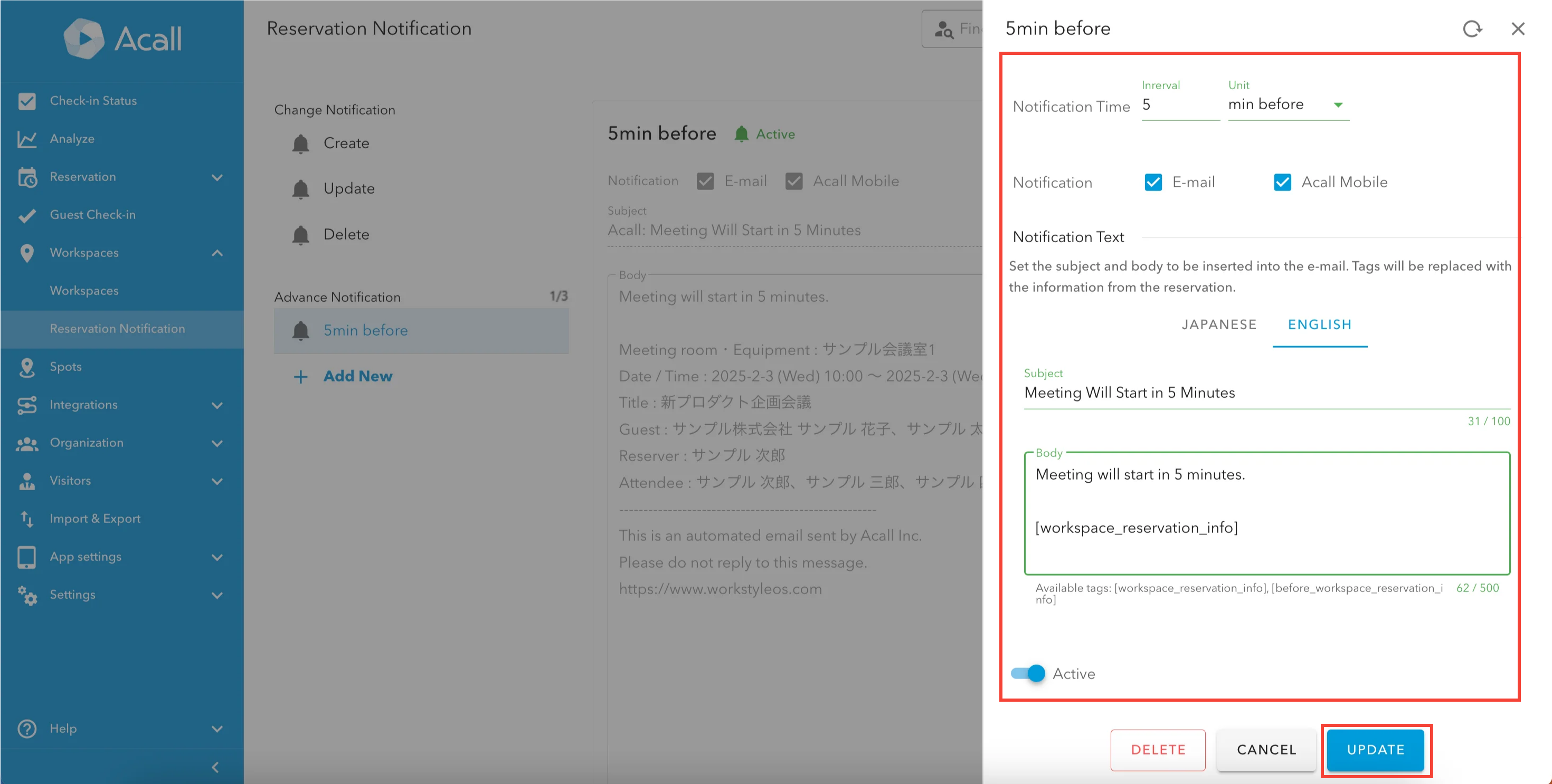
| Notification Time |
Set the timing of reminder.
The setting range for "Interval" is as follows. min before: 1~2160 hours before: 1~24 days before: 0~23:00 on 1~7 days |
| Notification |
Select notification destination.
Please be sure to select one of the options. Email: Notifications will be sent to the email address of the worker who created the reservation or participate the meeting. Acall Mobile: Notifications will be sent to the Acall Mobile of the worker created the reservation or participate the meeting.
Notifications sent to Acall Mobile will also appear in each worker's Acall Portal under [My Page] > [Schedules and Notifications] > [Notifications]. |
| Notification Text |
Setup of notification text for each language.
When Japanese language support is on, notification text can be set in Japanese and English respectively. In this case, the subject and body of the notification will be displayed in both Japanese and English.
Please refer to "Acall Portal Language Setting" for multi language support. |
| Subject | Subject of the notification |
| Body |
Body of the notification
You can insert reservation information when you use available tags in the body. [workspace_reservation_info]: Insert reservation information [before_workspace_reservation_info]: Insert reservation information before update. |
| Active |
ON / OFF for notifications |
Edit advance notification
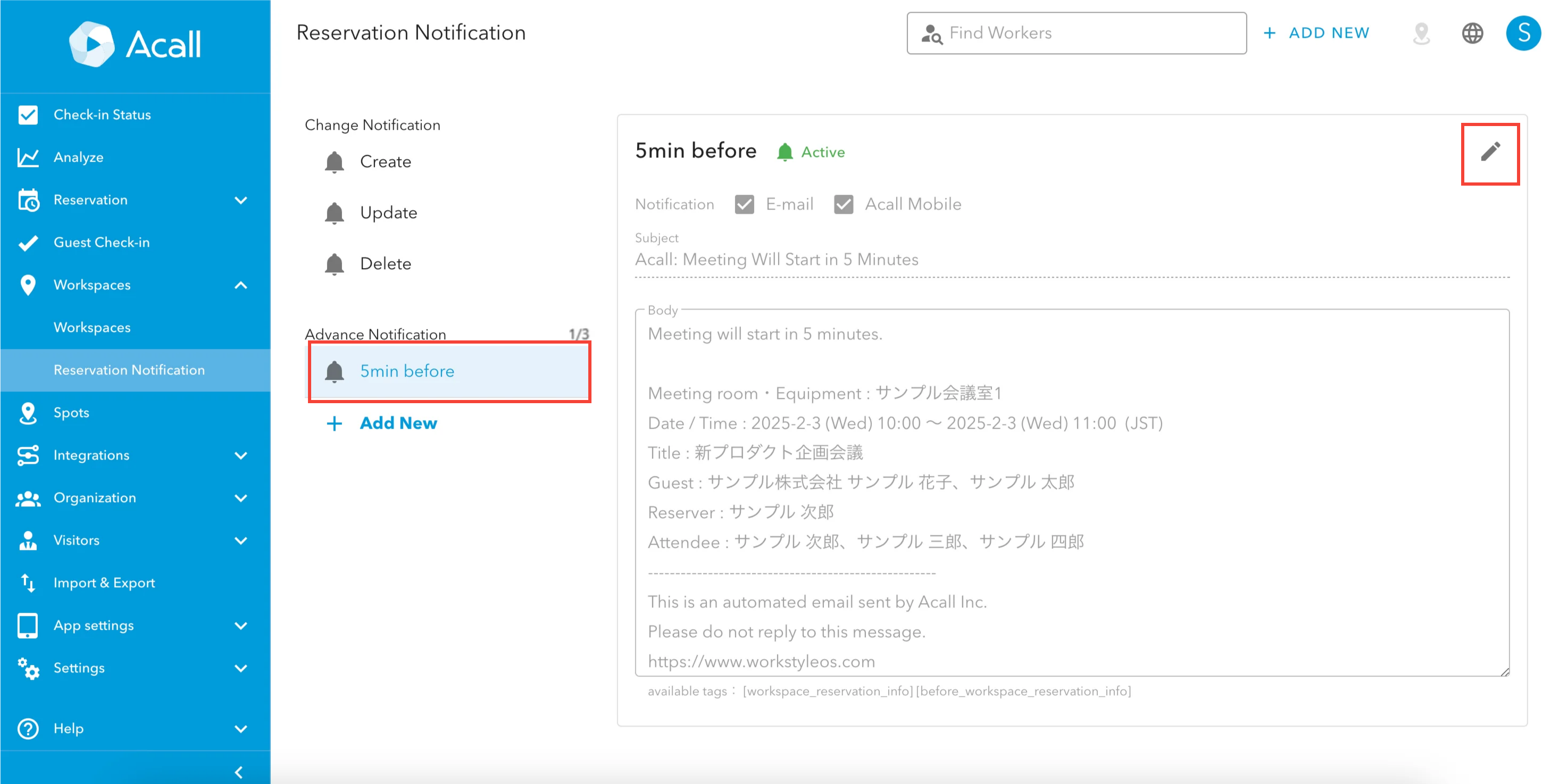
From the Acall Portal side menu, click [Workspaces] > [Reservation Notification].
Click on the advance notification you want to edit and click Edit (pencil icon).
Enter for the required fields and click [UPDATE].
Delete advance notification
From the Acall Portal side menu, click [Workspaces] > [Reservation Notification].
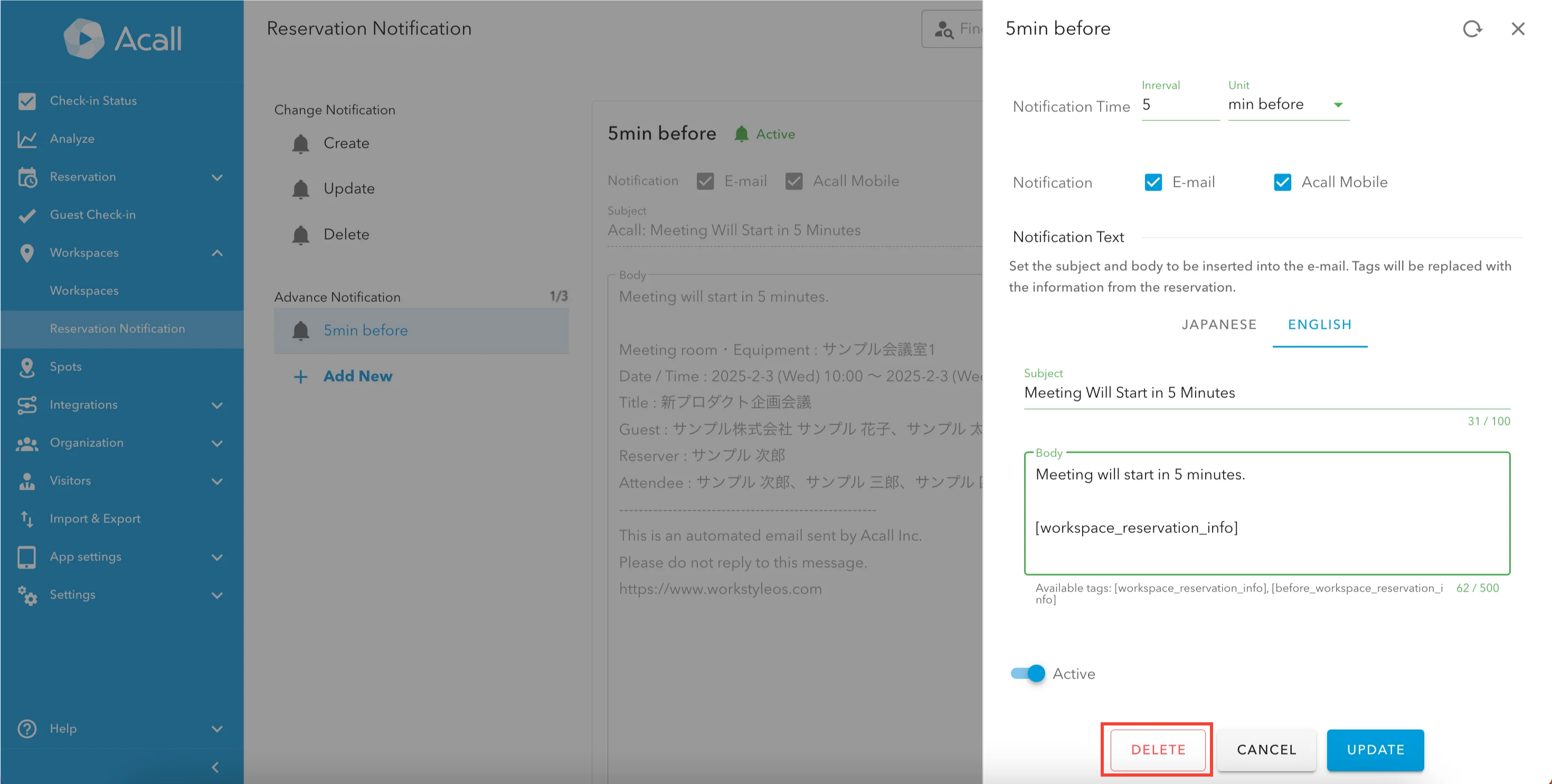
Click on the advance notification you want to delete and click Edit (pencil icon).
Click [DELETE].
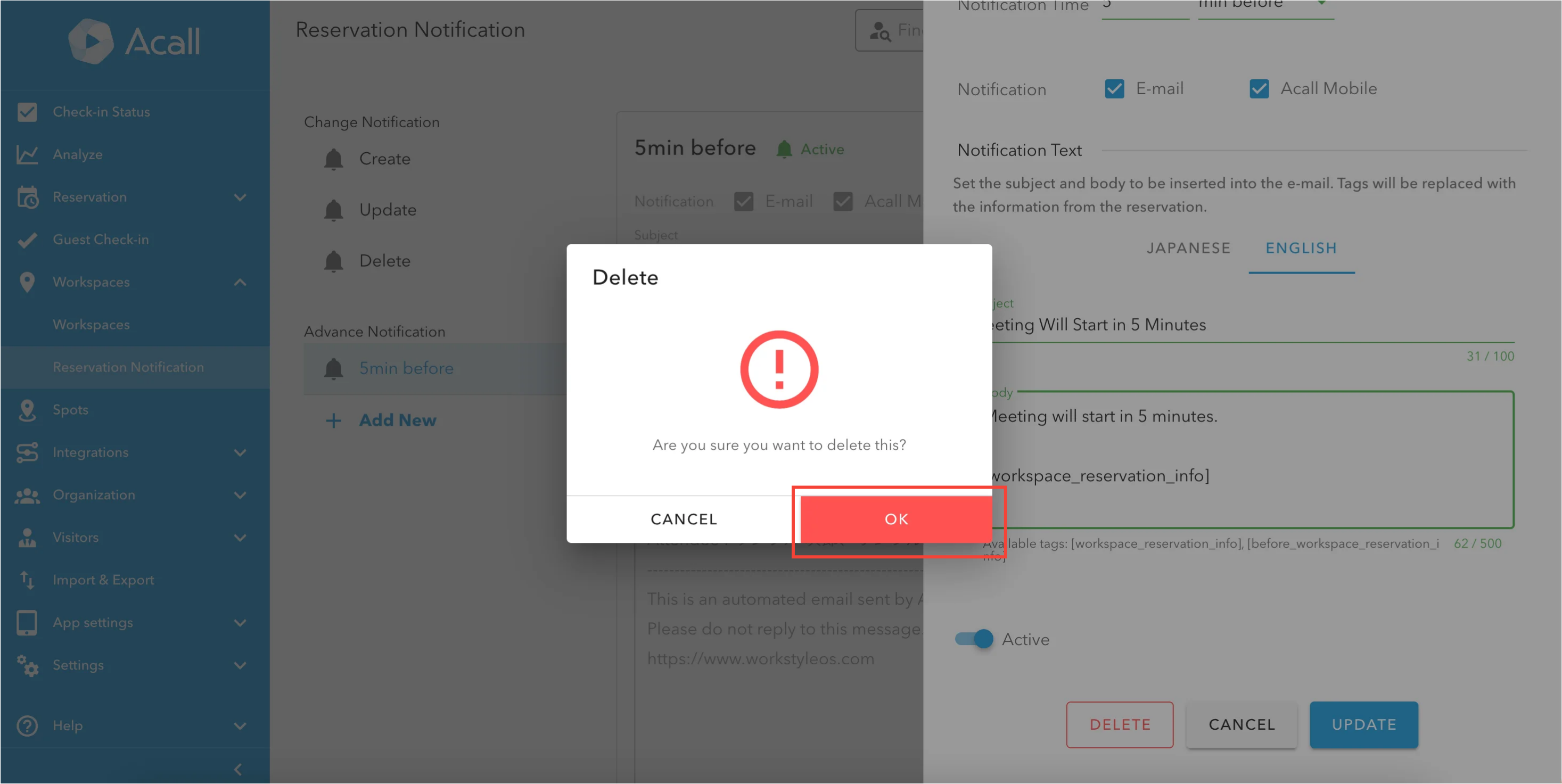
Click [OK].